

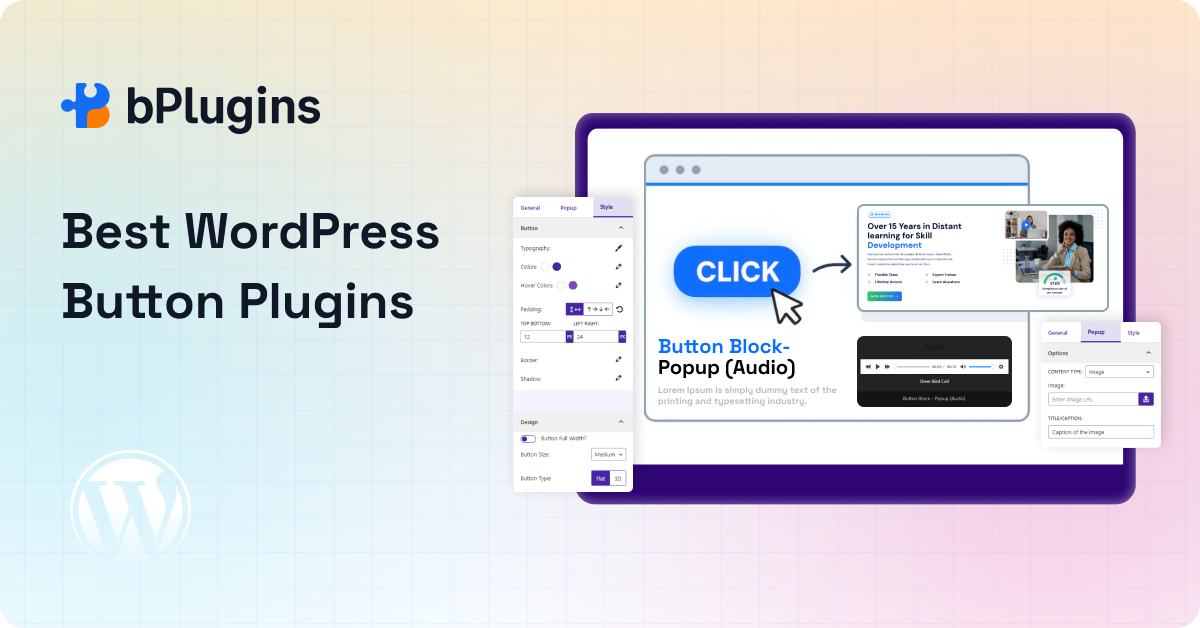
The default WordPress button block gets the job done if all you need is a link with a color change on hover. But the moment your CTA needs to do more, trigger a popup, hand over a file download, animate on scroll, or match your brand down to the pixel, the core block runs out of road fast.
That’s the gap a dedicated button plugin fills. Whether you’re driving newsletter signups, course downloads, or product checkouts, the button is often the single most important pixel on the page. It deserves more than Gutenberg’s defaults.
We tested and compared the top WordPress button plugins available right now, looking at popup support, download handling, animation depth, and how well each one plays with the native block editor. Here’s what we found.
What Separates a Button Plugin From the Default Block
Before we get into the list, it helps to know what you’re actually shopping for. A proper WordPress CTA button block should offer more than color and corner radius. Look for:
- Animation and hover effects that go beyond a simple color shift
- Built-in popup trigger support, so you’re not stacking three plugins to open a modal
- Download or file attachment handling for lead magnets and resource pages
- Icon and text combinations with control over icon placement
- Custom sizing, border radius, and shadow controls
- Zero coding required to set any of it up
A lot of plugins check two or three of these boxes and call themselves complete. Few cover all six without forcing you into a paid tier or a separate plugin. Keep this checklist nearby. We’ll reference it as we go through each plugin.
5 Best WordPress Button Plugins for CTAs in 2026
Quick Comparison Table
| Plugin | Popup Trigger | Download Button | Animations | Gutenberg Native | Free Version |
| Button Block | Pro | ✅ | ✅ Full, with duration control | ✅ | ✅ |
| Otter Blocks | ✅ (separate Popup block) | ❌ | Basic in button, 50+ in bundle | ✅ | Partial |
| MaxButtons | Via separate popup plugin | ✅ (force download) | Limited | ✅ | ✅ |
| Kadence Blocks | Pro (Modal add-on) | ❌ | Moderate, AOS is Pro | ✅ | ✅ |
| WP Call Button | ❌ | ❌ | ❌ | ✅ | ✅ |
1. Button Block
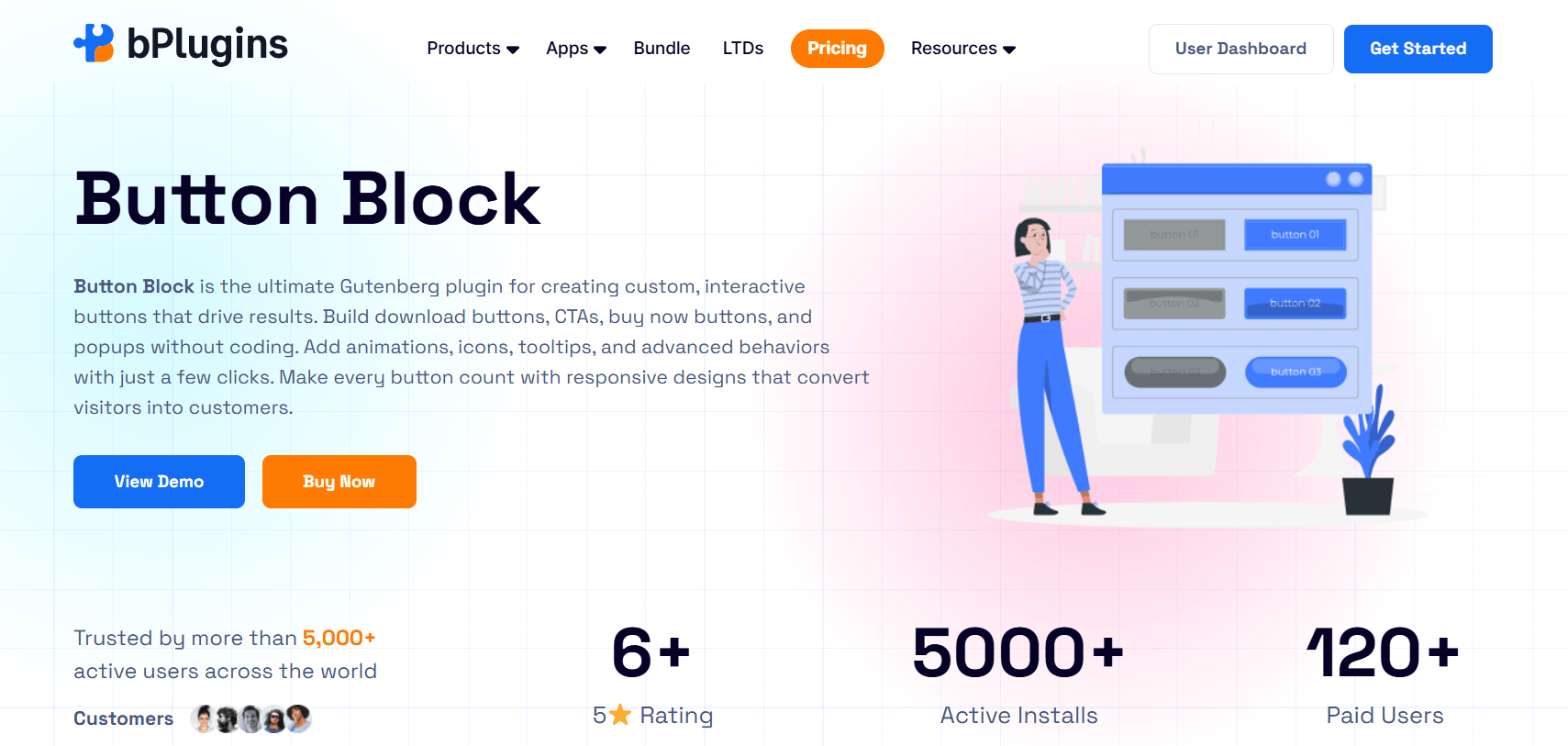
Most button plugins give you pretty styles and call it done. Button Block gives you styles plus the mechanics that actually move a visitor toward clicking: download handling, hover and click animations, and tooltip support, all built directly into the Gutenberg block editor.
The plugin lets you build custom buttons, download buttons, and animated CTAs without touching a line of code. Here’s what stands out once you start using it:
- Download support built in. Attach a file to the button and it downloads on click. This is the feature lead magnet and resource pages actually need, and it works in the free version.
- Tooltip control. Add hover tooltip text without a separate plugin, useful for explaining what a button does before someone clicks it.
- 3D button styling. A single toggle adds a 3D effect, something most competitors require manual CSS for.
- Animation library with duration control. Choose from a range of entrance and hover animations and set exactly how long they run.
- Five sizing options, from small to full width, so the button fits any layout without custom CSS.
- Popup trigger support in the Pro version. Turn the button into a popup launcher for images, video, audio, documents, or an iframe, complete with password or email-gated access if you need it.
The free version alone covers most everyday CTA use cases: a download button for a lead magnet, a tooltip-enhanced link, an animated hero button. Pro adds the popup mechanics, icon positioning, device-specific visibility, and a few security options for gated content.
It also works as a standalone Gutenberg block. You don’t need a parent page builder or a bundle of unrelated blocks installed just to get one button working the way you want.
Best for: landing pages, affiliate review posts, resource and download pages, and any product page where the CTA needs to do more than link somewhere.
2. Otter Blocks
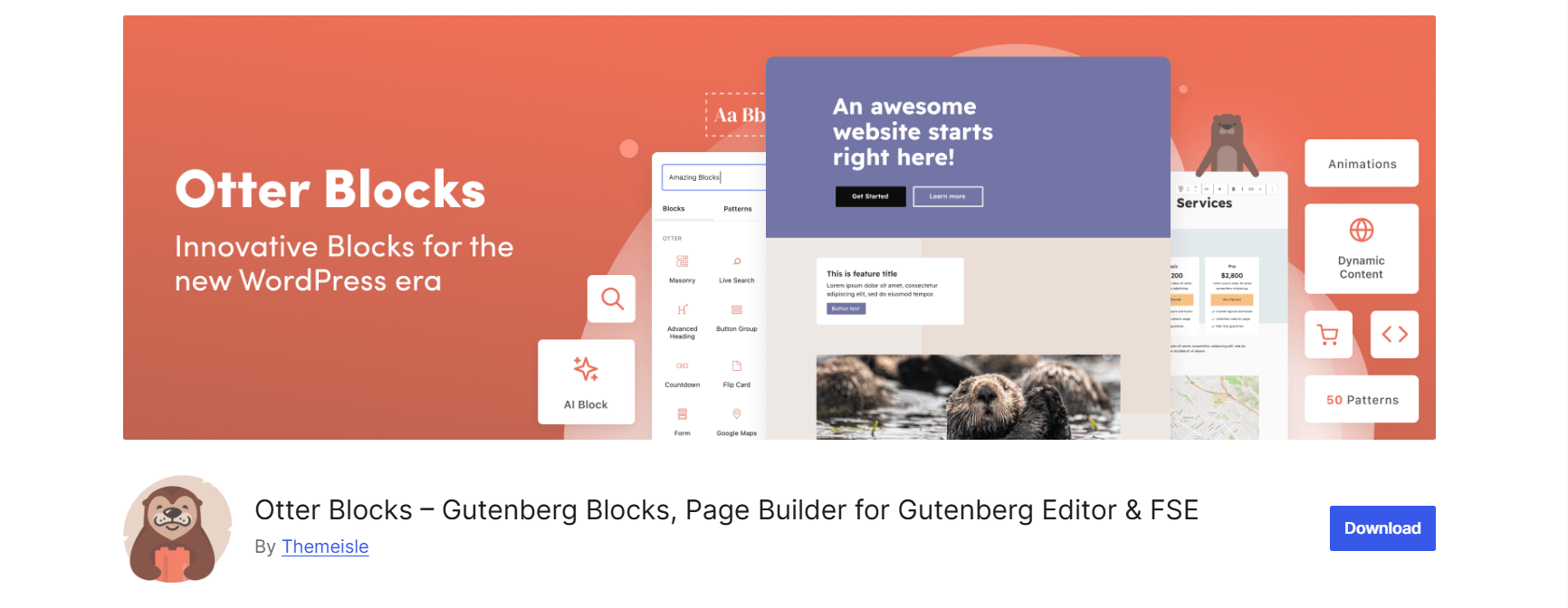
Otter Blocks is part of a larger Gutenberg page-building bundle, and its button-related features reflect that. The free version includes a Button Group block for laying out multiple buttons side by side or stacked, plus a separate Popup block with several trigger options (on load, on exit, on anchor click, on scroll).
That popup block is genuinely solid, and it’s free. The catch is that it lives apart from the button itself. To open a popup from a button click, you build the button, build the popup separately, then connect the two. It works, but it’s an extra step compared to a plugin where the popup trigger sits inside the button’s own settings panel.
Otter doesn’t include a native download attribute for its buttons, so file downloads need a plain link or a different tool.
Strengths: clean, consistent styling across blocks, a genuinely useful free popup block, and over 50 animation presets if you dig into the broader Otter toolkit.
Honest limitation: popup and button live in separate blocks, and you’ll be pulling in the wider Otter bundle rather than a focused button tool.
Best for: sites already running Otter for other page-building needs that want button styling to match the rest of their blocks.
Check out the Best WordPress Icon List Plugins for Beautiful, Clickable Lists (2026).
3. MaxButtons
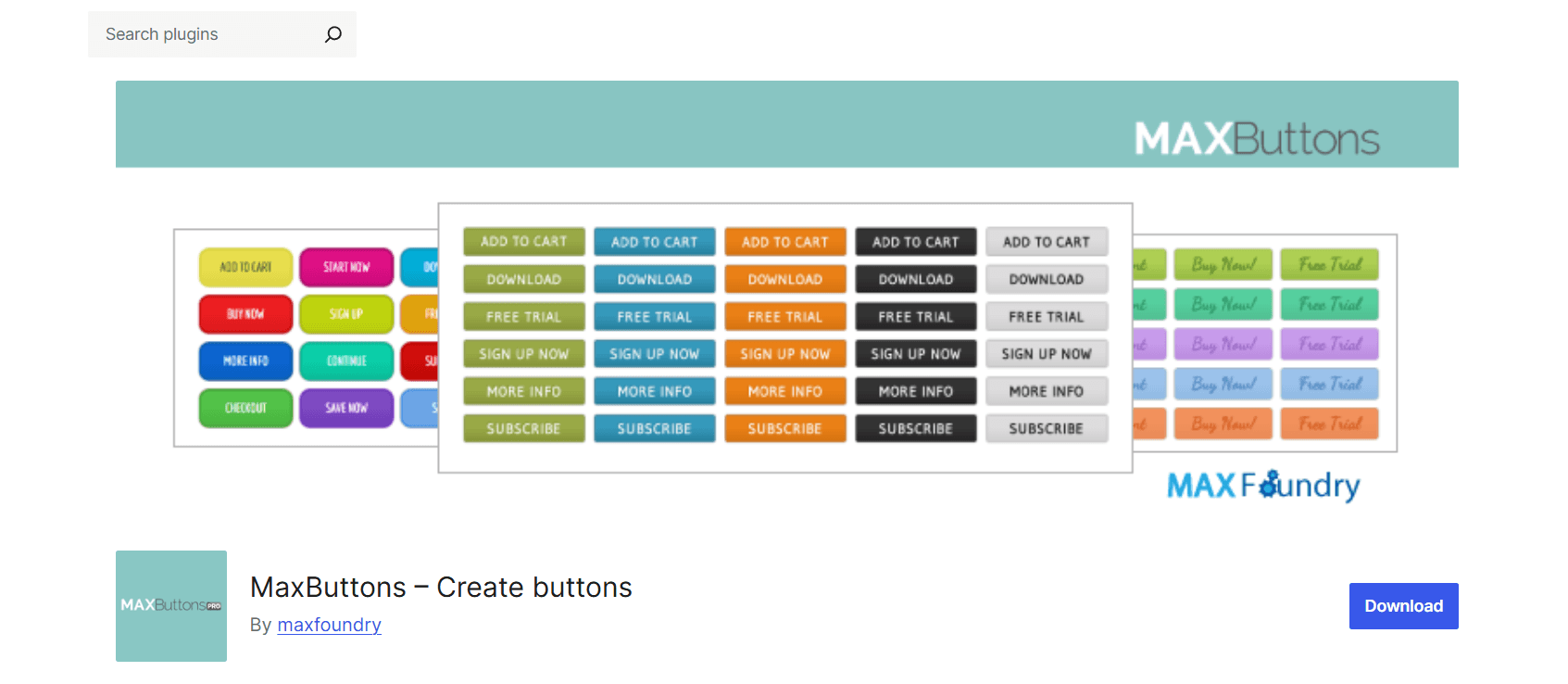
MaxButtons has been around longer than almost anything else on this list, predating the block editor itself. It still works inside Gutenberg today, alongside classic editor shortcodes, which makes it a strong pick for sites that haven’t fully moved away from shortcode-based workflows.
The free version covers the basics well: unlimited buttons, a live preview while you style, gradient and shadow support, and a shortcode system that lets you reuse one button design across the site while swapping text and links per instance. It also includes an option to force a file download from the button URL, which covers basic resource-page needs.
Popups aren’t native here. MaxButtons integrates with separate popup builder plugins to open modals, so you’re again combining two tools rather than using one.
Strengths: a long track record, broad page builder compatibility (Beaver Builder, Elementor, WPBakery), and a massive library of pre-made button packs if you’d rather start from a template than a blank canvas.
Honest limitation: the interface feels dated next to newer block-based tools, and icons or images on buttons require the Pro upgrade.
Best for: classic editor holdouts or anyone who wants a deep library of pre-made button styles to pick from.
Explore the Best WordPress Slider Plugins in 2026 (Tested and Compared).
4. Kadence Blocks (Advanced Button)
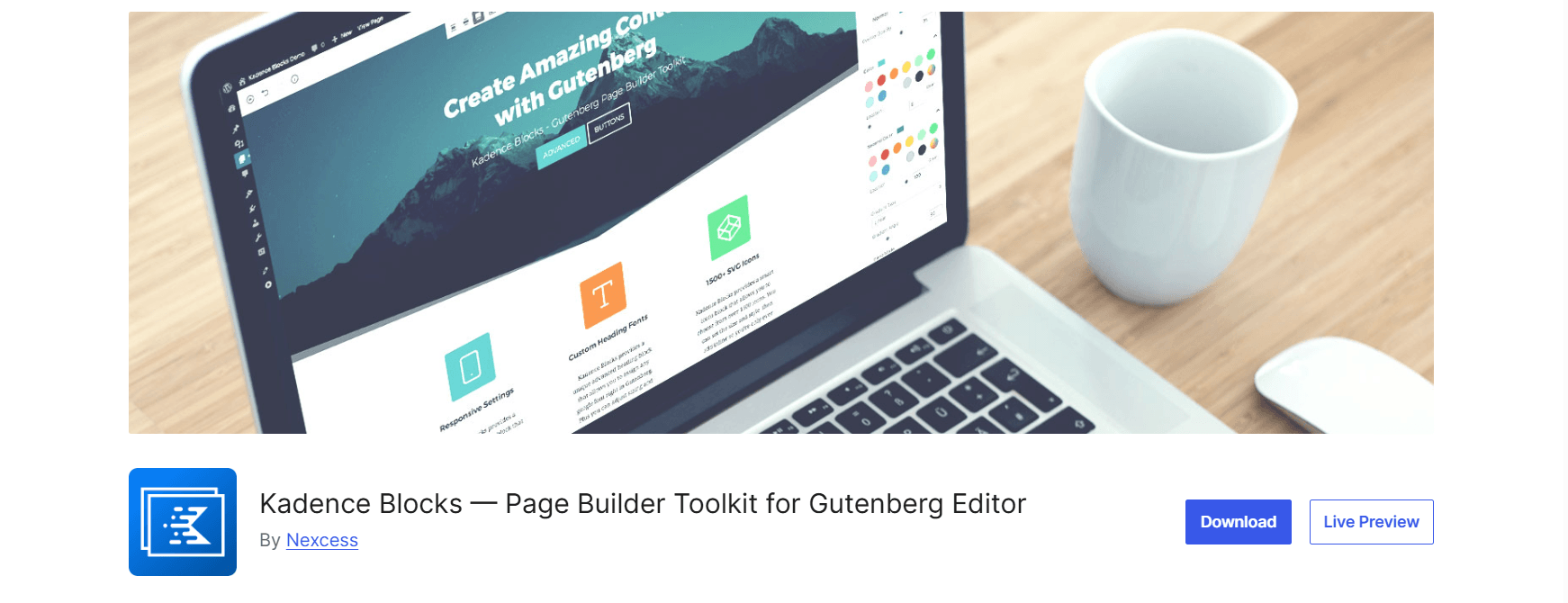
Kadence Blocks is a full Gutenberg toolkit, and its Advanced Button block is one of the more polished options here. You get icon and text combinations, separate hover-state styling, gradient backgrounds, and responsive controls that let you adjust size and spacing independently for desktop, tablet, and mobile.
What it doesn’t do natively is popups or downloads. Triggering a modal requires Kadence’s Pro Modal block or the Video Popup add-on, both paid. There’s no built-in download attribute on the button itself either.
Strengths: genuinely good design controls, a large icon library, and tight integration with the rest of the Kadence ecosystem if you’re already using their theme or other blocks.
Honest limitation: the full feature set assumes you’re buying into the Kadence bundle, and popup functionality sits behind the paywall.
Best for: Kadence users building polished landing pages who don’t need popup or download mechanics on the button itself.
Read also 3 Best Voice Feedback WordPress Plugins to Collect User Feedback in Realtime.
5. WP Call Button
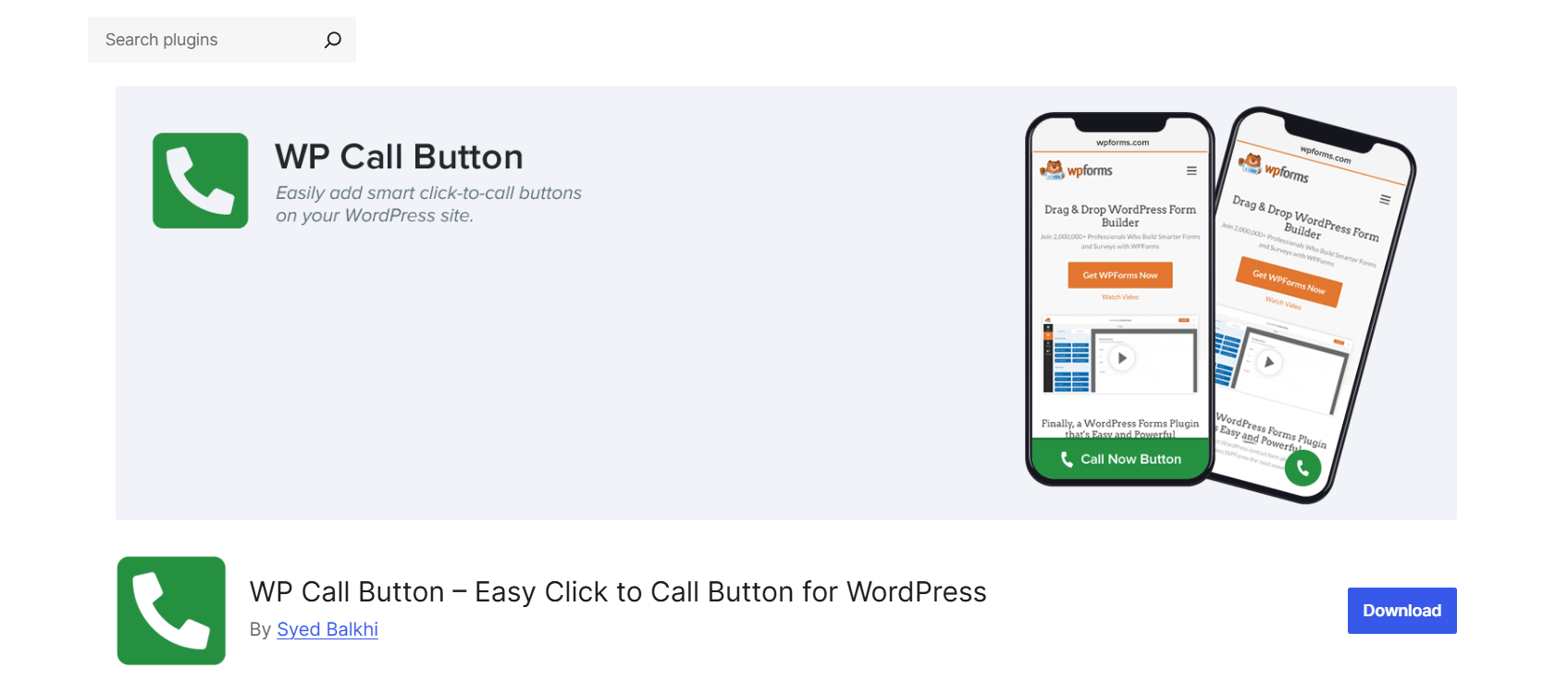
WP Call Button does one thing: click-to-call. It’s not trying to be a general CTA tool, and it doesn’t pretend to be. You set a phone number, pick a country code from a dropdown so the link always formats correctly, and choose where the button shows up, inline in content, in a sidebar widget, or as a sticky floating button that scrolls with the visitor.
There’s a mobile-only display option too, which matters since click-to-call is mostly a mobile behavior anyway. Built-in click tracking through Google Analytics lets you see which pages are actually generating calls.
Strengths: dead simple setup, genuinely mobile-optimized, and lightweight enough that it won’t slow down a page.
Honest limitation: it’s single-purpose. No downloads, no popups, no general styling beyond color and text. If you need a CTA button for anything other than phone calls, look elsewhere on this list.
Best for: local businesses and service providers where getting the phone to ring is the only conversion that matters.
Learn about the Best HTML5 Video Player Plugins for WordPress: Customize, Protect, and Play.
Buttons vs Links: A Technical Detail Most Posts Skip
Here’s something worth knowing before you pick a plugin, especially if popups are part of the plan. Most WordPress “button blocks” render as anchor tags (<a href=””>) styled to look like buttons, not actual <button> elements. That makes sense when the button navigates somewhere, since an anchor tag is the correct HTML element for navigation.
It stops making sense when the button doesn’t navigate at all, like a popup trigger. A button that opens a modal isn’t taking the visitor anywhere, so semantically it should behave like a <button>, not a link pretending to go nowhere with a href=”#” placeholder. Screen readers announce these elements differently, and a link with no real destination can confuse assistive technology users who expect it to navigate.
This isn’t a dealbreaker for any plugin on this list, since all of them handle the visual side fine. But if accessibility compliance matters for your site (and for a growing number of businesses, it’s a legal requirement, not a nice-to-have), it’s worth checking how a plugin’s popup trigger or download button gets coded under the hood. A quick look at the rendered HTML in your browser’s inspector tells you everything you need to know.
Read about 6 Best WordPress Audio Player Plugins: Ultimate Comparison.
How to Choose the Right One for Your Goal
The “best” plugin depends entirely on what the button needs to do, so it helps to work backward from your use case instead of the feature list. Match your priority below to the plugin that actually covers it without an upgrade or a second plugin.
- Need a popup trigger built into the button itself? Button Block handles this natively in Pro. Otter’s free Popup block works too, but it’s a separate block you connect manually.
- Need a download button without paying for anything? Button Block and MaxButtons both offer this free. Otter and Kadence don’t include it natively at all.
- Already running Otter or Kadence for other blocks? Stick with their native button tool for design consistency, even if it means a slightly shorter feature list on the button itself.
- Only need a click-to-call button for a local business? WP Call Button is purpose-built for exactly this and skips everything else you don’t need.
- Building on a tight budget with no Pro upgrades planned? Check the free-tier comparison column above before committing, since two plugins here gate their most useful CTA features behind a paywall.
One more thing worth checking before you install anything: how the plugin handles mobile. A button that looks great on desktop but renders awkwardly on a 375px screen will cost you conversions regardless of how many animation presets it offers.
Check out The Best WordPress Plugins for Small Business Websites in 2026.
Common Button Mistakes That Quietly Kill Conversions
Plugin choice matters, but it’s not the only thing standing between a visitor and a click. A few patterns show up again and again on underperforming CTA buttons, and none of them get fixed by switching plugins.
- Vague button text. “Submit” or “Click Here” tells a visitor nothing about what happens next. Specific, outcome-focused text like “Download the Checklist” or “Start Your Free Trial” consistently outperforms generic labels, regardless of color or animation.
- Overdesigned buttons. A button with three animations, a gradient, a shadow, and a pulsing icon competes with itself for attention. One clear visual cue, usually a subtle hover state, does more work than a button trying to be the loudest thing on the page.
- Poor placement relative to the pitch. A CTA dropped above the value proposition, before a visitor understands what they’re agreeing to, almost always underperforms one placed right after the case has been made.
- Too many competing CTAs on one page. When every section has its own button with different text and color, visitors hesitate instead of acting. One primary CTA per page, repeated consistently, beats five different buttons fighting for the same click.
- Ignoring load time on animated buttons. Heavier animation libraries can add render-blocking CSS or JS to a page. If a button takes a noticeable beat to finish animating in, it’s working against the very visitor it’s trying to convert.
Learn about Best WordPress Plugins for Real Estate Websites in 2026.
FAQs
Is the default WordPress button block enough for most sites?
For a simple link to another page, yes. The default block struggles once you need popups, file downloads, hover animations, or icon and text combinations without manual CSS.
Do I need a page builder to use a button plugin?
No. Button Block, Kadence’s Advanced Button, MaxButtons, and WP Call Button all work as standalone Gutenberg blocks without Elementor, Divi, or any other page builder installed.
Which plugin handles popup buttons the best?
Otter Blocks has a genuinely useful free Popup block, though it requires connecting it separately to a button. Button Block builds the popup trigger directly into the button’s own settings, but that feature sits in the Pro version.
Can I add a download button without a paid plugin?
Yes. Button Block’s free version includes native download support, and MaxButtons offers a force-download option for button URLs in its free tier as well.
Will a button plugin slow down my site?
Most well-built ones won’t, since they typically only load their scripts and styles on pages where the block is actually used. Heavier bundles like Otter or Kadence load more overall, simply because they ship dozens of other blocks alongside the button.
Can I run two button plugins on the same site?
Technically yes, but it’s rarely worth it. Running Button Block alongside Kadence or Otter just for one missing feature usually adds more page weight than it’s worth. Pick the one that covers the most of your checklist and accept the gaps on the rest.
Is WP Call Button worth installing if I also need a regular CTA button?
Probably not on its own. It’s built specifically for click-to-call and skips general CTA features like popups, downloads, or custom animations. Pair it with a broader button plugin if you need both.
Final Verdict
The default Gutenberg button works fine for a basic link. It’s just not built for buttons doing real conversion work.
If your CTA needs to trigger a popup, hand over a download, or animate in a way that actually catches the eye, Button Block covers all three from inside the editor, with downloads and animation free out of the box. For sites already standardized on Otter or Kadence, sticking with their native button tool keeps things consistent, even with a few native limitations.
Whichever you pick, test it on the page where the conversion actually happens. A button that looks great in a demo and a button that gets clicked on your landing page aren’t always the same thing.

 Save 90%