

If your site shares manuals, catalogs, reports, or ebooks, you already know PDFs aren’t going anywhere. But the plugin you use to display them can make or break the reading experience. Pick a heavy one, and you’ll watch your page speed scores drop along with your Core Web Vitals. Pick a lightweight one, and visitors barely notice the PDF loading at all.
Two names come up often in this space: PDF Poster and Embed PDF Viewer. Both let you drop a PDF into a WordPress post or page. However, they take very different approaches to how they do it, and this difference is reflected in performance, features, accessibility, and the level of control you have over the reading experience.
We’ll walk through both plugins here, covering how they’re built, what they offer, their performance on mobile devices, and their accessibility features, as well as which one best suits your site.
How We Evaluated These Plugins
Before jumping into the comparison, here’s what we actually looked at. A one-off speed test on a single install doesn’t tell you much, since results shift too much based on your server, theme, and caching setup to count as a fair benchmark. So instead, we compared the two plugins on:
- Architecture: how each plugin renders a PDF under the hood, and what that means for reliability across browsers
- Changelogs and update history: how actively each plugin fixes bugs and adds features
- Documentation and support forums: what real users report running into
- Feature parity: what’s available free versus paid, and what’s simply missing
- WordPress.org reviews: patterns in what users praise or complain about
Your own results will always depend on your hosting, your PDF file sizes, and your theme. What doesn’t change from site to site is how each plugin is built, and that’s what we focused on.
Quick Comparison Table
| Feature | PDF Poster | Embed PDF Viewer |
| Rendering engine | PDF.js (native, in-browser) | iframe + Google Docs Viewer (Chrome/mobile) |
| Gutenberg block | Yes, 2 blocks | Yes, 1 block |
| Elementor support | Yes | Not built for it |
| Popup/modal viewer | Yes (Pro) | No |
| FlipBook viewer | Yes (Pro) | No |
| Download control | Yes, toggleable | Limited, no toggle |
| Print button | Yes | No |
| Fullscreen mode | Yes | No |
| Responsive width/height per device | Yes | Basic (max-height cap only) |
| Content protection (disable right-click) | Yes (Pro) | No |
| Shortcode support | Yes (Pro) | No, block/oEmbed only |
| Custom hooks/filters for developers | Yes | Minimal |
| Active installs | 20,000+ | 20,000+ |
| Rating | 4.5 out of 5 | 4.7 out of 5 |
| Free version available | Yes | Yes (entire plugin is free) |
| Last major update | June 2026 | February 2025 |
Why PDF Rendering Method Actually Matters
Before comparing features, it helps to understand what’s happening under the hood. This is where the real performance gap comes from.
Embed PDF Viewer keeps things simple. It wraps your PDF in an iframe and leans on Google Docs Viewer as the rendering engine for Chrome and mobile browsers. That’s a fair trade-off for simplicity, but it means your PDF viewer depends on an external Google service to render correctly. The plugin’s own changelog says this workaround exists because Chromium has a known rendering issue with embedded PDFs, and the plugin description admits Google Doc Viewer occasionally fails to load the file, forcing a page reload to fix it.
PDF Poster takes a different route. It bundles PDF.js, the open-source rendering library built by Mozilla, and renders PDFs natively in the browser. That cuts down reliance on third-party viewer services for the core experience, though PDF Poster still offers Google Docs Viewer and Adobe PDF Embed API as optional fallback modes if you want them. A native renderer by default, with fallbacks available rather than required, tends to give you steadier performance and fewer surprises across browsers.
This one architectural choice explains most of the gap you’ll see in the feature lists below.
Why PDF Performance Affects More Than Load Time
A PDF viewer isn’t just a small, self-contained widget that either works or doesn’t. A poorly optimized one can drag down metrics that affect the whole page.
Largest Contentful Paint (LCP) measures how long the biggest visible element takes to load. If your PDF viewer is that element and it depends on an external service to render, your LCP is partly out of your hands.
Cumulative Layout Shift (CLS) tracks how much your page jumps around while it loads. An iframe that reflows once an external viewer finally responds can trigger exactly the kind of shift Google penalizes.
Interaction to Next Paint (INP) measures how responsive your page feels when someone clicks something. A heavier JavaScript payload from the viewer can slow down how quickly buttons and links respond elsewhere on the page.
Neither plugin will tank your Core Web Vitals on its own. Most WordPress performance problems come from unoptimized images, bloated themes, or too many plugins stacked together. But between two PDF viewers, it’s fair to weigh which one adds less overhead and leans on fewer external services to render correctly.
What Is PDF Poster?
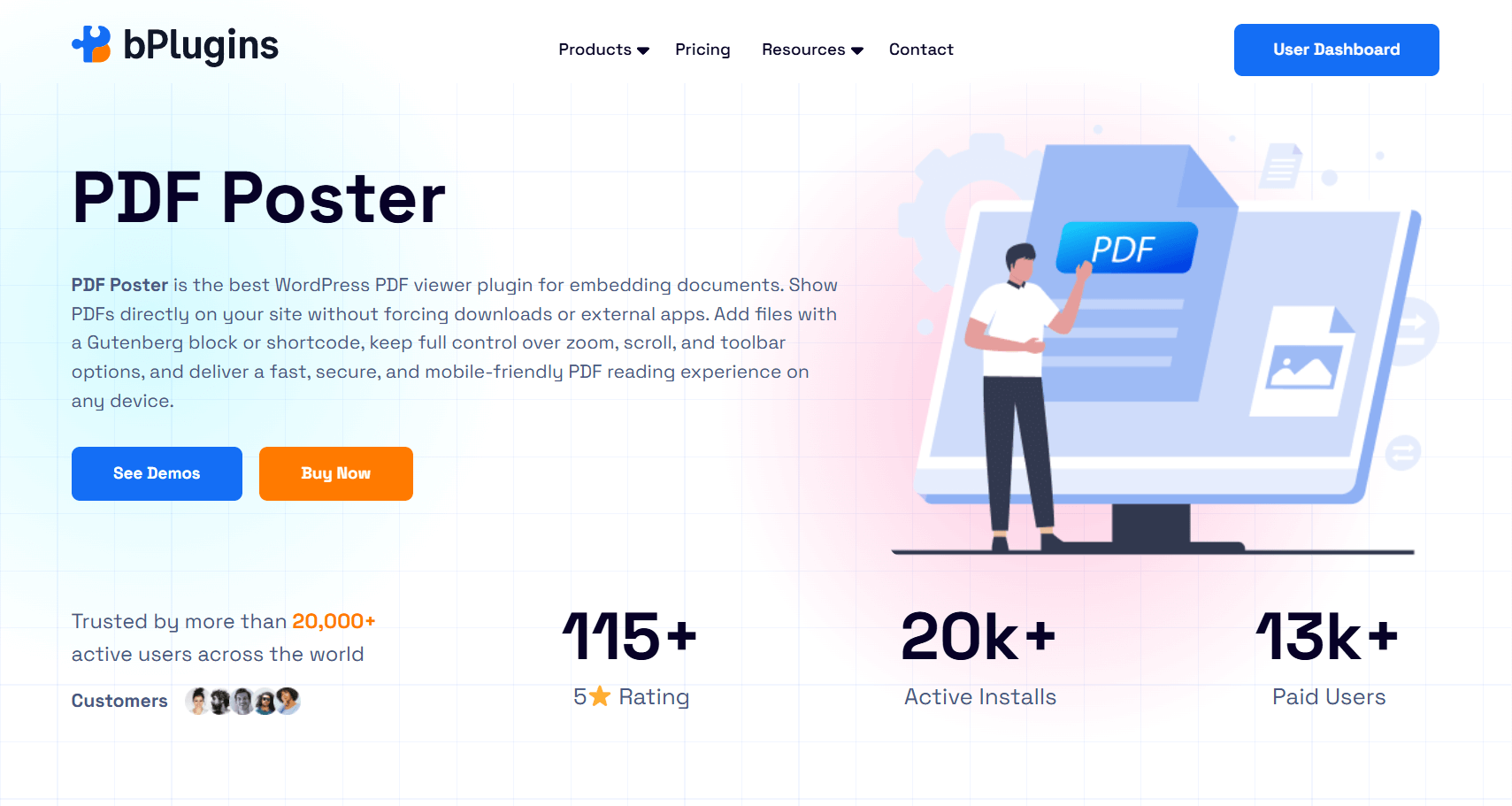
PDF Poster is a WordPress plugin built by bPlugins that embeds PDF documents into posts, pages, widgets, and templates. Over 20,000 active sites use it, and it holds a 4.5-star rating from more than 146 reviews.
The free version covers the basics well: a responsive viewer with separate width and height controls for desktop, tablet, and mobile, a full-screen toggle, print and download buttons, filename display, and native Gutenberg block support.
The Pro version adds a longer list of features for sites that need more control: a FlipBook viewer for a book-like reading experience, a raw PDF mode without toolbars, content protection to block right-clicks and copying, shortcode embedding, a popup/modal viewer, jump-to-page and preset zoom levels, sidebar thumbnail navigation, and translated button labels for multilingual sites.
Choose it if you want a PDF viewer that looks intentional on your site instead of a browser tab pasted into a page.
What Is Embed PDF Viewer?
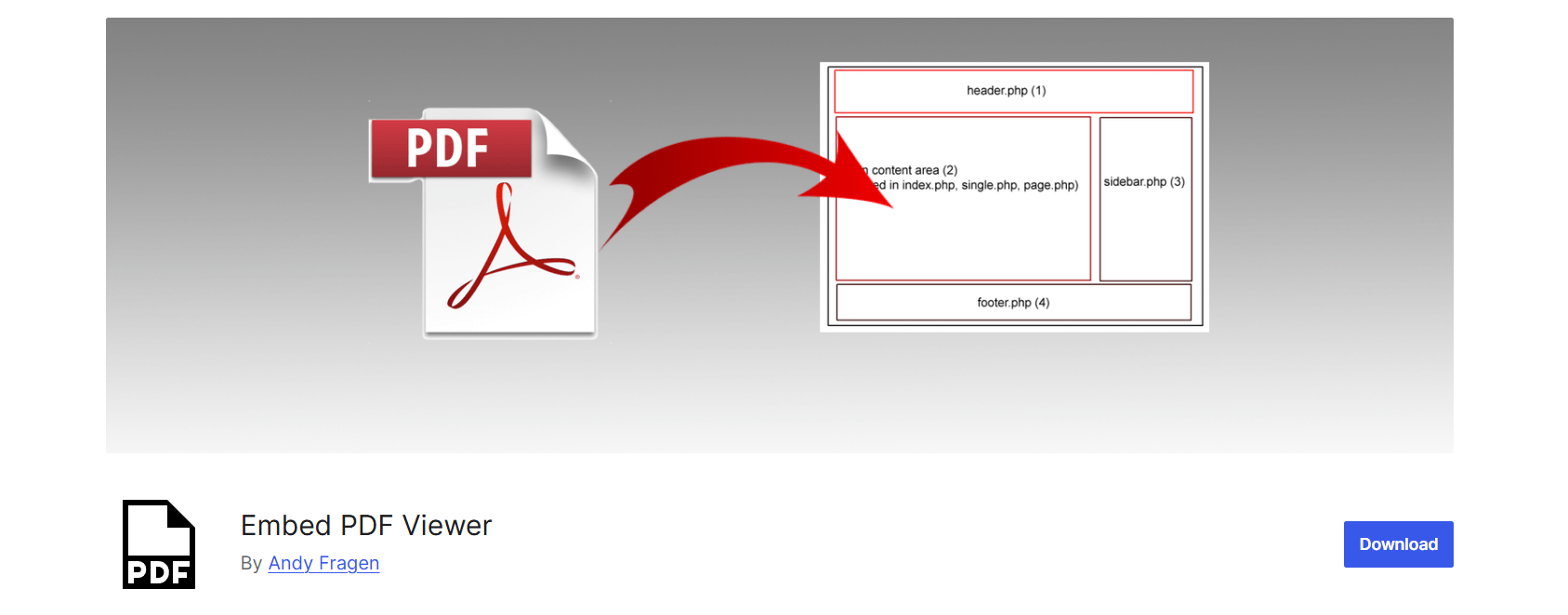
Embed PDF Viewer, built by Andy Fragen, does one job: it embeds a PDF from your media library or an external URL into an iframe, either through the block editor or via oEmbed. It has more than 20,000 active installs and a 4.7-star rating, mostly from users who wanted something that just works without extra configuration.
There’s no premium tier. The entire plugin is free, and that’s a big part of its appeal. But it also means no download toggle, no print button, no fullscreen mode, and no built-in customization beyond a max-height cap added in a recent update.
It suits sites that need to drop in a PDF now and then and move on.
Setup and Ease of Use
Both plugins install the way any WordPress plugin does: search, install, activate. From there, the experience splits.
With Embed PDF Viewer, you add the PDF block, pick a file from your media library, and publish. That’s the whole workflow. There’s nothing to configure beyond the title and description text for accessibility.
PDF Poster asks a bit more of you upfront. You’ll find a dedicated PDF Poster menu in your dashboard where you upload and manage your PDFs, then use the Gutenberg block or grab a shortcode (Pro) to place it anywhere, including widget areas and template files. That extra step gets you control over width, height, and button visibility per PDF instead of one global look.
Want zero setup? Embed PDF Viewer wins on speed to publish. Want a viewer that matches your brand and layout? PDF Poster is worth the extra few minutes.
Feature Comparison
| Feature | PDF Poster | Embed PDF Viewer |
| PDF embedding | Yes | Yes |
| Fullscreen | Yes | No |
| Download button | Yes, toggleable | No dedicated toggle |
| Print button | Yes | No |
| Zoom | Yes (Pro: preset levels) | Browser default only |
| Sidebar/thumbnail navigation | Yes (Pro) | No |
| Password protection | Not supported | Not supported |
| Watermark | Not supported | Not supported |
| Popup/modal display | Yes (Pro) | No |
| Multiple viewer layouts | Yes (Raw, Slider, Scroll) | No, single iframe layout |
| Shortcode | Yes (Pro) | No |
| Responsive per device | Yes | Basic |
| Gutenberg block | Yes | Yes |
| Elementor support | Yes | Not built for it |
| Content protection | Yes (Pro) | No |
| Language/label translation | Yes (Pro) | No |
Neither plugin supports password-protected PDFs or watermarking. If your PDFs hold sensitive content that needs access control, look at a dedicated document management solution instead of either of these.
Customization and Branding
This is where the gap widens the most. Embed PDF Viewer gives you a functional iframe with a height cap. That’s it. You can’t change colors, toolbar buttons, or layout without editing code yourself.
PDF Poster’s free version already lets you set custom width and height per device. Pro goes further with control over which buttons appear, where they sit (top or bottom), translated labels, and multiple display modes, including a distraction-free “show only PDF” layout. If you’re building a resource library, a course platform, or a documentation site where PDFs need to feel like part of the design rather than a bolted-on file viewer, this makes a real difference.
Developer and Extensibility Comparison
If you or your developer ever needs to tweak how a plugin behaves beyond its settings panel, this section matters.
PDF Poster ships with action and filter hooks that let developers adjust viewer output, add custom CSS classes, and hook into display logic without touching core plugin files. That helps if you’re running the plugin on a client site and need to match a specific design system, or building a custom template that needs the viewer to behave a certain way.
Embed PDF Viewer stays minimal here. Its codebase is small and easy to read if you want to fork it, but it doesn’t expose the same level of hooks for extending behavior without editing the plugin itself. For a set-it-and-forget-it plugin, that’s a fair trade-off. For anything more custom, it’s a real limitation.
Accessibility Comparison
Accessibility rarely makes it into PDF plugin comparisons, but PDFs already have a reputation for being hard on screen reader users, so it deserves a look.
Embed PDF Viewer lets you add a title and description to each embedded PDF, which helps screen readers announce what the content is. Beyond that, the iframe approach means keyboard navigation and screen reader behavior largely depend on the browser’s native PDF handling, and that varies by browser and operating system.
PDF Poster’s toolbar controls, including print, download, and fullscreen buttons, are standard HTML elements rather than buried inside an opaque iframe, which generally makes them easier for assistive technology to recognize. Neither plugin offers dedicated screen-reader reading modes or alt-text management for scanned PDFs. If full accessibility compliance is a hard requirement for your site, you’ll need accessible, properly tagged PDF files to begin with. The plugin can only do so much if the source file wasn’t built with accessibility in mind.
Learn How Law Firms and Legal Websites Use PDF Plugins on WordPress.
Support and Documentation Comparison
When something breaks, how fast you get help matters as much as the feature list.
PDF Poster is backed by bPlugins, with active support through the WordPress.org forum and a dedicated support channel on its own site. Recent changelog entries show a pattern of responding to specific bug reports, including device-specific mobile fixes, a sign of a team actively monitoring feedback.
Embed PDF Viewer’s support runs through its WordPress.org forum and GitHub repository. Response times vary since there’s no dedicated support team behind it, which is typical for a free, single-developer plugin. That’s a real consideration if you need a fast fix when something breaks on your live site.
Gutenberg and Elementor Experience
Both plugins ship a native Gutenberg block, so searching “/pdf” in the block editor gets you a result either way. PDF Poster offers two blocks (an embed block and a selector block) plus a classic editor shortcode generator for sites still on the older editor.
Elementor is where the two split. PDF Poster works inside Elementor’s page builder, so agencies and freelancers building client sites with Elementor can drop it in without workarounds. Embed PDF Viewer was built for the standard block editor and doesn’t offer the same level of Elementor compatibility.
Mobile Experience
Mobile deserves its own callout, since it’s where Embed PDF Viewer has run into the most friction. Its support forum includes reports of PDFs not previewing correctly on mobile browsers, and the plugin leans on Google Doc Viewer to handle mobile rendering, the same third-party dependency we mentioned earlier.
PDF Poster’s responsive controls let you set separate dimensions for mobile devices, and recent updates specifically targeted iOS and Android rendering fixes, including a fullscreen button that wasn’t responding on iPhone and PDFs failing to load on Android Chrome and Samsung Internet. That pattern points to a plugin actively tracking and patching device-specific bugs, which matters if a good chunk of your traffic comes from phones.
Common Issues and Troubleshooting
Every plugin runs into edge cases. Here’s what tends to come up with each one, based on support forum activity and changelog notes.
With Embed PDF Viewer, the most common reports involve Google Docs Viewer occasionally failing to load a file on the first attempt, needing a manual refresh, along with inconsistent height behavior on some themes before the max-height option was added.
With PDF Poster, the changelog shows a steady stream of small, specific fixes rather than one recurring unresolved problem: a fullscreen button not responding on certain iPhone models, or a PDF failing to render on specific Android browsers and device combinations. That points to a plugin catching issues as they surface instead of letting them pile up.
Neither pattern is a dealbreaker on its own. But if you’ve had a support ticket sit unanswered before, weigh which team is more likely to fix a bug on your site quickly.
Check out How To Use Nonprofit WordPress PDF Plugins to Share Reports and Grants.
Pricing Comparison
| Plan | PDF Poster | Embed PDF Viewer |
| Free version | Yes, fully functional for basic embedding | Yes, entire plugin is free |
| Premium tier | PDF Poster Pro (check current pricing on bPlugins.com) | Not available |
| Support | Dedicated support team, active forum responses | Community-maintained, GitHub-based |
| Update frequency | Frequent (multiple releases in 2026) | Infrequent (last update Feb 2025) |
Embed PDF Viewer’s biggest selling point is that it costs nothing and always will, since there’s no premium tier to upsell. If your needs are genuinely simple, that’s hard to argue with.
PDF Poster’s free tier already covers more ground than Embed PDF Viewer’s entire feature set. The Pro upgrade only matters once you want FlipBook mode, content protection, popups, or shortcode flexibility.
Pros and Cons
PDF Poster
Pros
- Native PDF.js rendering instead of depending on an external viewer
- Full-screen, print, and download controls out of the box
- Per-device responsive sizing
- Elementor compatible
- Developer-friendly hooks for custom implementations
- Active development with frequent bug fixes and security updates
- Free version already covers most everyday use cases
Cons
- Some advanced features, like content protection and shortcodes, require Pro
- Slightly more setup than a plain iframe embed
Embed PDF Viewer
Pros
- Completely free, no upgrade path to worry about
- Simple to use for basic embedding
- Lightweight codebase
Cons
- Relies on Google Docs Viewer for Chrome and mobile rendering
- No fullscreen, print, or download controls
- Documented mobile preview issues in user reviews
- No Elementor support
- Minimal developer hooks for customization
- Development has slowed, with the last update over a year old
Also know PDF Lead Magnets in WordPress: How to Gate Content and Grow Your Email List.
Which Plugin Fits Your Site?
| User Type | Better Fit | Why |
| Bloggers sharing occasional PDFs | Embed PDF Viewer | Free, no setup, good enough for light use |
| Businesses and agencies | PDF Poster | Branding control and Elementor support |
| Documentation or knowledge base sites | PDF Poster | Sidebar navigation and multiple layouts |
| Schools and course platforms | PDF Poster | Content protection and print control |
| WooCommerce stores (manuals, spec sheets) | PDF Poster | Download control and responsive design |
| Portfolio or catalog sites | PDF Poster | FlipBook and popup viewer options |
| Developers building custom templates | PDF Poster | Hooks and filters for extending behavior |
| Anyone who just wants to drop in one PDF and move on | Embed PDF Viewer | Zero configuration required |
Read PDF Security in WordPress: Protecting Documents from Download.
Real-World Use Cases
Product catalogs. A furniture or electronics store showing a downloadable spec sheet needs download and print controls, plus a viewer that matches the site’s design. PDF Poster’s responsive sizing keeps the catalog readable on a laptop or a phone in-store.
Restaurant menus. Menus change seasonally and need to look polished, not like a floating browser frame. A popup viewer or a clean, borderless display mode (both in PDF Poster Pro) fits a restaurant’s design better than a plain iframe.
Legal contracts and terms documents. These pages just need to load reliably and print cleanly. Either plugin can handle this, but a built-in print button, which only PDF Poster offers, saves visitors from hunting for a browser print shortcut.
Real estate brochures. Agents often want a FlipBook-style reading experience that feels like flipping through a printed brochure. That’s a Pro feature in PDF Poster and not available in Embed PDF Viewer at all.
Online courses and documentation sites. Students referencing multi-page guides benefit from sidebar thumbnail navigation and jump-to-page controls, both PDF Poster Pro features. For a single-page reference document, Embed PDF Viewer’s simplicity works fine.
Company reports and investor documents. These need to look credible and load without hiccups. Since PDF Poster doesn’t depend on an external Google service to render the file, it feels more consistent for documents meant to make a strong first impression.
Learn about the Ultimate Guide: How to Embed PDFs in WordPress Without a Plugin
Switching from Embed PDF Viewer to PDF Poster
If you’re moving over, the process is straightforward:
- Back up your site before making any plugin changes.
- Install and activate PDF Poster.
- Upload your PDFs through the PDF Poster dashboard, or point it to the same media library files you’re already using.
- Replace the old PDF blocks with the PDF Poster block, or swap in shortcodes if you’re on Pro.
- Check how each PDF displays on desktop and mobile before publishing.
- Once everything checks out, deactivate and remove Embed PDF Viewer.
Since both plugins pull from your existing media library, you won’t need to re-upload every file. It’s mostly a matter of swapping the block or shortcode on each page.
Check also PDF Embedder vs PDF Poster: Which Is the Best WordPress PDF Viewer Plugin?
Frequently Asked Questions
Which plugin is faster, PDF Poster or Embed PDF Viewer?
PDF Poster uses native PDF.js rendering, so it doesn’t depend on an external viewer service the way Embed PDF Viewer does with Google Docs Viewer. That generally means fewer loading hiccups, especially on Chrome and mobile.
Does PDF Poster support Gutenberg?
Yes. It includes two native blocks for the block editor, plus a classic editor shortcode generator for older setups.
Which plugin works better with Elementor?
PDF Poster. Embed PDF Viewer wasn’t built with Elementor compatibility in mind.
Can I disable the download button?
With PDF Poster, yes. It’s a toggle you control per PDF. Embed PDF Viewer doesn’t offer a dedicated download control.
Do either of these plugins support password-protected PDFs?
No. Neither supports password protection right now. If that’s a requirement, you’ll need a separate document security tool.
Which plugin is better for SEO?
Neither directly boosts rankings just by embedding a PDF. But a lighter, more reliable viewer contributes to better page speed and Core Web Vitals scores, which do factor into how Google evaluates page experience.
Which plugin has more customization options?
PDF Poster, by a wide margin. It offers per-device sizing, multiple viewer layouts, button placement control, and translated labels. Embed PDF Viewer offers a height cap and not much else.
Is PDF Poster a good Embed PDF Viewer alternative?
Yes, especially if you’ve run into the mobile preview issues or missing controls that Embed PDF Viewer users have reported, or if you need Elementor support.
Which plugin is more accessible for screen reader users?
Neither has dedicated accessibility features beyond basic title and description fields. PDF Poster’s standard HTML toolbar elements tend to be easier for assistive technology to interact with than an iframe-based viewer, but true accessibility ultimately comes down to how the source PDF was built.
Does either plugin slow down my site?
Any embedded PDF adds some load, but PDF Poster’s native rendering generally means less dependency on external services compared to Embed PDF Viewer’s use of Google Docs Viewer.
Can developers customize either plugin further?
PDF Poster offers hooks and filters for developers who need custom behavior. Embed PDF Viewer’s codebase is simpler but doesn’t expose the same level of extensibility.
Final Verdict
Want a PDF viewer that looks like it belongs on your site, with fullscreen, print, and download controls, responsive sizing, and room to grow into features like FlipBook or content protection? Go with PDF Poster. Its native rendering, active development schedule, and developer-friendly hooks make it the safer long-term pick, especially for businesses, agencies, and documentation-heavy sites.
If your needs stop at “show this one PDF on this one page” and you’d rather not think about it again, Embed PDF Viewer does that job for free, with fewer controls and an occasional mobile rendering hiccup as the trade-off.
Either way, test the plugin on your actual site before committing. Check how it renders on mobile, how it handles your largest PDF file, and whether the default styling fits your theme.

 Save 90%