

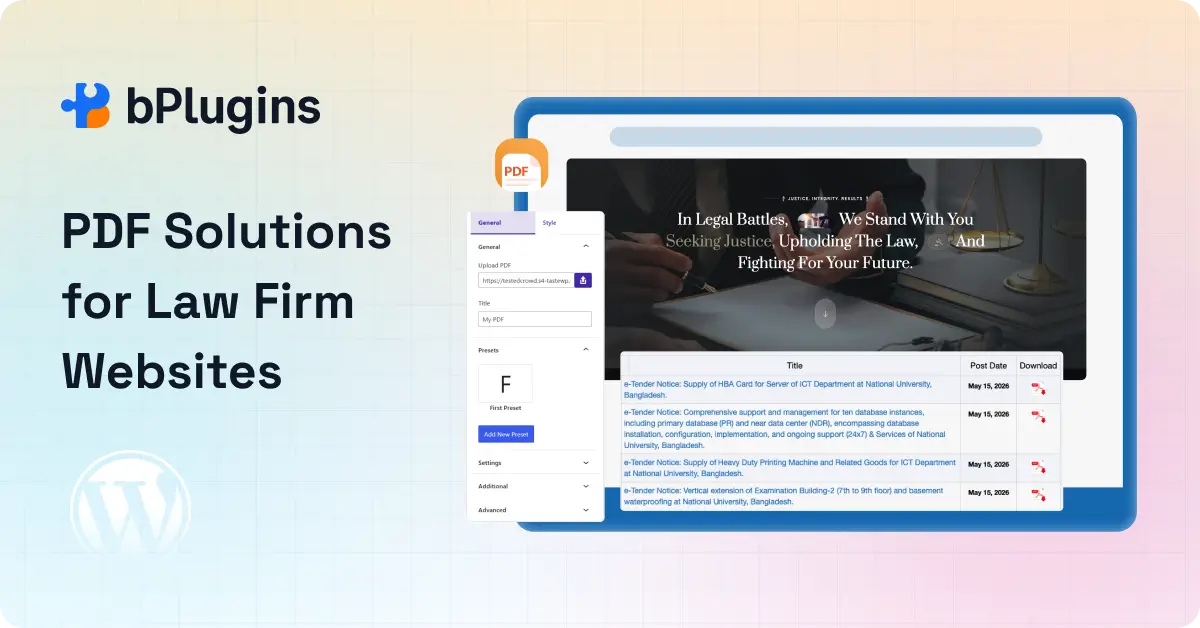
If you run a law firm website, PDFs are practically everywhere. Client agreements, intake forms, case study reports, compliance policies — they all live as PDF files.
That’s not going to change anytime soon. PDFs keep formatting intact, look professional on any device, and hold up legally when you need to share exact document copies. They’re a core part of how the legal world communicates.
But here’s the real problem: WordPress doesn’t handle PDFs well out of the box.
Upload a PDF, link to it, and one of two things happens. The browser opens a new tab and your visitor leaves your site. Or the file downloads automatically without any warning. On mobile, things get worse. The document renders inconsistently, zooming breaks, and your visitor gives up before reading a single line.
For a law firm, that’s a credibility problem. Your documents represent your practice. If they’re hard to read or look sloppy on someone’s phone, that impression sticks.
A good PDF plugin for law firm websites fixes all of this. Instead of sending visitors away, it lets you embed documents directly on the page, inside a clean, responsive viewer that works on every device.
PDF Poster is one of the better options for this. It works with the Gutenberg block editor, gives you control over downloads and printing, supports full-screen mode, and keeps the reading experience consistent across screen sizes. You can add content protection, popup viewing, sidebar navigation, and preset viewer settings.
In this guide, we’ll walk through how law firms actually use PDF plugins on their WordPress sites, what features to look for, and how to get one set up.
Why Law Firms Need a Better PDF Viewing Experience
Legal Websites Are Document-Heavy by Nature
Think about what a typical law firm website publishes. There’s no shortage of document types:
- Service and retainer agreements
- Legal templates for clients to review
- Client intake forms
- Privacy policies and terms of service
- Immigration checklists and estate planning worksheets
- Real estate contracts
- Compliance and regulatory documents
Each of these is a touchpoint with a potential client. If that touchpoint is frustrating, the person leaves. In a competitive legal market, you don’t want to hand visitors a reason to click away.
Clients also expect easy access to resources. If they can’t find or read a document on your site, they’ll call your office or look elsewhere. Neither is good for your workflow or your reputation.
The Problems With Standard PDF Uploads in WordPress
When you upload a PDF in WordPress and link to it, you get no viewer, no controls, and no branding. The document opens raw in the browser or downloads without warning.
Here’s what that usually leads to:
Visitors leave your site. The browser opens a new tab with the PDF, breaking the navigation flow entirely.
Mobile rendering is inconsistent. Some mobile browsers handle PDFs decently. Others make a mess of them. You can’t control which one your visitor is using.
You have no control. You can’t disable downloads, restrict printing, or manage how the document gets shared. For sensitive legal documents, that’s a real gap.
Long documents are a pain to navigate. A 30-page intake packet with no sidebar, no thumbnails, and no navigation controls is not a pleasant experience for anyone.
This comes up constantly in WordPress communities. A common scenario: someone links a contract template on their site and later realizes clients keep downloading outdated versions because there’s no way to guarantee they’re seeing the latest file. That kind of confusion is easy to avoid with the right plugin.
What Is a PDF Plugin for Law Firm Websites?
A PDF plugin for WordPress lets you embed PDF documents directly in a page or post using a built-in viewer. Instead of linking out to a raw file, the document displays right on your page, inside a viewer you control.
How PDF Plugins Improve Legal Document Delivery
A good PDF plugin gives you tools that actually make a difference:
- Embedded viewers keep visitors on your site while they read
- Responsive design means the document looks right on phones, tablets, and desktops
- Full-screen mode gives clients space to read long documents comfortably
- Zoom controls let users adjust the view to their preference
- Protection settings let you restrict downloads and printing per document
Features Legal Professionals Should Look For
Not every PDF plugin is built for professional or sensitive document sharing. For a law firm website, here’s what actually matters:
- Mobile responsiveness so documents are readable on any device
- Download and print controls to manage how documents get shared
- Full-screen reading mode for long, multi-page documents
- Fast loading so clients aren’t waiting on a large file to render
- Gutenberg block compatibility so no coding is required
- Shortcode support for placing documents in sidebars or templates
- Sidebar navigation and thumbnail view for longer documents
- Viewer customization to keep things looking professional
PDF Poster covers most of these in the free version. The full protection and navigation features come with Pro.
How Law Firms Use PDF Plugins on Their Websites
Embedding Legal Contracts and Agreements
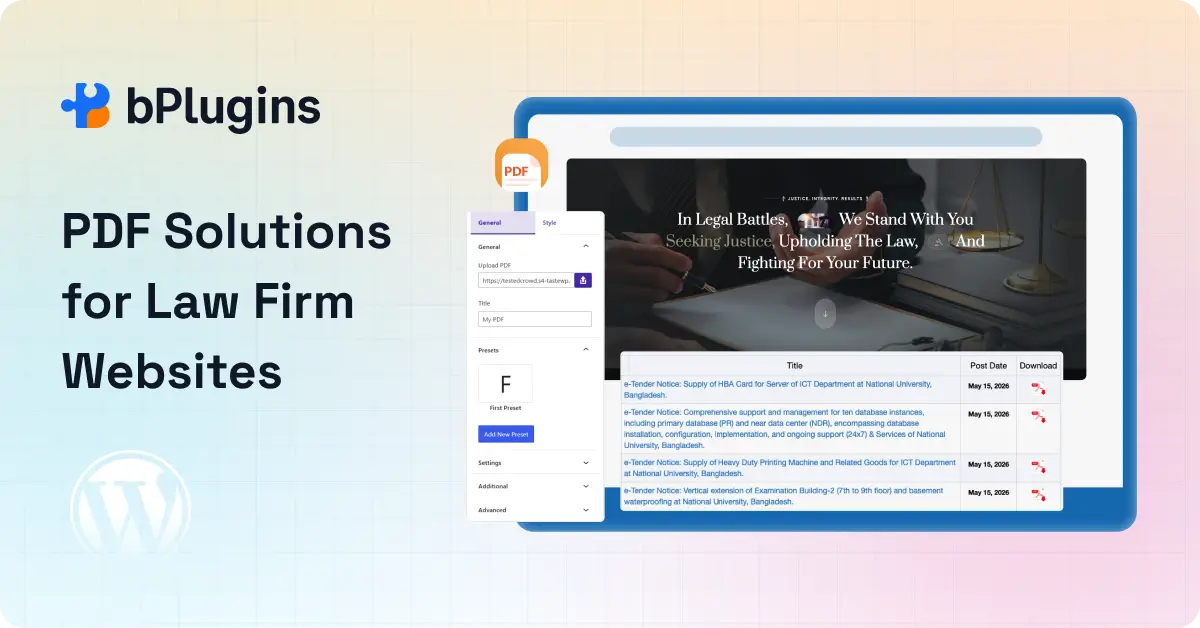
One of the most common uses is displaying contracts and agreements on a dedicated page. A client books a consultation, and you direct them to a page where they can read the retainer agreement or NDA in full before signing.
With a PDF plugin, that document lives right on your site. The client reads it in a clean, professional viewer. They don’t download a file they weren’t expecting. They don’t open a new tab and lose their place. The whole experience feels organized.
This works well for:
- Client retainer agreements
- NDA templates
- Lease and rental agreements
- Employment contracts
Embedding legal contracts in WordPress this way also reduces back-and-forth emails. Instead of sending a PDF and waiting for questions, you point clients to the page, let them read at their own pace, and have a more focused conversation later.
Publishing Case Studies and Legal Resources
Case studies and research documents are great for building trust. But if they download automatically, most visitors won’t read them. If they open in a new tab, you lose engagement and the visitor’s attention.
Embedding them in a viewer on a dedicated page keeps visitors on your site longer. They scroll through a well-presented document, see your track record, and trust you more.
The SEO side of this is worth noting too. Longer time on page and lower bounce rate are positive signals for search engines. A case study page where visitors actually read the document performs better than one where everyone downloads and disappears.
Sharing Client Intake Forms and Downloadable PDFs
Many law firms want clients to review intake forms before their first appointment. Embedding these in a viewer on your site gives clients a chance to read everything in advance and arrive prepared.
This works across practice areas:
- Immigration case intake checklists
- Estate planning worksheets
- Divorce questionnaires
- Personal injury claim forms
For some of these, you’ll want to allow downloads so clients can print and fill. For others, you might want to keep it view-only for reference. A PDF plugin lets you make that call per document.
Displaying Compliance and Policy Documents
GDPR policies, terms of service, internal compliance documents — these need to be accessible, current, and easy to locate. Embedding them in a viewer on a dedicated page means you can update the underlying file without changing the URL or rebuilding the page.
That matters in practice. When you update your privacy policy, you replace the PDF. The page stays the same. Visitors always see the current version without you touching any links.
For law firms that manage compliance documents across multiple practice areas, this centralized approach saves a lot of time.
Creating Resource Libraries for Clients
Some firms build out full client resource libraries. A page with embedded guides for different legal processes, FAQ documents organized by practice area, step-by-step process guides — the whole setup.
This kind of knowledge base keeps clients informed, cuts down on repetitive calls to your office, and positions your firm as a trusted resource. It also creates natural internal linking opportunities across your site.
Explore Ultimate Guide: How to Embed PDFs in WordPress Without a Plugin.
Security and Privacy Considerations for Legal PDFs
Why Legal Websites Need PDF Protection
Not every legal document on your site should be freely downloadable and shareable. Some contain sensitive information. Some represent proprietary templates your firm developed. Some are meant to be reviewed on your site, not saved to a desktop and forwarded to unknown contacts.
If your practice covers family law, immigration, or estate planning, you often share documents with client-specific guidance. You want clients to read them on your site, not pass them around or post them elsewhere.
Useful PDF Protection Features
PDF Poster Pro includes several protection tools:
- Disable right-click to prevent easy saving through the context menu
- Hide the download button so the document is view-only
- Restrict printing for documents you want to keep in digital format
- Open in a popup viewer so the document appears in a modal instead of a full page
- Content protection settings to reduce how easily the document can be copied or shared
These aren’t bulletproof, but they add a meaningful barrier against casual copying and unauthorized distribution.
Learn about PDF Security in WordPress: Protecting Documents from Download.
Why PDF Poster Works Well for Legal Websites
Easy PDF Embedding With Gutenberg
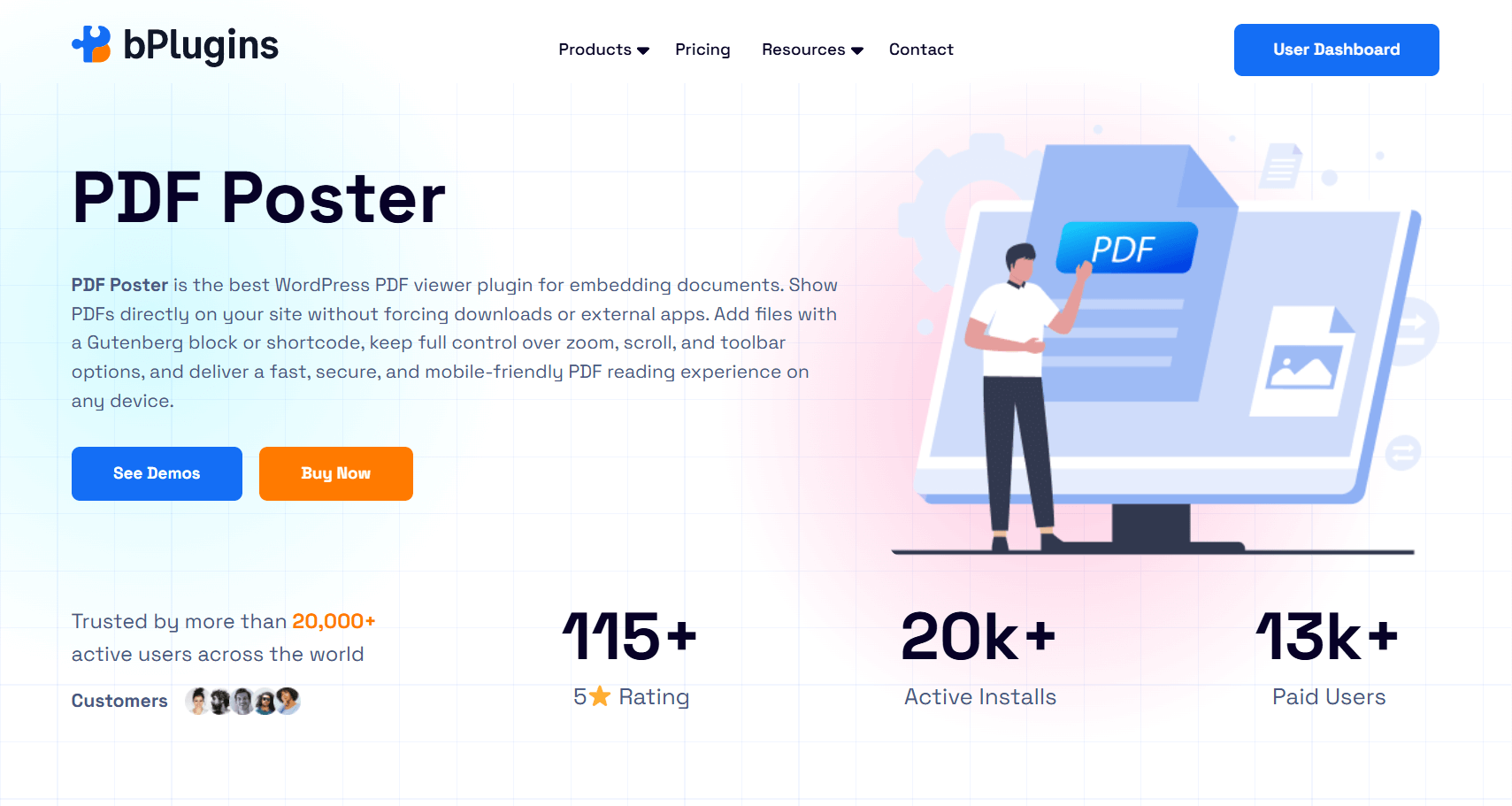
PDF Poster works as a native Gutenberg block. You add the block to any page, upload or select your PDF, and set your viewer preferences without writing a single line of code. For a law firm without a developer on staff, that matters.
Setup takes a few minutes from start to finish.
Professional PDF Viewing Experience
The viewer is clean and responsive. It adjusts to any screen size automatically. A client reading your intake form on a phone gets the same quality experience as someone on a desktop monitor.
Full-screen mode, smooth scrolling, and zoom controls all come built in. For a professional context, that level of polish is the baseline, not a bonus.
Flexible Viewer Controls for Law Firms
PDF Poster Pro lets you control exactly what appears in the viewer toolbar. You can show or hide the download button per document, enable or disable printing, and customize button labels.
You can also set specific pages to open by default, which is useful if you want clients to land on a summary page rather than a cover sheet. The popup viewer option works particularly well for intake pages. Instead of dedicating a whole page to one document, you trigger the viewer from a button and keep your page layout clean.
Helpful for Large Legal Documents
Long legal documents need proper navigation. Without it, a 40-page lease agreement turns into a scrolling nightmare. PDF Poster Pro includes a sidebar with thumbnail navigation so clients can jump to the sections that matter to them. Combined with smooth scrolling, long documents become much easier to work through.
PDF Poster Free vs Pro for Law Firms
| Feature | Free | Pro |
| Gutenberg PDF Block | Yes | Yes |
| Responsive Viewer | Yes | Yes |
| Full-Screen Mode | Yes | Yes |
| Download Button Control | Limited | Advanced |
| Content Protection | No | Yes |
| Popup PDF Viewer | No | Yes |
| Thumbnail Sidebar Navigation | No | Yes |
| Viewer Presets | No | Yes |
| Jump to Specific Page | No | Yes |
| Shortcode Embedding | No | Yes |
| Always Load Latest PDF Version | No | Yes |
For most law firms just starting with embedded documents, the free version covers the basics well. If you need content protection, popup viewing, or sidebar navigation for longer documents, Pro is the better fit.
Step-by-Step: How to Embed Legal PDFs in WordPress
Step 1 — Install PDF Poster
Go to your WordPress dashboard and navigate to Plugins > Add New. Search for “PDF Poster,” then install and activate the plugin. You can also grab it directly from PDF Poster on WordPress.org.
Step 2 — Upload Your Legal PDF
Head to your Media Library and upload your PDF. Use clean, descriptive file names like client-intake-form-2026.pdf instead of something like doc_final_v3_REVISED.pdf. That small habit saves a lot of confusion when you’re managing multiple documents.
Step 3 — Add the PDF Block or Shortcode
Open the page or post where the document should appear. In the Gutenberg editor, click the “+” button to add a new block and search for “PDF Poster.” Add the block, then select your PDF from the Media Library.
If you’re using PDF Poster Pro, you can also use the [pdf_embed] shortcode to place the document anywhere on your site, including sidebars and template areas.
Step 4 — Customize Viewer Settings
With the block selected, open the settings panel on the right. You can set the viewer height, show or hide the download and print buttons, enable full-screen mode, and configure popup viewing.
For a sensitive contract, you’d typically hide the download button and disable printing. For a publicly available legal guide, you might keep both options on so clients can save a copy for reference.
Step 5 — Publish the Page
Preview the page on both desktop and mobile before publishing. Once everything looks right, go ahead and publish. That’s the whole process.
Best Practices for Legal Document Display in WordPress
Organize Documents by Practice Area
Instead of piling all your PDFs into one spot, create dedicated pages or sections by practice area. Immigration documents on one page, estate planning resources on another, real estate contracts on a third. This helps clients find what they need quickly and gives your site structure a clear logic for SEO.
Use Clear File Names and Titles
Name your files in plain language. “Divorce Intake Form 2026” is far clearer than “DIV-INT-26-FINAL.” Your clients are already dealing with stressful situations. Don’t make them decode file names on top of that.
Optimize PDFs for Faster Loading
Large PDFs slow down your page. Before uploading, compress them using a tool like Adobe Acrobat or a free online compressor. Try to keep most documents under 2MB where possible. Faster loading means fewer people giving up before the document even appears.
Keep Important Documents Mobile Friendly
Test each document on a mobile device before publishing. Most clients will see your documents on a phone first. Make sure the viewer renders correctly and the text is readable without pinching or zooming in awkwardly.
Avoid Forcing Immediate Downloads
Let clients read first and download by choice. When a file downloads automatically the moment someone clicks a link, it feels abrupt and creates distrust. Give them the embedded viewer first, then make the download option available if the document warrants it.
Check also PDF Lead Magnets in WordPress: How to Gate Content and Grow Your Email List.
Common Mistakes Law Firms Make With PDFs
Uploading uncompressed files. A 20MB scan of a contract will time out on many connections. Compress your files before uploading.
Using Google Drive embeds. It breaks without warning when sharing settings change. One day, your document is there, the next, there’s a blank box. They also send visitors to Google’s interface instead of keeping them on your site.
Ignoring mobile. Legal clients use phones. If your documents don’t render well on mobile, you’re losing a big portion of your audience.
Broken or outdated links. Move or rename a PDF file, and the old link breaks. Use a plugin that always serves the latest version of a file automatically.
Not protecting sensitive documents. If a document contains client-specific guidance or proprietary templates, leaving the download button on by default is a risk. Consider each document individually.
Opening everything in new tabs. It breaks the browsing flow and makes navigation confusing. Embedded viewing is almost always the better choice.
Skipping viewer customization. A raw PDF viewer with no toolbar adjustments or height settings looks unfinished. Even small tweaks make a noticeable difference in how professional the experience feels.
Also check PDF Embedder vs PDF Poster: Which Is the Best WordPress PDF Viewer Plugin?
Frequently Asked Questions
What is the best PDF plugin for law firm websites?
PDF Poster is a strong choice for law firms. It supports Gutenberg, works responsively on all screen sizes, and gives you control over downloads, printing, and viewer settings. The Pro version adds content protection, popup viewing, and sidebar navigation for longer documents.
How do I embed legal documents in WordPress?
Install a PDF plugin like PDF Poster, upload your PDF to the Media Library, and add the PDF block to your page in the Gutenberg editor. Select the file, configure your viewer settings, and publish. No coding needed.
Can I disable PDF downloads in WordPress?
Yes. PDF Poster Pro lets you hide the download button so visitors can read the document in the viewer without downloading it.
How can law firms securely display contracts online?
Use a PDF plugin with content protection features. PDF Poster Pro lets you disable right-click, hide the download button, restrict printing, and open documents in a popup viewer — all of which help you keep tighter control over how your documents get accessed.
Is PDF Poster mobile-friendly?
Yes. PDF Poster uses a responsive viewer that adjusts automatically to any screen size. Documents display correctly on phones, tablets, and desktops.
Can I display PDFs without forcing downloads?
Yes, and that’s exactly what embedded PDF viewers are designed for. PDF Poster displays your document inside a viewer on the page. A download only happens if the visitor actively clicks the download button — and you can hide that button entirely if the document doesn’t need it.
Read also How To Use Nonprofit WordPress PDF Plugins to Share Reports and Grants.
Final Thoughts
Legal websites deal with documents every single day. Contracts, policies, intake forms, case studies — all of it needs to be accessible, readable, and presented in a way that matches the professionalism of your firm.
Standard WordPress PDF handling doesn’t meet that bar. It sends visitors away, creates inconsistent mobile experiences, and gives you no say in how documents get shared.
A dedicated PDF plugin for your law firm website changes that. Clients stay on your site, read documents in a proper viewer, and move through the process with more confidence. The experience feels intentional instead of clunky.
PDF Poster gives you a practical, no-code way to set this up in WordPress. The free version handles basic embedding and responsive viewing well. The Pro version adds the security and navigation features most law firms eventually find they need.
Download PDF Poster Free and test it on your site. When you’re ready for document protection and more advanced viewer controls, PDF Poster Pro has you covered.

 Save 90%