

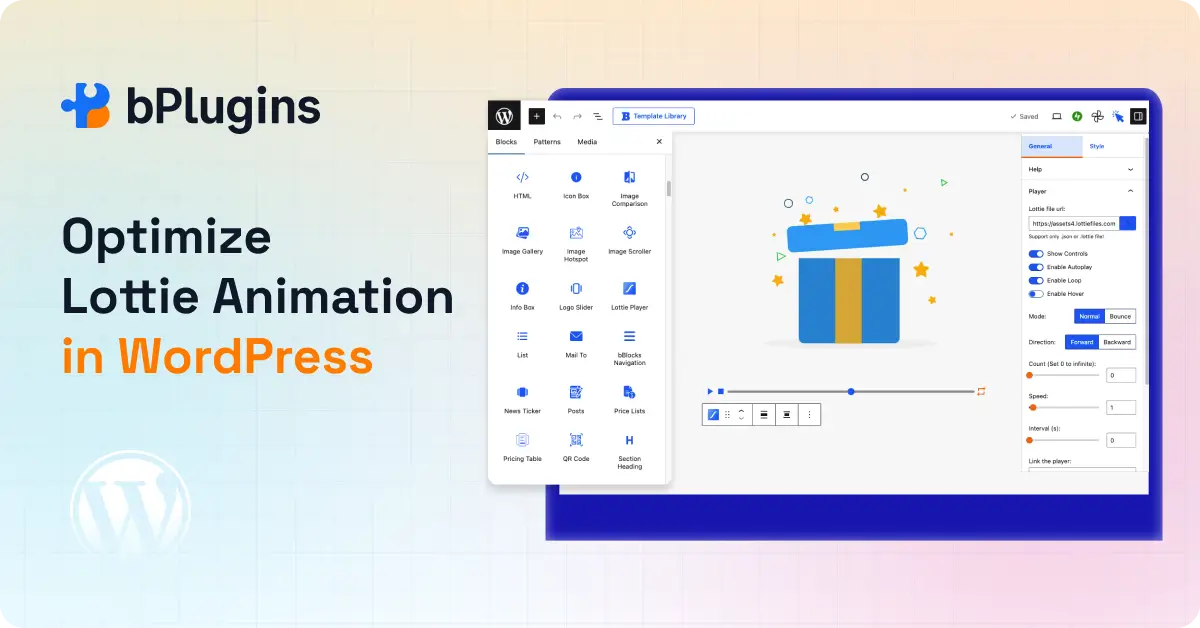
Lottie animations have changed modern web design, and for good reason. They look polished, scale perfectly on any screen, and add motion without the bulk of a video file.
But add them carelessly, and they will slow your site to a crawl.
We have seen this play out many times. A well-designed homepage with a smooth hero animation, but the page takes five seconds to fully load. Visitors bounce. Google takes note. Rankings slip.
The thing is, Lottie animations do not have to hurt performance. When you know how to optimize Lottie animation in WordPress the right way, you keep your site fast and your design intact.
This guide covers what Lottie animations are, why they sometimes cause performance problems, and the exact steps to fix those problems before they cost you traffic.
Let’s get in.
What Are Lottie Animations?
Lottie animations are lightweight, vector-based animations stored as JSON files that browsers render in real time, making them far smaller and sharper than GIFs or video files.
Lottie is an animation format originally developed by Airbnb. Designers build animations in Adobe After Effects and export them using a plugin called Bodymovin. The output is a lightweight JSON file that browsers can render directly.
Unlike GIFs or videos that store every frame as pixel data, Lottie files store vector instructions. The browser reads those instructions and draws the animation on the fly. This is why Lottie files are small, sharp at any resolution, and fast to render when handled properly.
On WordPress sites, you will typically see Lottie animations used in:
- Hero sections with moving illustrations
- Feature icons that animate on scroll
- Call-to-action areas with subtle motion
- Loading screens and button interactions
Compared to GIFs, Lottie files are often 80 to 90 percent smaller. Compared to video, they are lighter still. But that size advantage disappears fast if the files are bloated or loaded without any strategy.
Learn Lottie Animations vs GIFs: Which Works Best in WordPress?.
Do Lottie Animations Slow Down WordPress?
Lottie animations do not slow down WordPress on their own. The real culprits are oversized JSON files, too many animations loading at once, and plugins that load scripts on every page, whether an animation exists or not.
It depends entirely on how you use them.
When Lottie Is Fast
A properly optimized Lottie file is tiny. Most simple animations come in between 20 and 100 KB. Compare that to a background video, which can easily run several megabytes. Because Lottie renders through vector math rather than pre-baked frames, the browser handles it without breaking a sweat.
One or two clean animations on a page? Most visitors will never feel a thing.
When Lottie Kills Your Page Speed
Here is where most WordPress sites go wrong:
- The JSON file is exported straight from After Effects with no cleanup, and it is 400 to 600 KB
- Multiple animations load simultaneously on the same page
- Every animation autoplays at page load, including ones buried below the fold
- The Lottie script loads on every page, even those with no animation at all
- The plugin adds unnecessary wrappers or pulls in extra scripts
Each of these issues adds load time on its own. Stack a few together, and you have a serious performance problem.
This is exactly why optimization matters. Let us walk through it step by step.
How Do Lottie Animations Affect Core Web Vitals?
Lottie animations can negatively affect all three Core Web Vitals: LCP, CLS, and INP. Animations above the fold delay LCP, containers without fixed dimensions cause CLS, and multiple simultaneous animations slow down INP.
Google’s Core Web Vitals directly influence how your pages rank. Lottie animations, when mishandled, can drag down all three key metrics.
LCP (Largest Contentful Paint)
LCP measures how long the biggest visible element on the page takes to appear. If your hero animation is the largest thing above the fold and takes time to initialize, your LCP score takes a hit. Google’s threshold for a good LCP is under 2.5 seconds.
CLS (Cumulative Layout Shift)
CLS tracks how much the page layout jumps around as content loads. If your Lottie container does not have a fixed width and height defined before the animation loads, the surrounding content shifts to make room. This tanks your CLS score and creates a jarring experience for users.
INP (Interaction to Next Paint)
INP measures how fast the page responds to user actions like clicks and taps. When multiple animations run in the background, they keep the browser’s main thread busy. A busy main thread means slower responses to user input.
Lazy loading, async script handling, and clean plugin code are the main defenses against all three of these issues.
How to Optimize Lottie Animation in WordPress: Step by Step
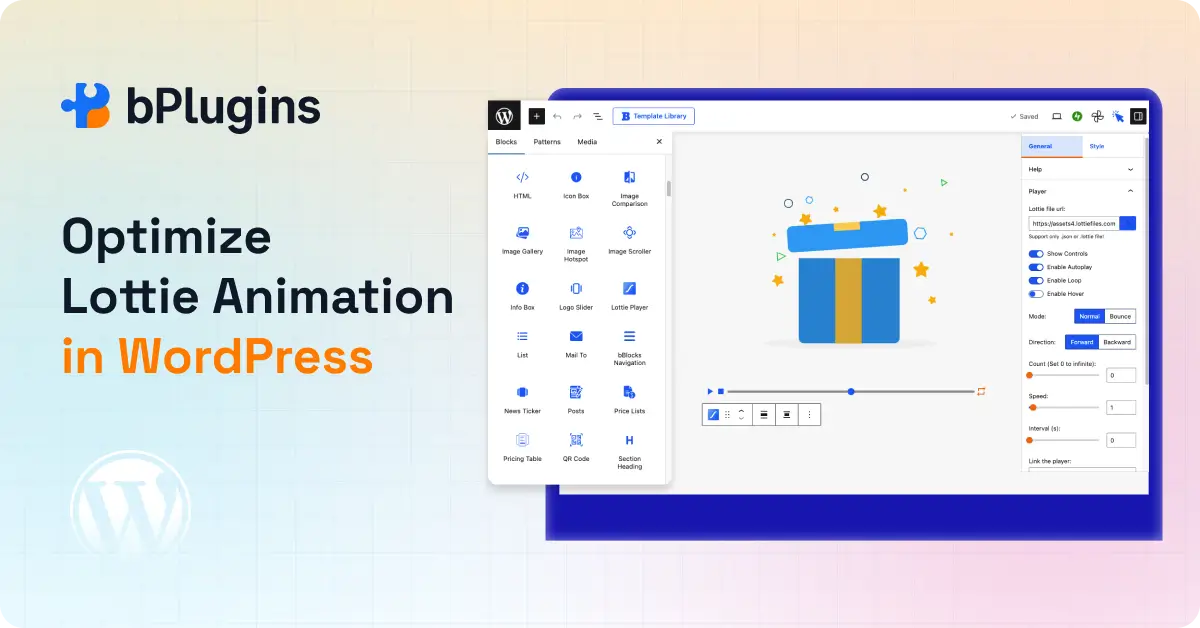
Step 1: Start With a Lighter JSON File
The animation file itself is where most performance is won or lost. No plugin or setting can fully compensate for a bloated JSON file.
Before you export from Adobe After Effects:
- Delete hidden and unused layers
- Simplify complex paths where you can
- Skip effects like drop shadows and blurs, which inflate file size significantly
- Keep the animation short and tight
After exporting, run the file through a Lottie JSON minifier. Several free tools do this well. A 300 KB file can often shrink to under 80 KB with just a few minutes of work. That is a faster download, less rendering time, and a noticeably snappier page.
Step 2: Enable Lazy Loading
Lazy loading tells the browser to hold off on loading an animation until the user scrolls near it. Anything below the fold does not need to load upfront.
On a long landing page with several animations, this one change can shave seconds off the initial load. The user sees the page content immediately. The animations load in as they scroll, right when they need them.
Check whether your Lottie plugin supports lazy loading before you install it. Not all of them do.
Step 3: Think Twice About Autoplay Above the Fold
A hero animation that autoplays on load looks great in a demo. In practice, it fires at the worst possible moment: when the browser is already working hard to render the page and paint the first visible content.
If you need above-the-fold animation, keep the file size minimal. Even better, trigger the animation after the page has finished loading rather than during the initial render.
For everything below the hero, scroll-triggered playback is almost always the smarter choice.
Step 4: Use Conditional Script Loading
A lot of Lottie plugins load the Lottie JavaScript library on every page of your site by default. Pages with no animation still carry that script weight.
Conditional script loading fixes this. The library only loads on pages that actually use the Lottie block. Across a site with dozens of pages, this adds up to real savings in load time and page weight.
Before you choose a plugin, confirm it uses conditional loading.
Step 5: Watch How Many Animations You Run Per Page
Two to three animations per page is a practical ceiling for most sites. Beyond that, especially on mobile, users start to feel the slowdown.
Think of animations like seasoning. The right amount adds flavor. Too much and you cannot taste anything else.
If your design genuinely calls for more animations, keep them small, lazy-loaded, and staggered so they do not all fire at once.
Step 6: Choose a Plugin That Prioritizes Performance
The plugin handling your animations controls how scripts load, how the HTML renders, and how much overhead your pages carry. A slow plugin undoes all the file-level work you did in Step 1.
We will cover what to look for next.
Why Does Your Plugin Choice Matter?
Your plugin choice matters because it controls how scripts load, how the animation HTML renders, and how much weight every page carries, even pages with no animation at all.
Not every Lottie plugin is built with performance in mind. Some load scripts across every page. Some wrap animations in layers of unnecessary HTML. Some were put together fast and never revisited.
A careless plugin can take a well-optimized Lottie file and still slow your site down through poor script injection or bloated output.
What a performance-focused Lottie plugin should do:
- Load scripts only on pages that contain an animation
- Support lazy loading and scroll-triggered playback
- Output clean, minimal HTML with no extra wrappers
- Use native Gutenberg block architecture rather than shortcodes
- Stay actively maintained with regular updates
That last point about Gutenberg blocks is worth understanding. Native blocks produce lean HTML and load only what each page needs. Shortcode-based plugins rely on older WordPress infrastructure that tends to carry more overhead, even when the shortcode itself is simple.
How Lottie Player Handles Performance
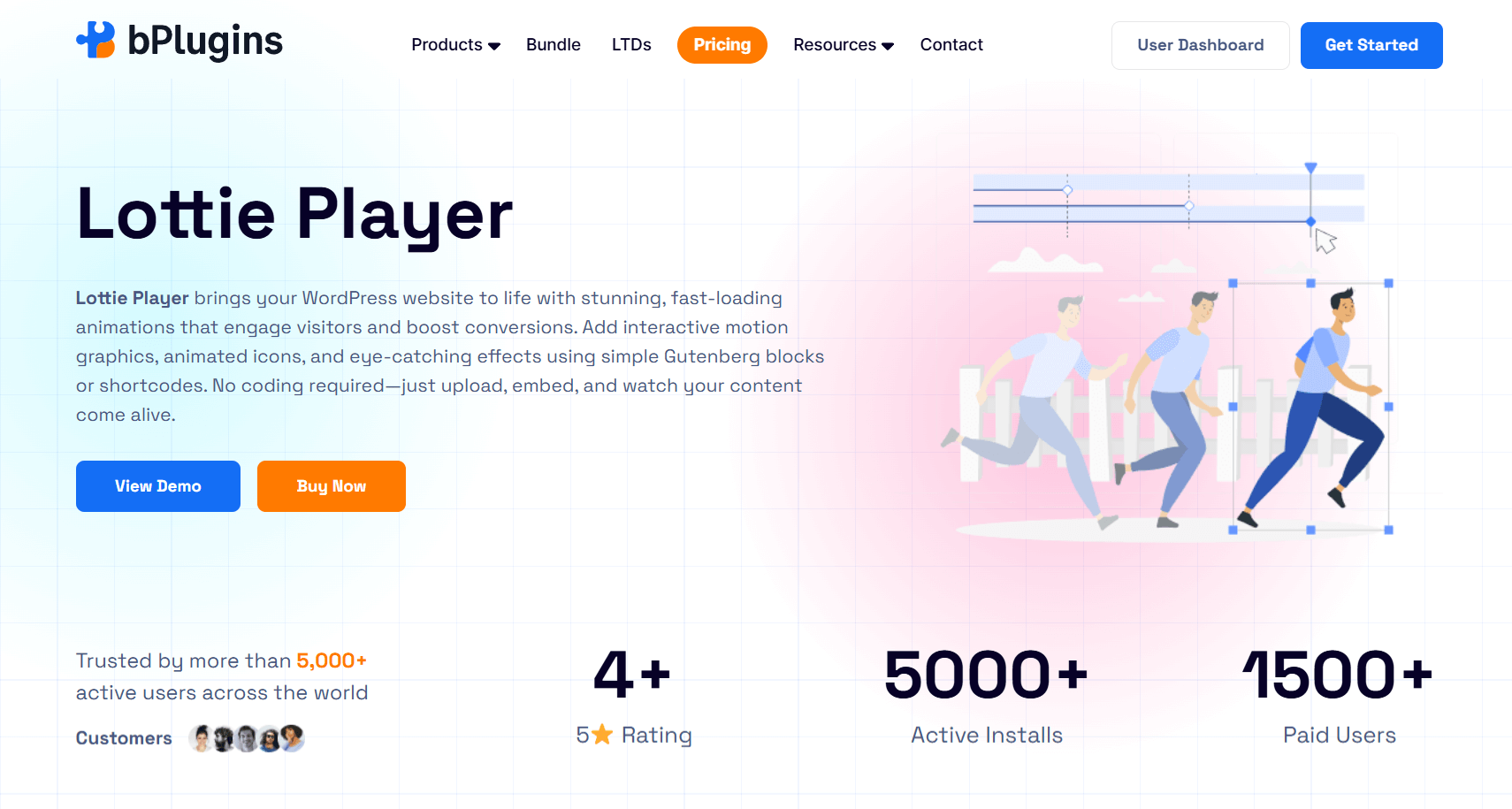
We built Lottie Player for WordPress block editor users who want great-looking animations without the performance trade-offs.
Here is how it addresses the most common performance problems:
Conditional script loading. The Lottie library only loads on pages where the block actually exists. No animation on the page means no script on the page.
Gutenberg-native block. No shortcodes. No PHP wrappers. No legacy overhead. The block outputs clean HTML and nothing extra.
Scroll trigger and visibility controls. Set any animation to play only when it enters the viewport. You get the benefits of lazy loading without writing a single line of code.
Full playback control. Adjust loop, speed, direction, autoplay, and interval for each animation individually. This means you only run animations as intensively as you actually need to.
Support for .json and .dotlottie formats. The .dotlottie format is a compressed version of the standard that produces smaller files. Where your workflow supports it, using .dotlottie is an easy win.
No extra dependencies. The plugin does not pull in third-party libraries or bloat your page with scripts it does not need.
It works well with modern block themes and fits naturally into a full-site editing setup.
Advanced Tips for Power Users
Once the basics are in place, these techniques give you another level of control.
Serve JSON Files From a CDN
If your visitors are spread across different regions, a CDN serves your Lottie files from whichever server is closest to them. This reduces latency and cuts load time, especially for international audiences.
Cache Your Animation Files
Make sure your caching plugin covers Lottie JSON files. Once a file is cached, it loads nearly instantly for repeat visitors. Set a sensible cache TTL so updated animations do not get stuck behind stale versions.
Test Each Animation Separately
Run your pages through Lighthouse, PageSpeed Insights, or GTmetrix before and after adding animations. These tools give you a clear picture of what each element costs. If an animation is dragging down your score, you will see it immediately.
And always test on mobile. A phone CPU is nowhere near as powerful as a laptop’s, and animations that feel smooth on a desktop can stutter badly on a mid-range phone.
Confirm Defer or Async Is Active
Check whether your plugin loads the Lottie script with defer or async. Either attribute prevents the script from blocking the page render. Most modern plugins handle this correctly, but it takes thirty seconds to confirm in your browser’s developer tools.
Common Mistakes to Avoid
Most Lottie performance problems trace back to the same handful of errors:
- Exporting straight from After Effects and uploading without any cleanup
- Using a heavy, complex animation as a full-width hero background
- Piling five or more animations onto a single page
- Skipping mobile testing entirely
- Running an old plugin that uses an outdated version of the Lottie library
- Not setting fixed dimensions on the animation container, which causes a layout shift on load
These mistakes are easy to avoid once you know how to look for them. Think of every animation as a performance decision, not just a design one.
Frequently Asked Questions
Do Lottie animations slow down WordPress?
They can, but the problem is always fixable. Large files, too many animations, and plugins that load scripts everywhere are the usual causes. Address those three things, and Lottie animations run fast.
Are Lottie files lighter than GIFs?
Yes, by a significant margin. GIFs store every frame as image data. Lottie files store vector instructions that the browser renders in real time. For most animations, the Lottie version is 80 to 90 percent smaller than an equivalent GIF.
How many Lottie animations should I use per page?
Two to three works well for most pages. If you need more, keep the files small, use lazy loading, and avoid having all of them autoplay at once. Test after every addition.
Is lazy loading necessary for Lottie animations?
For anything below the fold, yes. It prevents off-screen animations from consuming resources during the initial page load, which is when your performance scores are measured.
What is the best way to optimize Lottie animation in WordPress?
Minify the JSON file first. Enable lazy loading. Use scroll-triggered playback where you can. Load scripts conditionally. Pick a plugin that handles all of this cleanly by default.
Can Lottie animations affect Core Web Vitals?
Yes. Above-the-fold animations can delay LCP. Containers without fixed dimensions cause CLS. Multiple heavy animations slow INP. Every one of these is preventable with the steps covered above.
Speed and Motion Can Work Together
Lottie animations are genuinely one of the best options for adding life to a WordPress site. Lighter than GIFs, sharper than video, and flexible enough to fit almost anywhere on a page.
But none of that matters if the implementation is sloppy. Performance takes intentional choices: clean files, smart loading, a capable plugin, and regular testing.
Work through the steps in this guide, and your animations will make your site better, not slower.
If you want a lightweight, Gutenberg-ready way to add optimized Lottie animations to WordPress, Lottie Player is worth checking out. It is built to stay fast and keep your pages clean, so you never have to choose between great design and great performance.

 Save 90%