


WordPress comes with a built-in list block. It works. But it’s bare, plain, and forgettable. No icons. No colors. No visual personality.
When visitors scan your service page or feature section, a wall of plain bullet points doesn’t grab attention. It gets skipped. That’s a real problem when those lists carry your most important selling points.
A lot of people solve this by installing a full-page builder. But that’s like buying a food truck because you want a sandwich. It works, but it’s overkill.
There’s a smarter way. Dedicated WordPress icon list plugins let you build beautiful, styled, icon-enhanced lists right inside the Gutenberg editor. No builder. No bloat. No extra complexity.
In this post, we cover the best WordPress icon list plugins available in 2026, what makes each one worth your time, and which one is the right call for most users.
Why Your Lists Need Icons (and What Good Icon List Plugins Do Differently)
A good list isn’t just content. It’s a visual cue that guides your reader’s eye down the page.
Icons add a layer of hierarchy. When each item has a recognizable symbol next to it, readers know exactly where one point ends and the next begins. That makes scanning faster, which is how most people actually read web pages.
Beyond scannability, icons build visual consistency. A feature list on your pricing page, a service overview on your homepage, a checklist on a landing page, all of these feel more polished and on-brand when the icons match your design.
But not all WordPress icon list plugins are built the same. Here’s what separates the good ones from the frustrating ones:
- A solid icon library. You shouldn’t have to upload SVGs manually for every page.
- Per-item control. Changing the icon, color, or size for a single item shouldn’t break the whole list.
- Link support. Feature lists and pricing tables often need clickable items.
- Clean code output. Bloated markup slows pages down and creates maintenance headaches.
- Gutenberg-native. If it doesn’t work cleanly inside the block editor, it’s already fighting your workflow.
Keep these criteria in mind as we walk through each plugin below.
Read 5 Best PDF Plugins Compared: Features & Performance.
5 Best Icon List Block Plugins for WordPress
Quick Comparison Table
| Plugin | Standalone | Icon Library | Per-Item Control | Link Support | Free |
| Icon List Block | Yes | Large | Full | Yes | Yes |
| Kadence Blocks | No (bundle) | Good | Yes | Yes | Yes |
| GenerateBlocks | No (bundle) | Limited | Yes | Yes | Yes |
| Ultimate Blocks | No (bundle) | Moderate | Partial | No (free) | Yes |
| Otter Blocks | No (bundle) | Good | Partial | Yes | Partial |
1. Icon List Block (Our Top Pick)

Best for: Anyone who wants a focused, purpose-built Gutenberg icon list block, free, fast, and flexible.
Overview
Plain lists are invisible. Icon List Block turns your bullet points into visual, branded feature lists, directly inside the Gutenberg editor, with zero builders or shortcodes needed.
This is a dedicated plugin built for one job: making icon lists. And it does that job really well.
It replaces the standard WordPress list with a fully customizable, icon-enhanced block. You pick your icons from a built-in library, set your colors and spacing, and you’re done. Everything happens right inside the block editor. No settings page hunting. No external tools.
Key Features
Large built-in icon library. You get a solid selection of icons right out of the box. No need to upload SVGs or connect a third-party library for common use cases. Pick your icon, drop it in, move on.
Per-item icon, color, size, and spacing control. This is where Icon List Block really earns its place. You can make each list item look different without touching a single line of CSS. Want a green checkmark for one item and a red warning icon for another? Done in seconds.
Multiple theme presets. The plugin ships with several pre-designed themes you can switch between instantly. It’s practical for anyone who wants a styled list fast without tweaking every setting manually.
Link support per list item. Each item can have its own URL. This makes the block genuinely useful for feature comparison sections, service pages, and pricing tables where items need to link out to more detail.
Lightweight and scoped loading. The block only loads its assets on pages where it’s actually used. That keeps your page performance clean across the rest of your site.
Works with any theme. Whether you’re on a classic theme or a Full Site Editor setup, Icon List Block fits in without conflict. It doesn’t depend on any other block library to function.
Actively maintained. The plugin gets regular updates, with fixes and improvements as recently as March 2026. There’s a dedicated support channel, and the team responds.
The plugin currently has 4,000+ active installs on WordPress.org and is tested up to WordPress 6.9.
Real Use Cases
- Feature lists on SaaS or plugin pages
- Service breakdowns on agency or freelancer sites
- Pro vs. free comparison sections
- Landing page bullet points that need to stand out
- Pricing table features with linked items
2. Kadence Blocks (Icon List Feature)
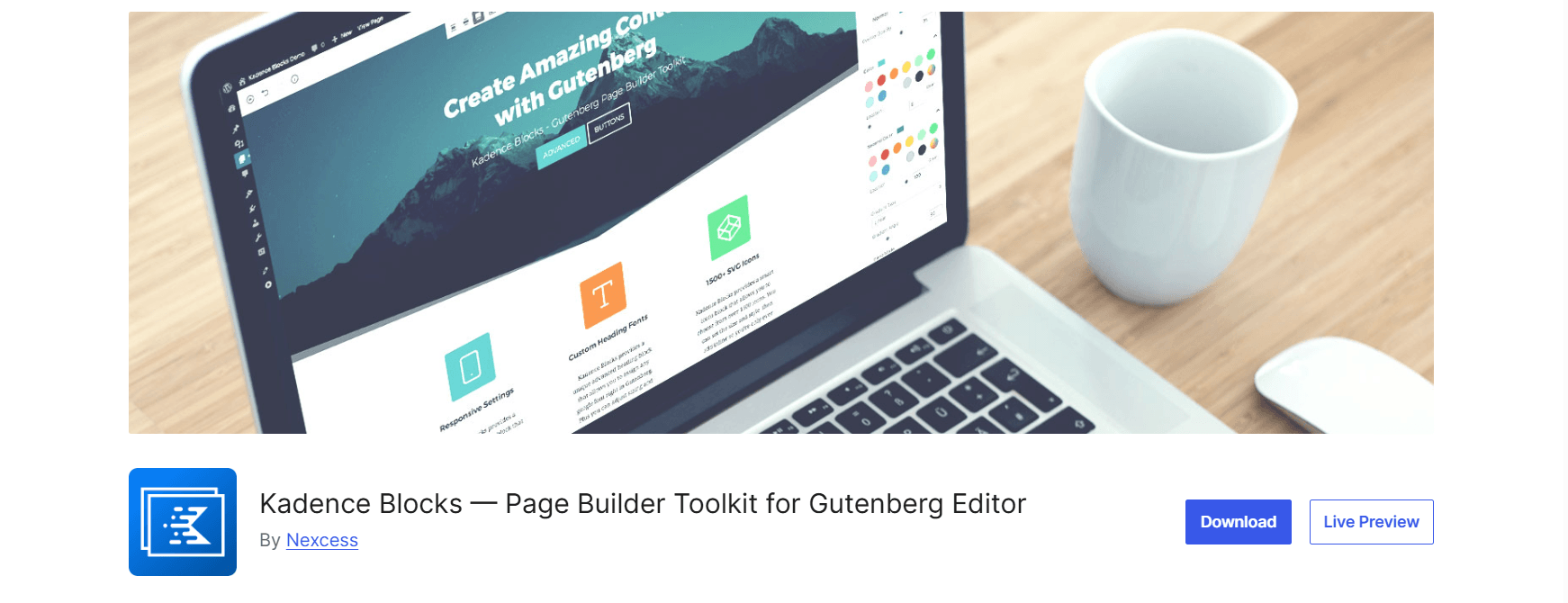
Best for: Users already running Kadence Blocks who want to avoid adding another plugin.
Overview
Kadence Blocks is one of the most popular Gutenberg block libraries in the WordPress ecosystem. It covers a wide range of blocks, and the icon list is one of them. If you’re already running Kadence on your site, the icon list feature is right there waiting for you.
But here’s the thing. It’s not a standalone block. It ships as part of the full Kadence Blocks bundle. That means if you install it just for the icon list, you also activate dozens of other blocks you may never use. For a site that only needs a custom list block, that’s a lot of extra weight to carry.
The design quality is solid. Kadence’s icon list looks clean within the Kadence ecosystem, and the UI feels familiar if you’re already used to working with their blocks. But the feature set is tied to the bundle, which limits how far you can push it without leaning into the rest of the Kadence suite.
Key Features
Clean default styling. Kadence’s icon list comes with a polished default look. You don’t need much configuration to get a list that looks good on any page.
Basic icon selection. You can choose from a set of icons included in the block. The library isn’t as deep as a dedicated plugin, but it covers common use cases like checkmarks, arrows, and bullets.
Color and size controls. You can set icon colors and sizes at the list level. Per-item overrides are available but require more steps compared to a dedicated Gutenberg icon list plugin.
Link support. Items can be linked, which makes the block useful for feature sections where you need clickable entries.
Integration with Kadence design system. If you’re using Kadence’s global color palette and typography settings, the icon list inherits those settings automatically. That’s a real time-saver if you’re already deep in the Kadence workflow.
Limitation
The icon list is one piece of a large bundle. If you activate Kadence Blocks just for this feature, you’ll end up with 30+ blocks in your editor that you don’t need. That adds clutter to your block inserter and loads assets that serve no purpose on most pages.
Per-item customization also takes more clicks than it should. Changing the icon or color for a single item isn’t as direct as it is in a plugin built specifically for that task. A dedicated icon list block like Icon List Block handles this in a single click, with no extra steps.
If Kadence Blocks is already part of your setup, the icon list is a useful bonus. If it’s not, installing the full bundle just for icon lists doesn’t make much sense.
Real Use Cases
- Feature sections on Kadence-built sites
- Landing pages already using the Kadence template system
- Sites where Kadence Blocks is already active for other blocks
Also, check Best WordPress Lottie Animation Plugins for Smooth UX.
3. GenerateBlocks (List Block)
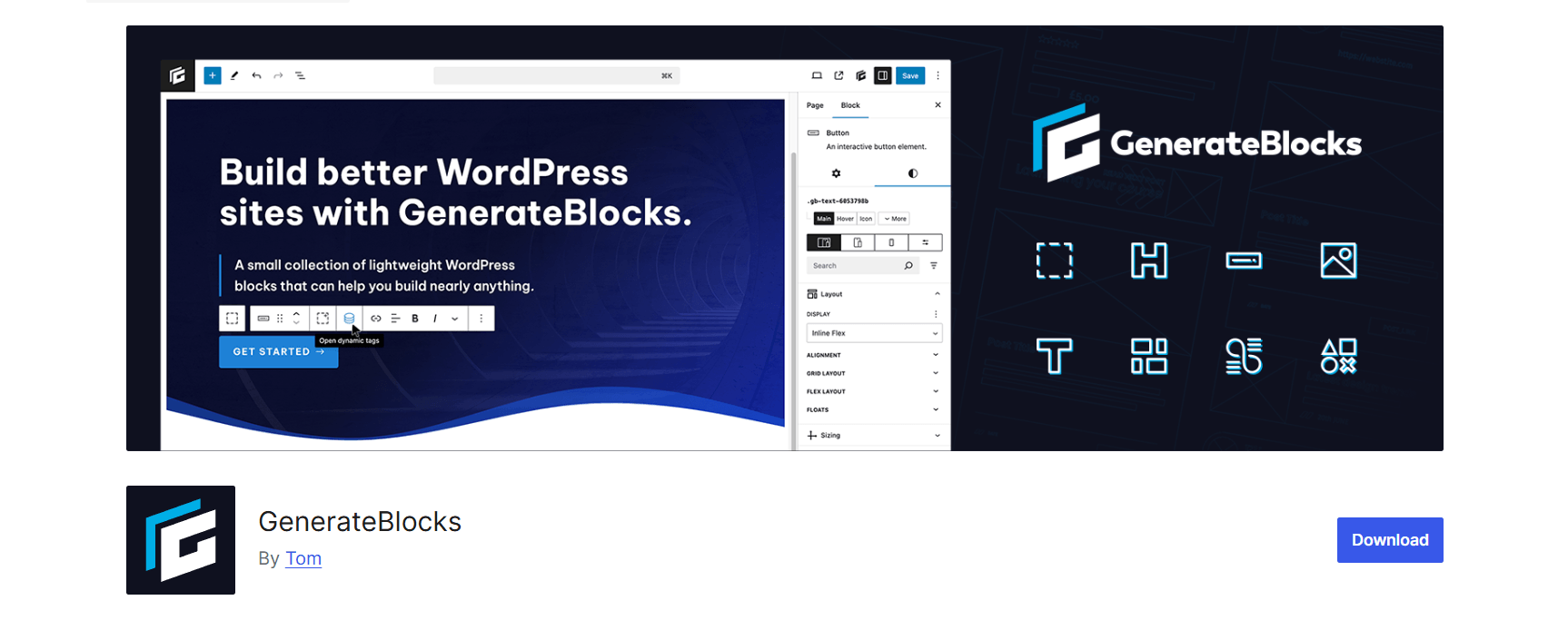
Best for: Developers building performance-first sites who want full control over output.
Overview
GenerateBlocks takes a different approach from most Gutenberg block libraries. Instead of giving you dozens of pre-styled blocks, it gives you a small set of highly flexible primitives. The list block is one of them.
The code output is extremely lean. GenerateBlocks is built with performance as the top priority, and that shows in the markup it produces. If you’re building sites where page speed is non-negotiable, GenerateBlocks is one of the few block plugins that won’t get in the way.
But that performance focus comes with a real tradeoff. The list block is minimal by design. Icon support is limited out of the box. Getting a visually rich icon list, the kind with different icons per item, color control, and link support, requires custom CSS or additional configuration. For a developer who’s comfortable doing that work, it’s manageable. For anyone else, it’s friction.
GenerateBlocks is also a bundle. It pairs best with the GeneratePress theme, and most of its power comes from combining the two. Using it outside that ecosystem means giving up some of the workflow advantages that make it worth the setup time.
Key Features
Minimal, clean HTML output. GenerateBlocks produces some of the leanest markup of any block plugin. If you care about PageSpeed scores and Core Web Vitals, that matters.
Flexible layout control. The list block gives you solid control over spacing, alignment, and structure. It’s a good foundation for custom builds.
Developer-friendly. Everything can be customized through CSS. If you want pixel-perfect control and you know your way around a stylesheet, GenerateBlocks gives you that foundation.
Link support. You can add links to list items, which covers the basic use case for feature and pricing sections.
Works well with GeneratePress. If you’re already using GeneratePress as your theme, GenerateBlocks integrates deeply with the theme’s settings and global styles.
Limitation
The icon selection is very limited out of the box. There’s no large built-in icon library here. Getting custom icons for each list item means extra work, either through custom CSS, icon font integration, or manual SVG uploads.
There’s also no per-item styling panel the way a dedicated icon list plugin provides. Changing one item’s icon independently from the rest requires manual CSS targeting. For non-developers, that’s a hard barrier.
If you want an icon list block that looks great without writing a single line of code, a dedicated plugin like Icon List Block will get you there faster and with far less effort. GenerateBlocks is better suited to developers who are building custom layouts from scratch anyway.
Real Use Cases
- Custom-built sites on GeneratePress where performance is the top priority
- Developer projects where the visual layer is handled through custom CSS
- Lightweight landing pages with minimal styling requirements
Learn about the 3 Best Voice Feedback WordPress Plugins to Collect User Feedback in Realtime.
4. Ultimate Blocks (Styled List)
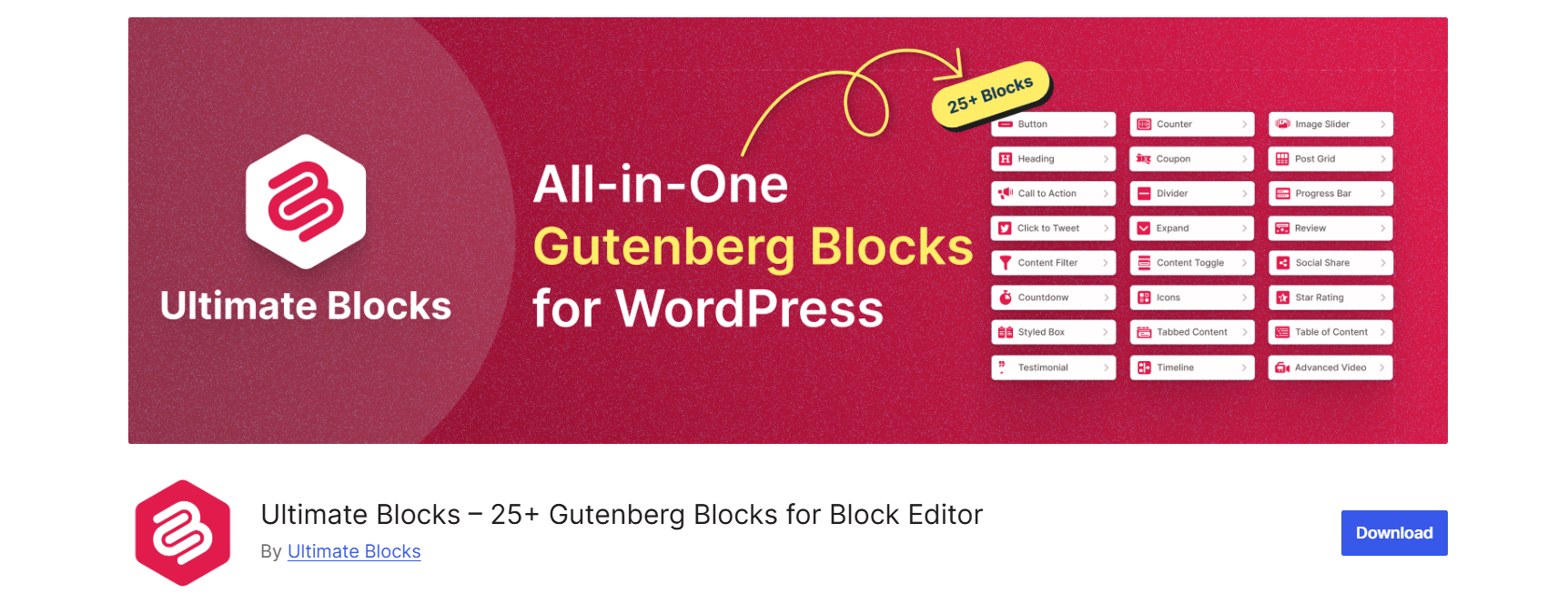
Best for: Beginners who need a basic styled list and want to stay on the free tier.
Overview
Ultimate Blocks is a beginner-friendly Gutenberg block library that covers a solid range of basic content blocks. The styled list is one of its more useful features. It’s easy to set up, works without a pro subscription for basic icon use, and doesn’t require any technical knowledge to get started.
If you’re building a simple page and just need bullet points that look a bit better than the default WordPress list, Ultimate Blocks gets you there quickly. But once you push past the basics, you’ll start hitting the edges of what it can do.
Like the other plugins on this list, it’s a bundle. You get the styled list as part of a wider collection of blocks. That means extra blocks in your editor and extra assets loading on your pages, even when you only need one feature.
Key Features
Easy setup. There’s no learning curve with Ultimate Blocks. Install it, find the styled list in the block inserter, and start adding items. It works right away without any configuration.
Basic icon support. You can choose icons for your list items from a modest icon set. It covers common options like checkmarks, stars, and simple shapes.
Color controls at the list level. You can set the icon color for the whole list at once. It’s a quick way to match your brand color without touching CSS.
No pro plan required for basics. The core icon list functionality is available in the free version. For simple pages where you just need a styled list with icons, you won’t hit a paywall.
Works with any theme. Ultimate Blocks doesn’t lock you into a specific theme ecosystem. It installs and works on most WordPress setups without compatibility issues.
Limitation
Per-item customization is where Ultimate Blocks falls short. You can’t change the icon, color, or size for individual list items without workarounds. The styling controls apply to the whole list, not to individual entries.
Link support per item isn’t available in the free version either. If you’re building a feature comparison section or a pricing list where each item needs its own URL, you’ll need to upgrade or look elsewhere.
The icon library is also on the smaller side. You get enough for basic use, but nowhere near the depth of a plugin built specifically for icon lists. If visual variety matters to your design, you’ll feel that gap quickly.
For a simple blog post or a basic about page, Ultimate Blocks works fine. But for any page where the list needs to do real design work, like a landing page, a feature section, or a pricing table, the limitations show up fast. Icon List Block covers all of that in the free version, with full per-item control and link support included at no cost.
Real Use Cases
- Simple blog posts that need slightly better-looking bullet points
- About pages with a basic features or benefits section
- Sites where budget is tight and the use case is straightforward
Explore the Best WooCommerce Review Plugins for WordPress in 2025.
5. Otter Blocks (Icon List)
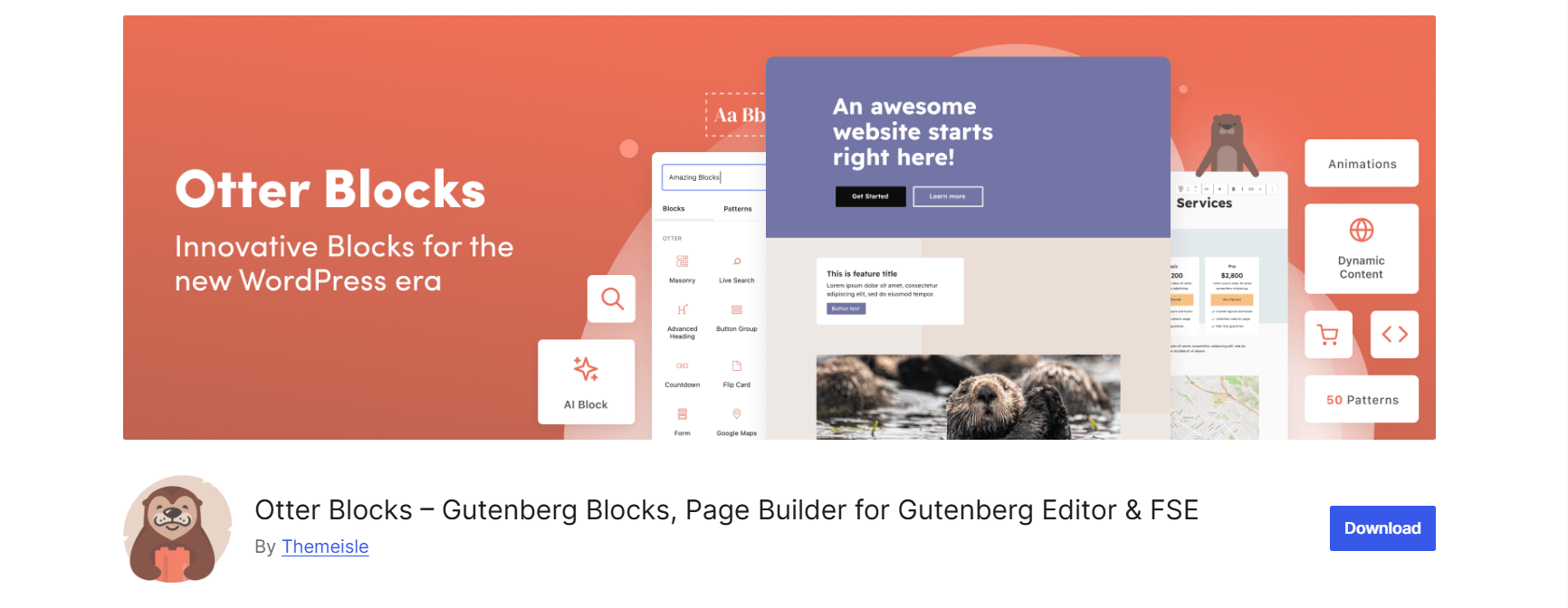
Best for: Neve theme users and anyone already working inside the ThemeIsle ecosystem.
Overview
Otter Blocks is ThemeIsle’s official block plugin, designed to work alongside their Neve theme. It covers a solid range of Gutenberg blocks, and the icon list is one of the more polished features in the collection.
If you’re running Neve, adding Otter Blocks makes a lot of sense. The two products are built to work together, and the integration is seamless. The icon list inherits Neve’s global colors and typography settings, which saves time when you’re trying to keep your design consistent across pages.
Outside the ThemeIsle ecosystem, though, the case for Otter Blocks gets weaker. Like the others on this list, it’s a bundle, and the icon list feature alone doesn’t justify installing the full plugin on a site that isn’t already using Neve.
Key Features
Clean default design. The Otter icon list has a polished out-of-the-box look. You don’t need much customization to get a list that fits a professional layout.
Icon selection with FontAwesome support. Otter pulls from FontAwesome, which gives you a wide range of icons to choose from. That’s one area where it holds up well compared to other bundle plugins.
Color and size controls. You can adjust icon colors and sizes at the block level. The settings panel is clean and easy to navigate.
Link support. Individual list items can be linked, which covers the basic use case for feature and service pages.
Neve integration. When you’re using Neve, Otter Blocks connects directly with the theme’s global style settings. Change your brand color in Neve, and it flows through to your Otter blocks automatically.
Limitation
The more useful styling options sit behind the Otter Pro paywall. Per-item icon customization, advanced spacing controls, and some layout options all require upgrading. For a free tool, the baseline is decent, but it’s clearly designed to push you toward the paid tier.
Per-item icon and color control is also more limited in the free version compared to what Icon List Block offers for free. If you want different icons or colors for individual list items without paying, you’ll hit a wall quickly.
The bundle weight is the same issue we see with the other plugins here. Installing Otter Blocks for the icon list alone adds a collection of extra blocks and assets to your site that most pages will never need.
For Neve users, Otter Blocks is a natural companion and the icon list is a nice bonus. For everyone else, a dedicated plugin like Icon List Block gives you more icon control, better per-item customization, and cleaner performance, all in the free version, without the ecosystem dependency.
Real Use Cases
- Pages built with the Neve theme and Otter’s layout system
- Sites already running ThemeIsle products
- Lightweight feature sections where basic icon styling is enough
Read also Best WordPress Portfolio Plugins to Showcase Creative Works.
How to Choose the Right WordPress Icon List Plugin for Your Site
The right pick depends on what you’re already running.
Starting fresh? Go with Icon List Block. It’s purpose-built, lightweight, and free. No bundle baggage.
Already on Kadence Blocks? Use the icon list feature that’s already there. No reason to add another plugin.
A developer building lean sites? GenerateBlocks gives you clean output and full control, as long as you’re comfortable doing the extra setup.
On a tight timeline? Ultimate Blocks gets a basic icon list live in minutes, for free.
Using Neve? Otter Blocks is the obvious first stop.
The one thing to avoid: installing a large block library just to get one icon list feature. If that’s all you need, the extra weight isn’t worth it.
Explore The Best WordPress Plugins for Small Business Websites in 2026.
How to Set Up Icon List Block in Gutenberg (Quick Start)
Getting started with Icon List Block takes about two minutes.
- Go to Plugins > Add New in your WordPress dashboard.
- Search for Icon List Block.
- Click Install Now, then Activate.
- Open any page or post in the Gutenberg editor.
- Click the + button, search for Icon List, and select the block.
- Add your list items, pick icons from the built-in library, and use the right-side panel to adjust colors, spacing, and links.
The block goes live as soon as you publish the page.
For custom image icons, badge titles, animated styles, and grid layouts, try the Pro version.
Frequently Asked Questions
Can we use an icon list plugin without a page builder?
Yes. All five plugins in this list work natively inside the Gutenberg block editor. You don’t need Elementor, Divi, or any other builder.
Will adding an icon list plugin slow down our site?
A focused plugin like Icon List Block has minimal performance impact. It only loads assets on pages where the block is used. Bundle-based plugins load more assets globally, though most handle this reasonably well.
Can we add links to individual list items?
Yes, with Icon List Block. It supports per-item URLs out of the box. Not all plugins offer this in the free tier. Ultimate Blocks, for example, doesn’t include link support in the free version.
Does Icon List Block work with Full Site Editing themes?
Yes. It’s fully compatible with both FSE and classic themes.
What’s the difference between the free and pro versions of Icon List Block?
The free version covers the core use case well: icon selection, per-item styling, link support, and theme presets. The Pro version adds custom image icons, badge titles and styling, animated icon effects, and custom grid layouts.
Can we use the same icon list block on multiple pages?
Yes. You can add the block to as many pages or posts as you need.
Is Icon List Block compatible with the latest version of WordPress?
Yes. It’s tested up to WordPress 6.9 and actively maintained with updates in 2026.
Check also Best WordPress Slider Plugins in 2026 (Tested and Compared).
Final Verdict
If you need icon lists in WordPress, the choice comes down to one question: are you already running a block bundle that includes this feature?
If yes, use what you have. If Kadence Blocks, Otter, or GenerateBlocks already cover your use case, there’s no need to add another plugin.
If you’re not using any of those, or if a full bundle feels like overkill for one block, Icon List Block is the cleanest option available. It’s purpose-built, free to start, lightweight in production, and flexible enough for real design work. No bundle required. No builder needed. Just a well-built Gutenberg icon list block that does exactly what it says.

 Save 90%