

Building an online course website? You’re probably using WordPress. It’s flexible, educator-friendly, and gives you complete control over your content—especially when paired with the right WordPress plugins for eLearning.
But plain text and static images don’t work anymore. Today’s students expect video tutorials, audio lessons, interactive content, and hands-on learning experiences. This is where WordPress media plugins play a critical role.
Whether you teach high school students, train professionals, or run an online academy, you need tools that make learning stick.
In this guide, you’ll see how educators use multimedia tools to transform basic websites into engaging, media-rich eLearning platforms.
Why Multimedia Matters in Online Education
Different students learn in different ways. Visual learners need diagrams and videos. Others prefer podcasts or audio lectures. Some students need hands-on interaction to truly understand concepts.
Combining different media types on your lesson pages helps you reach more students and boost retention.
The challenge? WordPress doesn’t include built-in tools for embedding videos, displaying 3D models, or showing PDFs inline. You need plugins.
Common problems educators face:
- Videos that don’t play smoothly on all devices
- Documents that force downloads instead of inline viewing
- Audio content without proper controls
- No way to add interactive elements like 3D models
- Complicated setups requiring technical skills
- Unprofessional-looking media that breaks site design
WordPress media plugins solve these problems. They let you create professional, accessible courses without coding. Better engagement, improved outcomes, and full content control.
Essential WordPress Plugins for eLearning
Let’s break down the main plugin categories you need for your eLearning site.
Video Players for Course Sites
Video is the backbone of online education. You need a reliable WordPress video player that works on all devices, loads quickly, and gives students easy playback controls.
Look for these features:
- Playback speed controls (students can speed up or slow down)
- Chapter markers for long lectures
- Resume playback from where students left off
Audio Players for Language Learning and Podcasts
Audio content works great for learning. Podcasts, language exercises, pronunciation guides, and audio notes help students learn on the go.
A good WordPress audio player needs clean controls and mobile compatibility. Language teachers find audio essential for pronunciation and listening comprehension.
Document Viewers and PDF Embedders
Students need access to syllabi, worksheets, readings, and presentations. WordPress PDF plugins display files directly on lesson pages without forcing downloads.
Inline documents keep students focused. No distractions from managing downloads or switching tabs.
Interactive Content for Hands-On Learning
Interactive plugins add 3D models, diagrams, and exploratory content. This experiential learning works especially well for STEM subjects, design courses, and technical training.
Interactive content turns passive reading into active exploration. Students manipulate, rotate, and examine concepts directly. Deeper engagement creates better understanding and retention.
Read also Embed Google Docs in WordPress: Using the Best Plugin and Easy Method.
Using bPlugins Media Tools for Online Courses
Let’s explore practical ways to use WordPress eLearning plugins. We’ll focus on bPlugins media tools, designed specifically for educators and content creators.
These plugins solve specific teaching challenges and work together seamlessly on the same lesson page.
Teaching with HTML5 Video Player
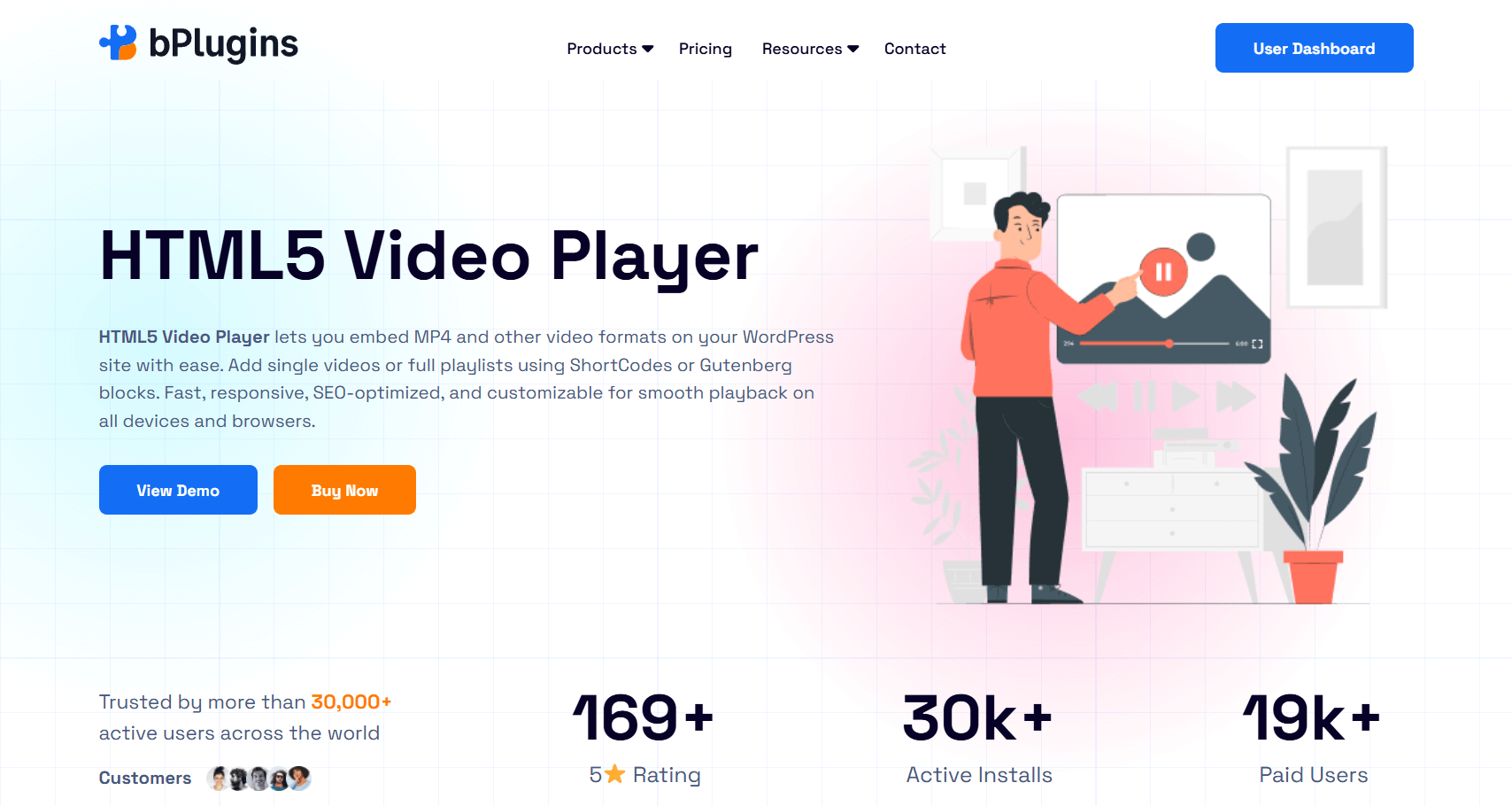
Video lessons form the foundation of most online courses. The HTML5 Video Player plugin embeds course videos using simple Gutenberg blocks or shortcodes.
The player works across desktops, tablets, and smartphones. Students get smooth playback on any device without technical setup.
How educators use it:
Record lecture videos for asynchronous learning. Students watch at their own pace and replay confusing sections.
Create welcoming course introduction videos. A friendly greeting helps students connect with you online.
Build a step-by-step tutorial series. Break complex topics into bite-sized video lessons that students can follow sequentially.
Add video demonstrations to lessons. Show students how to solve problems, perform techniques, or use software.
The plugin handles technical details automatically. Upload your file or paste a URL. The player adjusts to your page layout and works on any device.
Adding Audio with HTML5 Audio Player
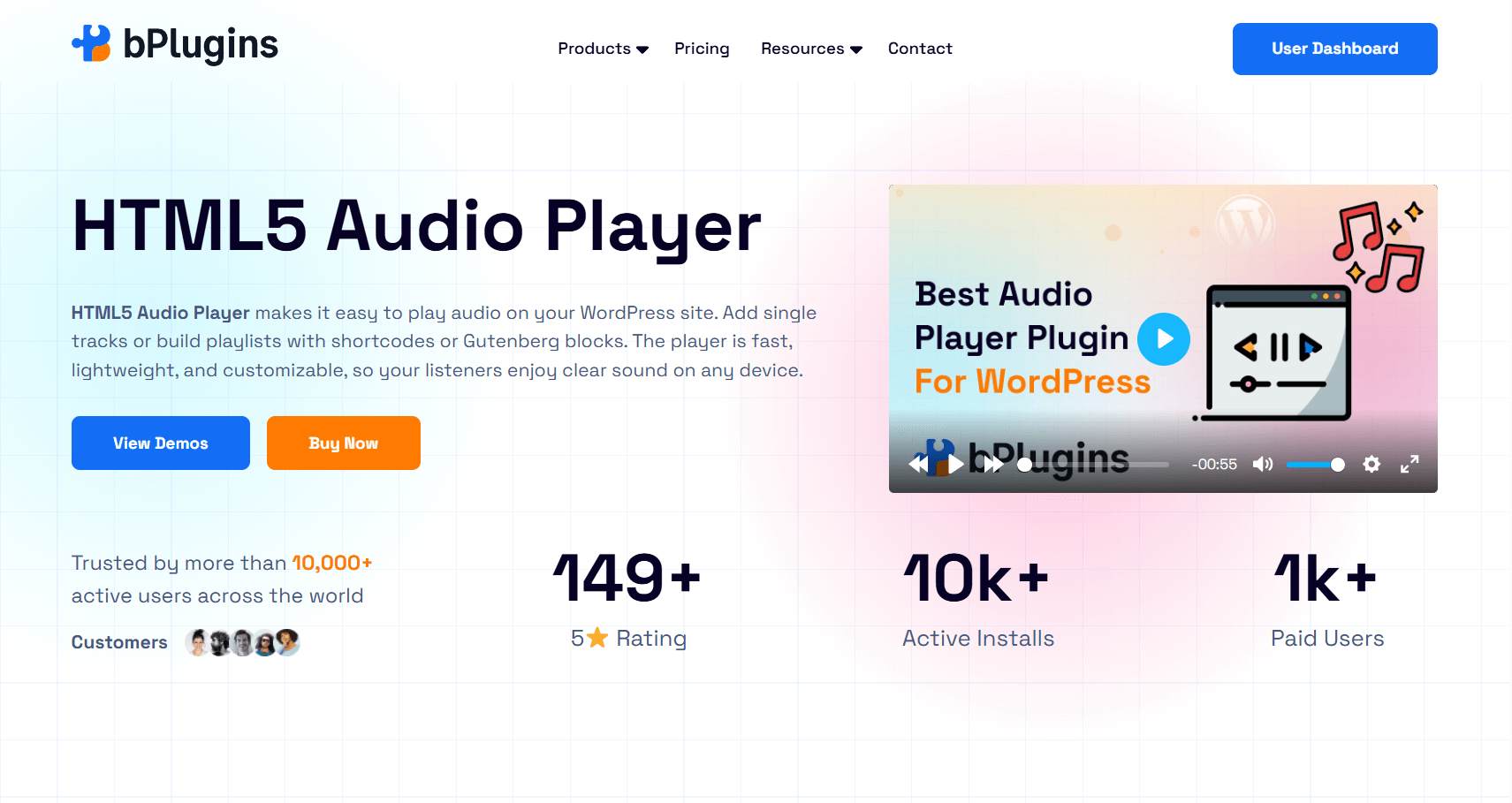
The HTML5 Audio Player plugin delivers clean, accessible controls that students understand instantly.
Audio fits specific learning needs perfectly. Language teachers use it for pronunciation practice. Business instructors record podcast-style lessons for commuters. Music teachers share audio examples and exercises.
How educators use it:
Add language learning exercises and pronunciation drills. Students hear native speakers and compare their own pronunciation.
Create audio versions of written content for accessibility. Some students learn better by listening.
Record podcast-style materials that students can listen to anywhere. Audio lessons offer flexible study options.
Share interview recordings and guest lectures. Bring expert voices into courses without video production.
Provide audio review notes for exam prep. Students listen while exercising, commuting, or multitasking.
Audio files load faster than video and use less bandwidth. Students with slow internet connections can still access content without frustrating delays.
Sharing Documents with PDF Poster Plugin
Nobody wants forced downloads. The PDF Poster plugin displays documents directly on lesson pages.
Students read syllabi, view worksheets, browse presentations, and access readings without leaving your site. This keeps them focused instead of managing downloads.
How educators use it:
Embed PDF files on lesson pages. Students scroll through documents naturally.
Display PowerPoint presentations without requiring PowerPoint. Slides appear as browsable documents.
Share Word documents students reference during lessons. Instructions, requirements, and readings stay accessible.
Include spreadsheets with data, calculations, or templates. Students view these without separate downloads.
Upload your file and embed it anywhere. The viewer works on mobile devices too. No awkward pinching and zooming. The plugin handles mobile display automatically.
Creating Interactive Lessons with 3D Viewer
The 3D Viewer plugin displays interactive 3D models students can rotate, zoom, and explore from every angle.
Why does this matter? Some concepts can’t be explained with flat images and text. When students manipulate 3D models themselves, they grasp spatial relationships and complex structures much better.
Picture teaching anatomy with a 3D heart model students rotate. Explaining architecture with a building they examine from all sides. Demonstrating mechanical engineering with a machine they virtually disassemble.
STEM Education:
Show engineering models demonstrating how machines work. Students rotate models, zoom into parts, and see mechanisms from impossible angles.
Display molecular structures in chemistry. Students examine bonds, angles, and spatial arrangements hands-on.
Present anatomical models for biology. 3D hearts, skeletons, or cell structures beat any diagram.
Share architectural blueprints and building designs. Students explore structures in three dimensions.
Art and Design:
Showcase product design prototypes. Students examine form, proportion, and details from every angle.
Display sculpture models for close examination. Students rotate and zoom to appreciate artistic techniques.
Present 3D artwork and installations. Students experience art in ways photos can’t capture.
Architecture and History:
Recreate historical buildings and monuments. Students virtually visit important structures.
Display archaeological artifacts. Students examine ancient objects without risking real artifacts.
Show ancient structures reconstructed in 3D. History comes alive through explorable reconstructions.
The plugin supports standard 3D formats like OBJ, STL, and GLB. Students don’t need special software. Just mouse or touchscreen interaction. Even young students figure out the intuitive controls immediately.
Designing Pages with Media Player Addons for Elementor
If you build course pages with Elementor, the Media Player Addons plugin adds audio and video widgets designed for Elementor’s visual builder.
Perfect for creating course overview pages, lesson galleries, and multimedia landing pages.
How educators use it:
Build video lesson playlists students can browse. They see available lessons and jump to specific ones easily.
Customize layouts matching course branding. Colors, styles, and arrangements adapt to your visual identity.
Create course overview pages showcasing your curriculum. Potential students see what they’ll learn through attractive presentations.
Design multimedia landing pages for enrollment. Video previews, testimonials, and sample lessons come together professionally.
The widgets work like regular Elementor elements. Drag, drop, and customize with visual controls. No coding needed.
Other Essential Plugins to Enhance Your Learning Platform
Depending on your teaching style and subject, consider these additional tools.
StreamCast or YouTube Player plugins work well for externally hosted videos or live streaming. They offer more control over YouTube embeds than the default WordPress.
Lightbox Block creates focused viewing experiences. When students click images or videos, they open in full-screen overlays without distractions. This maintains concentration during important demonstrations.
Building Multimedia Lessons: Practical Workflows
Let’s explore how to build engaging lesson pages using these plugins together.
Creating Complete Multimedia Lessons
Effective online lessons combine different content types. Here’s a structure that works across subjects:
Start with a short introduction video. Explain lesson objectives in under 3 minutes. Tell students what they’ll learn and why it matters.
Add main content with text, images, and embedded documents. Break up long text with visuals. Students skim headings and jump to needed sections.
Include an interactive element like a 3D model or diagram. This transforms passive reading into active learning. Students manipulate content and discover relationships themselves.
Provide an audio summary for review. Some students replay before exams. Others listen while commuting. Audio summaries fit different study habits.
Finish with downloadable resources like worksheets or additional readings. Give students materials for practice and deeper exploration.
This variety maintains engagement and accommodates different learning preferences. Visual learners get videos and diagrams. Auditory learners get audio. Kinesthetic learners interact with 3D models. Reading-focused learners get text and documents.
You don’t need all these elements in every lesson. Combine at least three different media types for better engagement and comprehension.
Example: Building a Biology Lesson on the Human Heart
Let’s walk through a real example teaching heart structure and function.
Introduction video (2 minutes): Explain what students learn about heart anatomy, why it matters, and what to watch for.
Text content with diagrams: Write clear explanations of the four chambers, valves, and blood flow patterns. Include labeled diagrams for reference.
3D heart model: Embed an interactive model using the 3D Viewer plugin. Students rotate it, zoom into chambers, and trace blood flow paths. This hands-on exploration beats any diagram.
PDF document: Embed a detailed anatomy chart. Students view it inline, staying focused on your lesson page.
Audio summary (5 minutes): Record a concise review of key points. Students listen while exercising or before exams.
Practice worksheet: Provide a downloadable PDF with labeling exercises and review questions.
This lesson uses five media types. Each serves a purpose. Together, they create rich learning experiences addressing multiple learning styles.
Also read WordPress Multisite: Managing Media Players Across Networks.
Example: Creating a Language Learning Module
Language courses thrive on multimedia. Here’s a Spanish vocabulary lesson structure:
Introduction video: Greet students in Spanish and outline today’s vocabulary theme (food, travel, business terms).
Written vocabulary list with images: Present new words with definitions, example sentences, and relevant images.
Audio pronunciations: Embed audio files for each word using HTML5 Audio Player. Students click to hear correct pronunciation and replay as needed.
Interactive exercise: Embed a matching game or quiz (using other WordPress quiz plugins) to test retention.
Conversation audio: Share a sample dialogue using today’s vocabulary. Students listen and follow the embedded transcript.
PDF practice sheet: Provide a document with fill-in-the-blank sentences using new vocabulary.
Audio plays a central role in language learning. The audio player plugin becomes essential for these courses.
Check also Video Player Performance Optimization: Speed Up Your WordPress Site.
Making Course Content Accessible
Accessibility matters. When adding media to your WordPress education site, include these elements:
For videos: Add captions or subtitles. Many students study in noisy environments or have hearing difficulties. Captions help non-native English speakers read along and catch missed words.
For audio: Provide transcripts. This helps students who prefer reading or need to search for specific information. Transcripts make audio accessible to deaf and hard-of-hearing students. Create transcripts manually or use automated services and clean them up.
For interactive content: Write clear instructions. Tell students what they can do with 3D models or interactive elements. Don’t assume controls are obvious. A simple “Click and drag to rotate the model” prevents confusion.
For all media: Use descriptive labels and alternative text. Screen readers need this for visually impaired students. Always fill in alt text when uploading images. For videos, include text summaries.
Keep layouts simple and mobile-friendly. Complex designs break on smaller screens. Test lessons on a phone. Over half of your students probably access content on mobile devices.
Benefits of WordPress Plugins for Online Teaching
Multimedia content makes a real difference in learning outcomes.
Higher Student Engagement
Lessons with varied media types increase attention and active participation. You’ll see this in completion rates. Students engaging with multimedia lessons finish courses more often and submit better assignments.
Better Knowledge Retention
Students remember information better when receiving it through multiple channels. Combining words with visuals, audio, and interactive elements helps students encode information differently. Come exam time, they recall information more easily.
Supports Different Learning Styles
Every student learns differently. Multimedia content reaches everyone. Visual learners watch demonstrations. Auditory learners replay audio summaries. Readers focus on text and documents. Kinesthetic learners explore interactive 3D models.
Complete Content Control
Unlike third-party platforms, you own everything on your WordPress site. No surprise policy changes. No price increases. No discontinued features. You control how content looks, how students access it, and what features you include.
Easy Updates and Content Management
Need to fix a typo or swap a video? Upload the new version. Changes appear immediately. Compare this to traditional learning management systems requiring complicated admin navigation.
Professional Presentation
Well-designed course pages with embedded media look more professional than simple download links. A professional presentation builds trust with potential students and justifies course pricing.
FAQs on WordPress Plugins for eLearning
Are media plugins suitable for non-technical educators?
Yes. Modern WordPress plugins use block-based interfaces. No coding skills needed. If you can write a WordPress blog post, you can add videos and documents to course pages.
Can I combine video, audio, and documents on one lesson page?
Absolutely. Media plugins work together seamlessly. Mix different content types to create rich, engaging lessons addressing multiple learning styles.
How does the 3D Viewer plugin help students learn?
It transforms passive viewing into active exploration. When students rotate molecular structures or examine artifacts from all angles, they develop better spatial understanding. Especially powerful for STEM subjects and visual learners.
Do these plugins work on mobile devices?
Yes. Quality WordPress media plugins are responsive across desktops, tablets, and smartphones. Many students study on phones during commutes or breaks.
Will media plugins slow down my WordPress site?
Not if you choose well-coded plugins and optimize files. Compress videos before uploading and use appropriate image sizes. Well-designed media plugins use lazy loading without bloating your site.
Final Thoughts
WordPress gives educators incredible flexibility for building online courses, and with the right WordPress plugins for eLearning, you can create engaging learning experiences without relying on expensive or complex learning management systems.
Start with the basics: a video player, an audio player, and a document embedder. These three tools cover most educational needs. As you gain confidence, you can enhance lessons further with interactive elements like 3D models.
Choose plugins based on your teaching style. Science and engineering educators benefit from 3D viewers. Language instructors rely heavily on audio tools. Nearly every course improves with high-quality video and well-embedded documents.
Pay attention to student feedback. Track which media formats drive the most engagement and double down on what works.
If you’re serious about improving online learning, WordPress plugins for eLearning give you a practical, scalable way to upgrade your teaching—one lesson at a time.

 Save 90%