

If you’ve ever tried adding a 3D model to your WordPress site, you’ve probably run into a wall of file formats. GLB, GLTF, OBJ, STL… they all sound similar, but they behave very differently on the web.
Not all 3D formats are web-friendly. Some load instantly and look great on mobile. Others bring massive file sizes, missing textures, or messy multi-file uploads that drag your page speed down.
Pick the wrong format, and you’re looking at slow load times, broken renders, and frustrated visitors. Pick the right one and your 3D models load fast, look sharp, and actually work for your site.
In this guide, we’ll walk through all four formats, GLB, GLTF, OBJ, and STL, so you can confidently choose the best one for your WordPress site.
Let’s get started.
Why 3D File Format Matters for Your WordPress Website
3D models are showing up everywhere online. Product pages, architecture portfolios, educational tools, 3D printing previews, and hero sections are all using interactive 3D visuals to keep visitors engaged.
But embedding a 3D model isn’t like uploading an image. The file format you use has a direct impact on how your site performs. Here’s what it affects:
Page speed and file size. Larger files take longer to load. If your 3D model adds 10MB to your page weight, your load time suffers. That hurts both user experience and search rankings.
Browser compatibility. Some formats render natively in modern browsers. Others need extra processing before they display, which adds latency that your visitors feel.
Rendering performance. A poorly optimized 3D file can spike CPU and GPU usage, especially on mobile. That causes lag, frame drops, and high bounce rates.
Animation and texture support. Not every format stores animations, materials, or textures. If your model needs color and movement, you need a format built to handle it.
Mobile friendliness. A format that works well on desktops can perform badly on a smartphone. Web-optimized formats are designed with lower-powered devices in mind.
All of this connects directly to your Core Web Vitals. Google tracks Largest Contentful Paint (LCP), Cumulative Layout Shift (CLS), and Interaction to Next Paint (INP). A heavy 3D model that blocks rendering will pull those scores down fast.
The right format, paired with a solid GLTF WordPress plugin, means your 3D models load clean, render fast, and don’t cost you SEO points.
Learn about the Top 5 WordPress 3D Plugin Use Cases That Drive Engagement.
A Quick Overview of Popular 3D File Formats
Before we compare them head-to-head, here’s a quick look at what each format actually is.
GLB
GLB is the binary version of GLTF. It bundles everything, geometry, textures, materials, and animations, into one single binary file. Think of it like a self-contained package that a browser can open and render right away. It’s compact, fast, and easy to work with.
GLTF
GLTF stands for GL Transmission Format. It’s often called the “JPEG of 3D” because of how widely the web has adopted it. A GLTF model typically comes as a JSON file that points to external assets like textures and binary geometry data. It’s the web standard for 3D, but the multi-file setup makes it a bit more work to manage.
OBJ
OBJ is one of the oldest 3D formats still in active use. It works with practically every 3D modeling tool out there, including Blender, Maya, and 3ds Max. The problem is that it was built for desktop software, not browsers. It usually comes with a companion MTL file for materials and separate texture images. So showing one model on your site means juggling multiple files.
STL
STL (Stereolithography) is the standard format for 3D printing. It stores only the geometry of a model using triangular meshes. No colors, no textures, no materials. It’s great for manufacturing and CAD workflows, but it has real limits on the web.
GLB vs GLTF: What’s the Difference?
This is the question most WordPress users ask first. Both GLB and GLTF come from the same format family, developed by the Khronos Group. But they work differently day to day.
File Structure
GLTF uses a JSON-based structure. The main .gltf file describes the scene, but the actual geometry data, textures, and animations live in separate external files. A single GLTF model can easily come as three, four, or more files that all need to be uploaded and linked correctly.
GLB bundles all of that into one binary file. Geometry, textures, materials, animations. One file. Done.
Loading Speed
Because GLB is a single binary file, the browser starts loading and parsing it immediately. There’s no need to fetch multiple assets from your server. GLTF requires several HTTP requests: one for the JSON, one for each texture, and one for the binary data. On slower connections, that adds up quickly.
For WordPress, fewer HTTP requests means faster load times and better performance scores.
Asset Management
This is where the practical difference is most obvious. Upload a GLB to WordPress, and you’re uploading one file. Upload a GLTF model and you need to manage the .gltf file, the .bin file, and all texture images, making sure they’re in the same directory and that every file path is correct.
For most WordPress users who aren’t developers, GLB is simply easier.
Web and Browser Compatibility
Both formats work well in modern browsers. Three.js, Babylon.js, and most WebGL libraries handle both natively. Most WordPress 3D plugins support both as well.
Animation and Texture Support
Both GLB and GLTF support PBR (Physically Based Rendering) materials, skeletal animations, morph targets, and full texture maps. You don’t lose any visual quality by choosing one over the other.
GLB vs GLTF: Side-by-Side Comparison
| Feature | GLB | GLTF |
| File structure | Single binary file | Multiple files (JSON + external assets) |
| Web performance | Faster loading | Slightly slower, multiple requests |
| Asset management | All embedded in one file | External references, harder to manage |
| Upload process | Single upload | Requires uploading multiple files |
| Animation support | Full support | Full support |
| Texture support | Embedded | External image files |
| Best for WordPress | Yes, strongly recommended | Good alternative |
The verdict: For WordPress, GLB wins. It’s faster, simpler, and easier to manage. Unless you have a specific technical reason to use GLTF’s multi-file structure, GLB is the smarter choice.
OBJ File Format: Pros and Cons for WordPress
OBJ is the old reliable of 3D formats. It’s been around since the 1980s and works with almost every 3D application in existence. If you’ve used Blender, Cinema 4D, or SketchUp, you’ve exported an OBJ file at some point.
But that familiarity doesn’t make it a good fit for WordPress.
How OBJ Works
An OBJ file stores a model’s geometry: vertices, edges, faces, and UV coordinates. For materials and textures, it needs a companion MTL file and separate image files. So embedding an OBJ model on WordPress means uploading and managing at least three separate files.
That’s already a headache.
The Pros
Universal compatibility. OBJ works in virtually every 3D application. If someone sends you a model and you’re not sure what software they used, there’s a good chance they can export it as OBJ.
Strong geometry support. OBJ handles complex meshes well. For pure geometry detail, it does a solid job.
Familiar to 3D artists. Designers and 3D artists work with OBJ regularly. It fits naturally into most 3D software workflows.
The Cons
Not built for the web. OBJ was designed for desktop 3D applications, not browser rendering. It doesn’t support PBR materials and doesn’t compress efficiently for web delivery.
Large file sizes. OBJ files tend to be significantly larger than their GLB equivalents. A model that’s 2MB as GLB might weigh in at 8MB or more as OBJ.
Multiple file dependencies. Embedding OBJ on WordPress means uploading the .obj, the .mtl, and all texture images, and keeping every file path intact. That’s easy to break.
No animation support. OBJ doesn’t support skeletal animations or morph targets at all.
When Should You Use OBJ on WordPress?
The honest answer: only when you have no choice. If a client sends a model in OBJ format and converting it isn’t an option, a plugin like 3D Viewer will still handle it. But if you can convert it to GLB first, do that. The performance improvement is worth it.
STL File Format: Built for 3D Printing, Not the Web
If you’ve worked with 3D printers or in engineering and manufacturing, you know STL well. It’s the standard format for sending models to a printer. On a WordPress website, though, it has real limitations.
How STL Works
STL files store a 3D model as a collection of triangular meshes. That’s all. No color data, no texture maps, no material definitions. The format was built to describe surface geometry for a printer, not to render visuals in a browser.
The Pros
Lightweight geometry. STL files stay small because they only store geometry. No textures means no extra file weight from image assets.
Works well for CAD and engineering models. If your site sells or showcases 3D-printable designs, STL fits naturally. Your audience already uses the format.
Simple to parse. The straightforward structure makes STL easy for basic viewers to display.
The Cons
No colors or textures. An STL model renders as a flat, single-color mesh. That might be fine for a mechanical part, but for a product or architectural model, it looks unfinished.
Poor visual appeal. Without materials or lighting data, STL models don’t suit most commercial or design-focused websites.
Limited use cases on the web. Unless your visitors specifically need to inspect geometry, STL offers little over a good rendered image.
When Does STL Make Sense on WordPress?
STL works for WordPress sites built around 3D printing, engineering previews, or CAD catalogs. With an STL viewer WordPress plugin, you can let visitors inspect a model before they download it to print. But for anything visual or customer-facing, convert to GLB instead.
GLB vs GLTF vs OBJ vs STL: Full Comparison
Here’s a quick side-by-side table to help you decide fast.
| Format | Best Use | Typical File Size | Web Performance | WordPress Friendly |
| GLB | Web, AR, product visualization | Small | Excellent | Best choice |
| GLTF | Web apps, interactive scenes | Medium | Very good | Good alternative |
| OBJ | 3D modeling software, legacy workflows | Large | Moderate | Acceptable |
| STL | 3D printing, CAD, engineering | Small (geometry only) | Limited | Basic |
Key takeaway: GLB is the best 3D file format for web use on WordPress. GLTF is a solid fallback. OBJ works but comes with trade-offs. STL is too limited outside of printing workflows.
Which 3D Format Works Best for WordPress?
At this point, the answer is probably clear. But let’s lay it out directly.
1. GLB: The Best Choice for WordPress
GLB is what we recommend for nearly every WordPress use case. Here’s why:
- Single file upload. No missing textures, no broken file paths.
- Fast loading. The browser starts rendering without waiting for extra assets.
- Full support for textures, PBR materials, and animations.
- Works natively with WebGL-based 3D viewer plugins.
- Smaller file size compared to OBJ.
Whether you’re building a product page, an architecture portfolio, or an interactive educational tool, GLB gives you the best balance of quality and performance.
2. GLTF: A Good Alternative
GLTF makes sense when you need to share models across different tools or platforms, or when you want human-readable JSON you can edit directly. Some developers prefer it for that reason. But for most WordPress users, managing multiple files is an extra step that doesn’t add value.
If you do go with GLTF, make sure your GLTF WordPress plugin handles external asset references correctly. Missing file paths break the model.
3. OBJ: Use It Only When You Have To
If a client or collaborator sends you an OBJ file and converting it isn’t practical, most 3D viewer plugins will display it. But whenever you can, run it through a converter and upload as GLB. The performance difference is noticeable.
4. STL: Limited Web Use
STL belongs in 3D printing workflows. If your WordPress site serves an audience that downloads printable files, an embedded STL viewer adds value. For everything else, it’s not the right tool.
How to Display GLB, GLTF, OBJ, and STL Models in WordPress
WordPress doesn’t support 3D model embedding out of the box. You need a plugin. Here’s how to get it set up.
Step 1: Install a 3D Viewer Plugin
Go to your WordPress dashboard and click Plugins, then Add New. Search for a 3D viewer plugin that supports the formats you plan to use. A good plugin will handle GLB, GLTF, OBJ, and STL, so you’re covered regardless of what you’re working with.
Look for a plugin that includes:
- Gutenberg block support for easy embedding in the block editor
- Interactive controls like rotation, zoom, and pan
- Responsive display that works on both mobile and desktop
- Lazy loading to keep your page speed in check
- Lightweight code that doesn’t slow your site down
3D Viewer is a reliable option. It supports all major formats, includes a Gutenberg block, and lets you configure rotation, lighting, and viewer size without touching any code.
Step 2: Upload Your 3D Model
Go to Media, then Add New, and upload your file. For GLB and STL, it’s one file. For OBJ, remember to also upload the MTL file and textures. For GLTF, make sure the .gltf, .bin, and all texture files are uploaded and referenced correctly.
This is another reason GLB is worth the effort to convert to. One file. One upload. Nothing to break.
Step 3: Embed It on a Page
Open the page or post where you want the model. Add the 3D Viewer block from the Gutenberg block editor. Select your uploaded file and adjust the settings.
Most plugins let you control:
- Background color or transparency
- Starting camera position
- Auto-rotation on or off
- Viewer size and aspect ratio
Save, preview, and your 3D model should be rendering interactively in the browser.
Best Practices for Using 3D Models on WordPress
Getting the model on your page is step one. Making sure it performs well is step two. Here’s what we recommend.
Optimize before you upload. Use Blender, gltf-pipeline, or an online converter to reduce polygon count and compress textures before export. A lighter model renders faster and uses less bandwidth.
Use GLB whenever possible. GLB’s single-file structure and binary encoding make it the most efficient format for web delivery. We keep coming back to this because it genuinely matters.
Compress your textures. Texture maps are often the biggest contributor to file size. Use KTX2 or Basis Universal compression if your workflow supports it. Even converting PNG textures to WebP before embedding them in a GLB can cut file size significantly.
Lazy load your 3D models. If the model sits below the fold, don’t load it until the visitor scrolls there. Many 3D viewer plugins support lazy loading natively. It keeps your initial page load fast.
Keep your mesh simple. A model with two million polygons may look stunning in Blender, but it will struggle on a mobile browser. Use the lowest polygon count that still looks good at your intended display size.
Test on a real phone. Always check your 3D model on an actual mobile device. What runs smoothly on a desktop might lag badly on a mid-range Android phone.
Use a CDN for large files. If your model files are heavy, serving them through a CDN cuts latency for visitors far from your server.
Explore the 5 Best AI 3D Model Generator Tools and WordPress Plugins.
Common Use Cases for 3D Models in WordPress
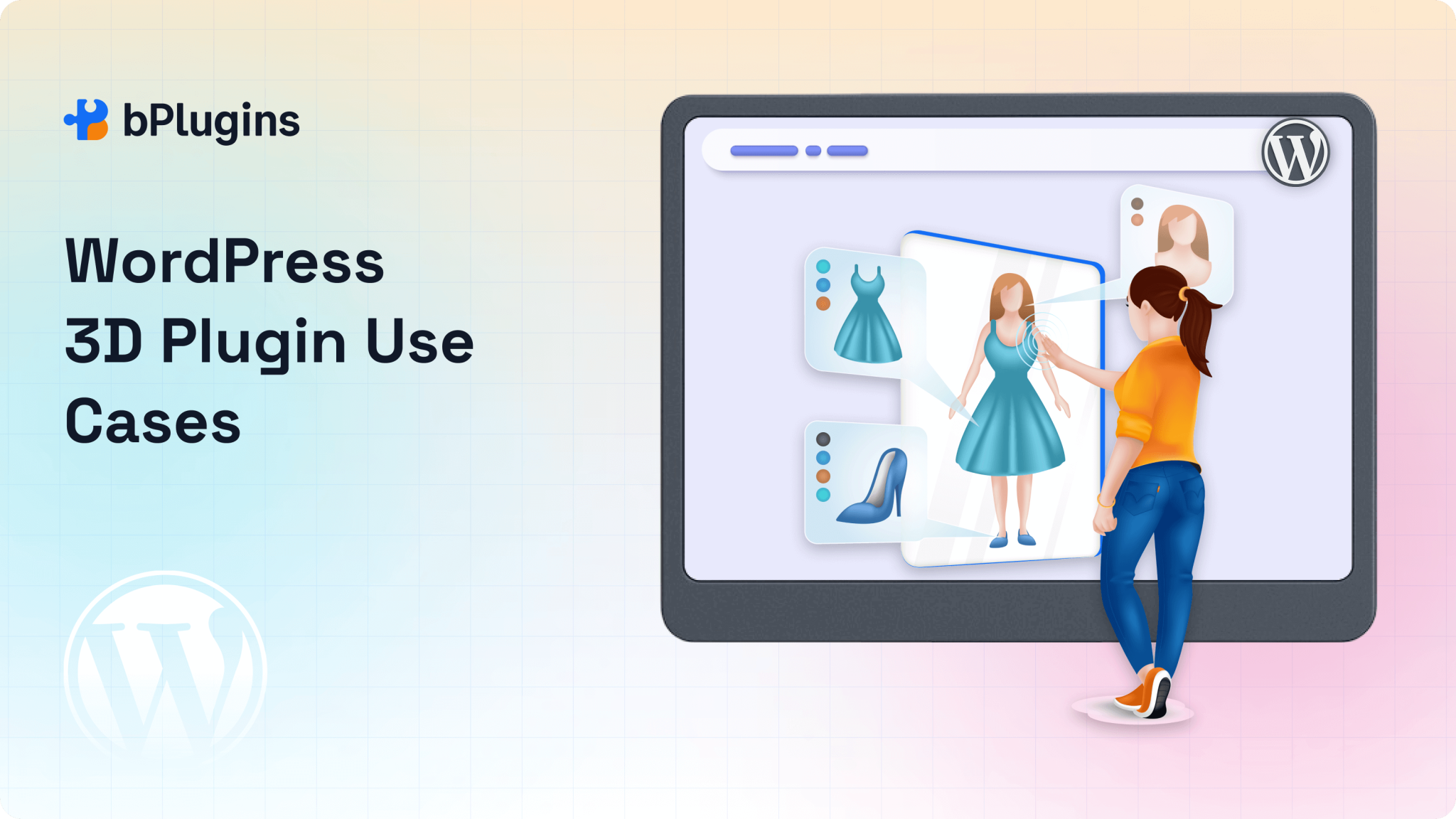
Here are the situations where 3D models on WordPress actually make a difference.
Product visualization. Ecommerce stores use 3D models so shoppers can inspect products from every angle. A customer who can rotate and zoom a product feels more confident buying. This works particularly well for furniture, electronics, accessories, and custom goods.
Architecture and interior design portfolios. Architects and designers showcase building designs, floor plans, and interior spaces in 3D before construction starts. An interactive model is far more compelling than a static render.
Educational content. Teachers and e-learning creators use 3D models to show anatomy, geology, historical artifacts, and mechanical systems. Students who can interact with a model understand it better.
3D printing catalogs. Makers and engineers sell or share 3D-printable designs on WordPress. Embedding a GLB or STL preview lets visitors inspect a model before downloading it.
Game asset showcases. Game developers and digital artists use 3D galleries to show their work to clients or potential employers. GLB handles game assets well and supports the material types common in game pipelines.
Check also WooCommerce Product Demos: Add Interactive Video and 3D Images.
Frequently Asked Questions
What is the best 3D file format for WordPress?
GLB is the best choice for WordPress. It packs all assets into one binary file, loads quickly in the browser, and fully supports textures, materials, and animations. It’s also the simplest format to upload and manage.
Is GLB better than GLTF for WordPress?
Yes, for most WordPress users. GLB is the binary, single-file version of GLTF. It loads faster because the browser doesn’t need to fetch multiple external assets. GLTF matches it on quality, but the multi-file management makes it harder to work with on WordPress.
Can WordPress display OBJ files?
Yes. With a 3D viewer plugin, WordPress can display OBJ files. You’ll need to upload the .obj file, the .mtl material file, and any textures. The model will render in the browser, though OBJ isn’t as web-optimized as GLB.
Can STL files be embedded in WordPress?
Yes, with an STL viewer WordPress plugin. Keep in mind that STL files only contain geometry, so they display without colors or textures. They work best for 3D printing previews and engineering models, not general visual content.
Which 3D format loads the fastest on WordPress?
GLB loads the fastest. It’s a single binary file with all assets embedded, so the browser makes one request and starts rendering immediately. GLTF needs multiple requests. OBJ is large and unoptimized for web use. STL is small but has no visual richness.
Do I need a plugin to display 3D models in WordPress?
Yes. WordPress doesn’t support 3D model embedding by default. You need a 3D viewer plugin that handles WebGL rendering. Look for one that supports GLB, GLTF, OBJ, and STL, includes a Gutenberg block, and offers responsive display with interactive controls.
Can I convert OBJ or STL files to GLB?
Yes. Blender is a free tool that imports OBJ and STL files and exports them as GLB. Online tools like gltf. report can also handle basic conversions. Converting to GLB before uploading to WordPress gives you better load times and simpler file management.
Conclusion
The 3D file format you choose has a real impact on how your WordPress site performs. Here’s a quick recap.
GLB is the best option for almost every WordPress use case. One file, fast loading, full material and animation support, simple to manage. Start here.
GLTF matches GLB on quality but requires managing multiple files. Use it when your workflow specifically calls for it, and confirm your GLTF WordPress plugin handles external asset references properly.
OBJ is widely supported in 3D software, but wasn’t built for the web. Large file sizes and multi-file dependencies make it a poor fit for WordPress. Convert to GLB when you can.
STL is a 3D printing format, not a web format. It renders without textures or color. Useful for engineering and printing-focused sites, but not much else.
A solid WordPress 3D viewer plugin handles most of the technical complexity for you. Upload your model, configure the viewer, drop in the Gutenberg block, and you’re done.
Start with GLB, keep your files lean, and always test on mobile before publishing. Your visitors will have a better experience, and your page speed scores will reflect it.

 Save 90%