

Donors want proof. Grant reviewers want documentation. Board members want quick access to financials. And volunteers want to understand the mission before they commit.
For nonprofits, sharing the right documents at the right time is not a nice touch. It is a core part of building trust. And most nonprofit websites get this completely wrong.
They upload a raw PDF, drop a link on a buried page, and move on. What actually happens? The file opens in a new browser tab with tiny, unreadable text on mobile. Supporters give up before they finish the first page.
That is exactly the problem a good nonprofit WordPress PDF plugin solves. Instead of forcing visitors to download files or squint at broken viewers, you embed documents directly on your pages in a clean, responsive, and readable format.
In this guide, we walk through why PDFs matter for nonprofits, where the common approach breaks down, what features to look for in a plugin, and how organizations use these tools to create better experiences for donors, funders, and supporters.
Why PDFs Matter So Much for Nonprofit Organizations
Nonprofits publish more documents than most people realize. Here is what typically needs to be shared publicly:
- Annual reports and impact summaries
- Grant applications and progress reports
- Financial statements and audit reports
- IRS Form 990 and other compliance documents
- Board meeting minutes and governance policies
- Program brochures and sponsorship packages
- Research papers and case studies
Each document serves a specific audience. Donors check annual reports to understand where their money goes. Grant reviewers scan financial disclosures and impact summaries before approving funding. Board members need fast access to governance documents. New supporters browse brochures before deciding to get involved.
When those documents are hard to find or frustrating to read, trust takes a hit. When they are easy to access, well-organized, and actually readable, they do what they are supposed to do: build credibility and move people to act.
Learn also WordPress Document Plugins for Schools & Universities and How To Use Right Way.
The Problem With Simply Uploading PDFs in WordPress
The default approach is to upload a PDF to the WordPress media library and link to it from a page. It works, technically. But it creates real problems.
Mobile experience is poor. A PDF that looks fine in a desktop browser becomes nearly unreadable on a phone. Text gets tiny. Zooming around a document on a touchscreen is frustrating. Since most donors and supporters now browse on mobile, this matters more than ever.
PDFs open in new tabs. When a visitor clicks a link and gets pulled away from your site, most of them do not come back. You lose the connection you spent time building.
Documents get buried. PDFs scattered across a media library with no organization make it hard for anyone to find what they need. A donor looking for your 2024 financial report gives up and leaves empty-handed.
Accessibility often gets ignored. Many nonprofits create PDFs as scanned images. Screen readers cannot process those files. That locks out supporters with visual impairments and creates compliance risks for organizations that serve the public.
There is no way to track engagement. Link to a raw PDF, and you have no idea if anyone actually reads it. You cannot tell which reports get attention and which ones nobody opens.
All of these problems are fixable.
Check out PDF Lead Magnets in WordPress: How to Gate Content and Grow Your Email List.
What to Look for in a WordPress PDF Plugin for Nonprofits
Not every PDF plugin fits nonprofit needs. Here is what actually matters when you are evaluating your options:
Inline viewing. The PDF should load directly inside your page, not open in a separate tab. Visitors should be able to read the report without leaving your site.
Mobile responsiveness. The viewer needs to work cleanly on phones and tablets. A lot of your supporters browse on mobile, especially during donation campaigns.
Gutenberg block support. Most modern WordPress sites run on the block editor. You need a plugin that drops in without any custom code.
Download controls. A download button makes sense for public annual reports. For grant-only documents or confidential board files, you may want to block downloads entirely. A good plugin gives you both options.
Fullscreen mode. Longer documents like annual impact reports, are much easier to read when the viewer can expand to full screen.
Document organization. Managing ten or twenty PDFs across different categories requires more than one flat media library. Look for a plugin that helps you keep documents sorted.
Fast loading. Annual reports can be large files. A plugin that handles big PDFs without slowing down your page is worth it.
Content protection. For sensitive documents, the ability to disable right-clicks and prevent copying adds an extra layer of control.
Explore PDF Embedder vs PDF Poster: Which Is the Best WordPress PDF Viewer Plugin?
How Nonprofits Actually Use PDF Plugins
Here are four real scenarios where embedding PDFs makes a meaningful difference.
1. Publishing Annual Reports
An annual report is one of the most important documents a nonprofit puts out. It tells donors what you accomplished, where the money went, and what comes next.
Too many organizations just link to the PDF from a menu and call it a day. A better approach is to build a proper annual report page. Start with an executive summary written in plain text. Pull out your biggest impact numbers and display them prominently. Embed the full report below using a PDF viewer. Add a download button for people who want to save it. Close with a donation call to action.
This structure keeps visitors on your page longer, gives them context before they dive into the full document, and makes the report feel like an active communication tool rather than a static file collecting dust in storage.
2. Sharing Grant Documents With Funders
Grant reviewers move through a lot of documents fast. When they visit your website to verify information or review materials, they need quick access with no friction.
Embedding your grant-related PDFs on a dedicated funders or partners page changes that experience completely. A reviewer can preview your proposal, financial disclosures, or impact summary right in the browser. No downloading, no waiting for a file to open, no switching applications. The due diligence process moves faster, and your organization looks more prepared.
For progress reports and ongoing grant documentation, a dedicated page with PDFs organized by grant or program period works even better.
3. Creating a Public Transparency Hub
Strong nonprofits often build a dedicated transparency page where visitors can find:
- Annual reports organized by year
- Financial statements and audit documents
- IRS Form 990 filings
- Board governance policies
- Strategic plans
The benefit is not just convenience. A well-organized transparency hub tells donors and funders you have nothing to hide. It also improves your search engine visibility because the content is accessible and indexed, rather than locked inside a PDF file that Google cannot fully read.
4. Displaying Research and Advocacy Reports
For education nonprofits, policy organizations, environmental groups, and healthcare organizations, research reports are core outputs. These are the documents that prove impact, influence policy, and attract serious funders.
When you embed a research report on your website instead of forcing a download, you give readers a better experience. They stay on your site while they read. They scroll at their own pace. If they want to share a specific finding, they can link directly to your page instead of sharing a raw PDF file with no context.
Best Practices for Displaying Nonprofit PDFs in WordPress
Getting the technical setup right is only part of the work. Here are the practices that make embedded PDFs genuinely useful for your visitors.
Add context before the embed
Do not drop a PDF viewer onto a blank page. Write a short summary above it. Explain what the document covers, what the key findings are, and who the intended audience is. This helps visitors decide quickly whether they want to keep reading and gives your page better SEO value.
Pair PDFs with HTML content
This is where many nonprofit websites leave real value on the table. Google cannot fully index text inside a PDF the same way it reads page content. If your annual report includes important program data, pull the key findings out and publish them as regular page text above the embedded PDF. You improve your SEO and make the page more accessible at the same time.
Optimize PDFs for accessibility
Use tagged PDFs with proper heading structures. Add alt text to charts and graphs. Make sure the document uses real, searchable text rather than scanned images. These steps make your documents readable by screen readers and help you avoid accessibility compliance issues.
Test on mobile before publishing
Always check how your embedded PDF looks on a phone before the page goes live. A viewer that works great on a desktop can still have usability problems on smaller screens.
Organize documents clearly
Use a logical category structure on your document pages. Group reports by type and year. Good categories to start with: Annual Reports, Financial Statements, Grant Documents, Impact Reports, and Research and Publications. Clear organization reduces friction for anyone searching for a specific document.
Keep documents current
An outdated annual report sitting on a transparency page does more damage than having no report at all. It raises questions. Set a reminder to update documents after each reporting period.
Learn the Ultimate Guide: How to Embed PDFs in WordPress Without a Plugin.
Why PDF Poster Works Well for Nonprofit Websites
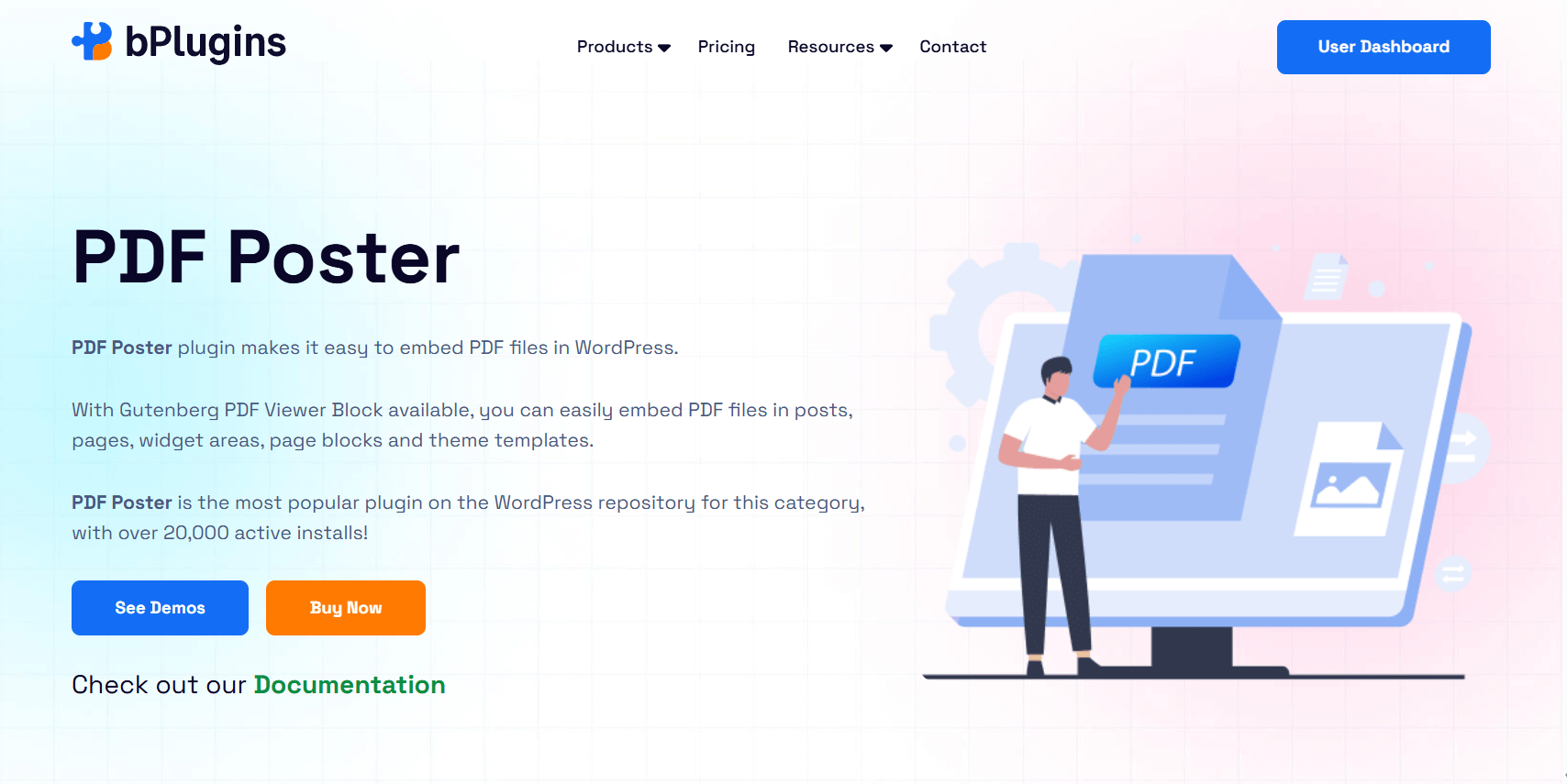
PDF Poster is trusted by over 20,000 active users and is built to embed PDFs cleanly inside WordPress pages and posts.
For nonprofits, the features that matter most are all covered. The plugin supports the Gutenberg block editor, so adding a PDF to any page takes only a few clicks. You can adjust the viewer dimensions, enable a full-screen toggle, add a download button, and control whether users can print the document. No custom code is needed at any step.
The Pro version goes further. It adds content protection to disable right-clicks and copying, shortcode embedding for placing documents anywhere on the site, a sidebar navigation toggle, a default zoom level setting, and a pop-up viewer mode. These features are especially useful for nonprofits managing a large document library or handling sensitive grant materials.
Setup is quick. After installing the plugin, you upload your PDFs, insert the Gutenberg block on any page, pick your file from the media library, and hit publish. The viewer loads inline, fully mobile-responsive, and ready to read.
For nonprofits that need a reliable tool their non-technical staff can manage without calling a developer, PDF Poster is a practical fit.
PDF Poster Use Cases by Nonprofit Type
Different types of organizations use PDF embedding differently. Here is a quick breakdown:
Charities and community organizations: Annual impact reports, donation transparency reports, program outcome summaries.
Foundations: Grant application guidelines, grantee reporting documents, funding priority documents.
Educational nonprofits: Research papers, student program reports, curriculum documents, accreditation materials.
Advocacy organizations: Policy PDFs, campaign toolkits, legislative briefings.
Religious nonprofits: Community reports, event brochures, ministry program overviews.
Common Mistakes Nonprofits Should Avoid
A few patterns show up repeatedly on nonprofit websites that quietly hurt both usability and trust.
Uploading scanned PDFs only. Scanned documents are essentially images. Screen readers cannot read them. Search engines cannot index them. Always use text-based PDFs, or run scanned files through OCR processing before publishing.
Hiding reports deep inside menus. If a donor has to click through three or four levels of navigation to find your annual report, most of them will not bother. Important documents should be easy to reach from the homepage or a clearly labeled transparency section.
Publishing outdated documents. A 2022 annual report sitting on your transparency page in 2026 is not transparency. It raises questions you do not want to answer. Keep your documents current.
Ignoring mobile users. A large portion of your audience browses on phones. Always test your embedded PDFs on mobile before publishing.
Skipping accessibility. Users with disabilities are part of your community too. Inaccessible documents exclude them and can create legal and compliance risks for your organization.
Check also 5 Best PDF Plugins Compared: Features & Performance.
Frequently Asked Questions
What is the best nonprofit WordPress PDF plugin?
PDF Poster by bPlugins is a strong pick for nonprofits. It supports Gutenberg, works on all devices, includes download and fullscreen controls, and is simple enough for non-technical staff to manage.
How can nonprofits embed annual reports in WordPress?
Install a plugin like PDF Poster, upload your annual report, insert the Gutenberg block on your annual report page, and publish. The report loads inline without requiring visitors to download anything.
Can grant documents be displayed without requiring downloads?
Yes. With an inline PDF viewer, visitors read your grant documents directly on the page. You can also disable the download button entirely if the document is for viewing only.
Are PDF viewers accessible for nonprofit websites?
They can be, but accessibility starts with the PDF itself. Use tagged PDFs with real searchable text, proper heading structure, and alt text for all charts and images. A good viewer plugin then presents those documents without adding extra barriers.
How do nonprofits organize financial reports in WordPress?
Build a dedicated transparency page and group documents into clear categories: Annual Reports, Financial Statements, Audit Reports, and so on. Organize by year within each category so visitors find what they need quickly.
Is it better to embed PDFs or link to downloads?
Embedding is almost always better for the user experience. Offer a download button as a secondary option for people who want to save the file, but do not make downloading the only way to access the document.
Can a WordPress PDF plugin improve donor trust?
Yes. When supporters can read your annual report and financial statements right on your website without any friction, it signals openness. That kind of transparency is what leads to repeat donations and long-term relationships.
Read PDF Security in WordPress: Protecting Documents from Download.
Final Thoughts
For nonprofits, documents are not just files sitting in a folder. They are part of your communication strategy. An annual report tells your story. A grant document proves your credibility. A transparency hub signals that you have nothing to hide.
When those documents are hard to find, unreadable on mobile, or buried inside a media library, you lose the trust you worked hard to build. When they are embedded cleanly on well-organized pages with context and structure, they do real work for your organization.
A reliable nonprofit WordPress PDF plugin makes that experience possible without a developer or a complicated setup. If you are still using raw PDF links on your site, it is worth taking an hour to change that. Your donors and grant reviewers will notice.
PDF Poster is a practical place to start. The core features are free, any team member can manage it, and it handles everything from annual reports to grant documents to charity website PDF display without any hassle.

 Save 90%