

Want to embed PDFs in WordPress without a plugin? You’re in the right place. WordPress gives you several built-in options to display PDFs directly on your site, and for most basic needs, they work perfectly.
Plugins help when you need advanced features like password protection, download tracking, or custom PDF viewers. But if you just want to embed a few PDFs quickly or keep your site lean, the native WordPress tools and basic HTML can do the job well.
In this guide, we’ll walk through multiple methods to embed PDFs manually so you can pick the one that fits your needs. Simple, flexible, and easy to set up.
Let’s get started.
What You Need to Know Before Embedding
Before you drop PDF code into your pages, let’s cover a few basics that most guides skip.
Check Your Upload Limits
WordPress has file size limits for uploads. The default usually sits between 2MB and 128MB, depending on your hosting provider. If your PDF is larger, you’ll need to compress it or ask your host to increase the limit.
Large PDFs also slow down page loading times. Try to keep files under 5MB when possible.
Understand the Privacy Issue
Here’s something important: when you embed a PDF using its direct URL, that file becomes publicly accessible. Anyone with the link can view, share, or download it, even if you haven’t linked it anywhere on your site.
If you’re dealing with sensitive documents, manual embedding isn’t the right choice. You’d need server-level protection or a specialized solution.
Know Your Editor
The method you use depends on whether you’re working with the Gutenberg block editor or the Classic editor. Gutenberg requires the Custom HTML block for embedding code, while the Classic editor lets you switch to HTML view directly.
Both work fine. Just know where to paste your code.
How to Embed PDFs in WordPress Without a Plugin
Method 1: Using WordPress Media Library with HTML Code
This is the most straightforward approach. You’ll upload your PDF to WordPress and embed it using HTML.
Upload Your PDF
Go to your WordPress dashboard and click Media > Add New.
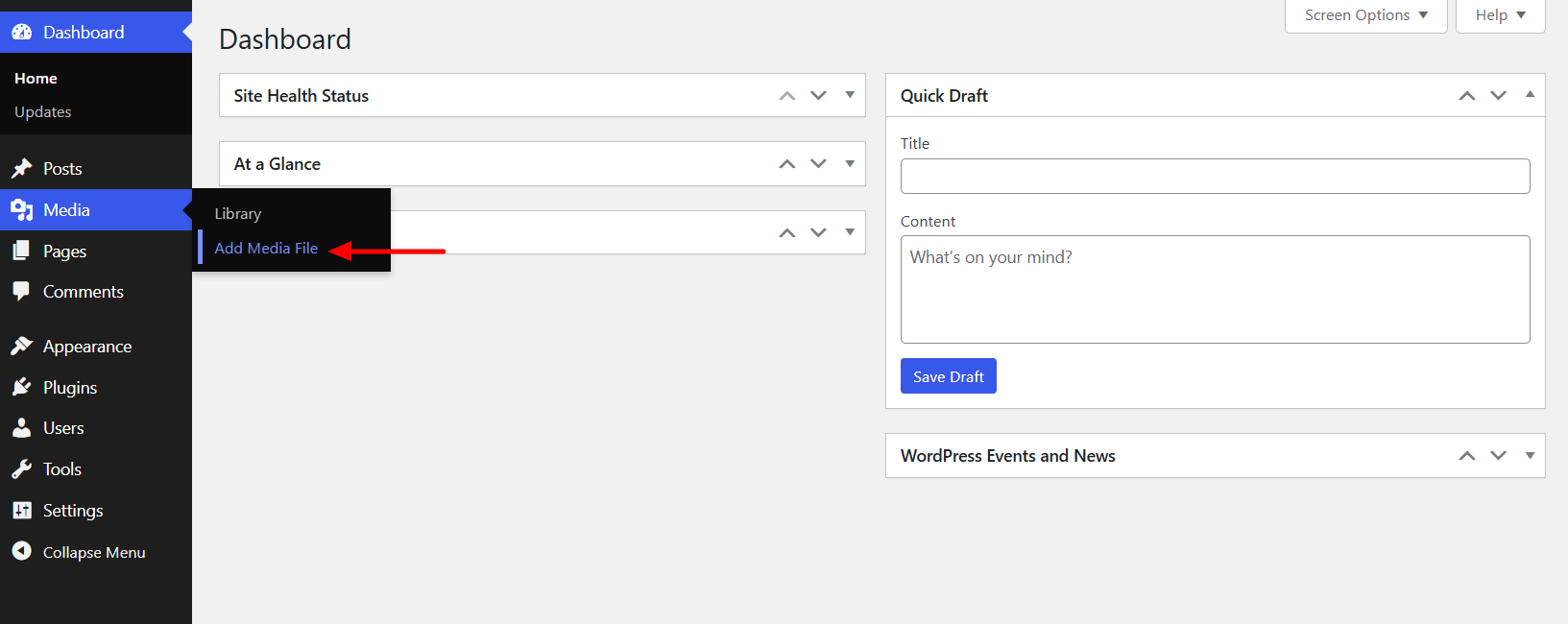
Upload your PDF like you would any image.
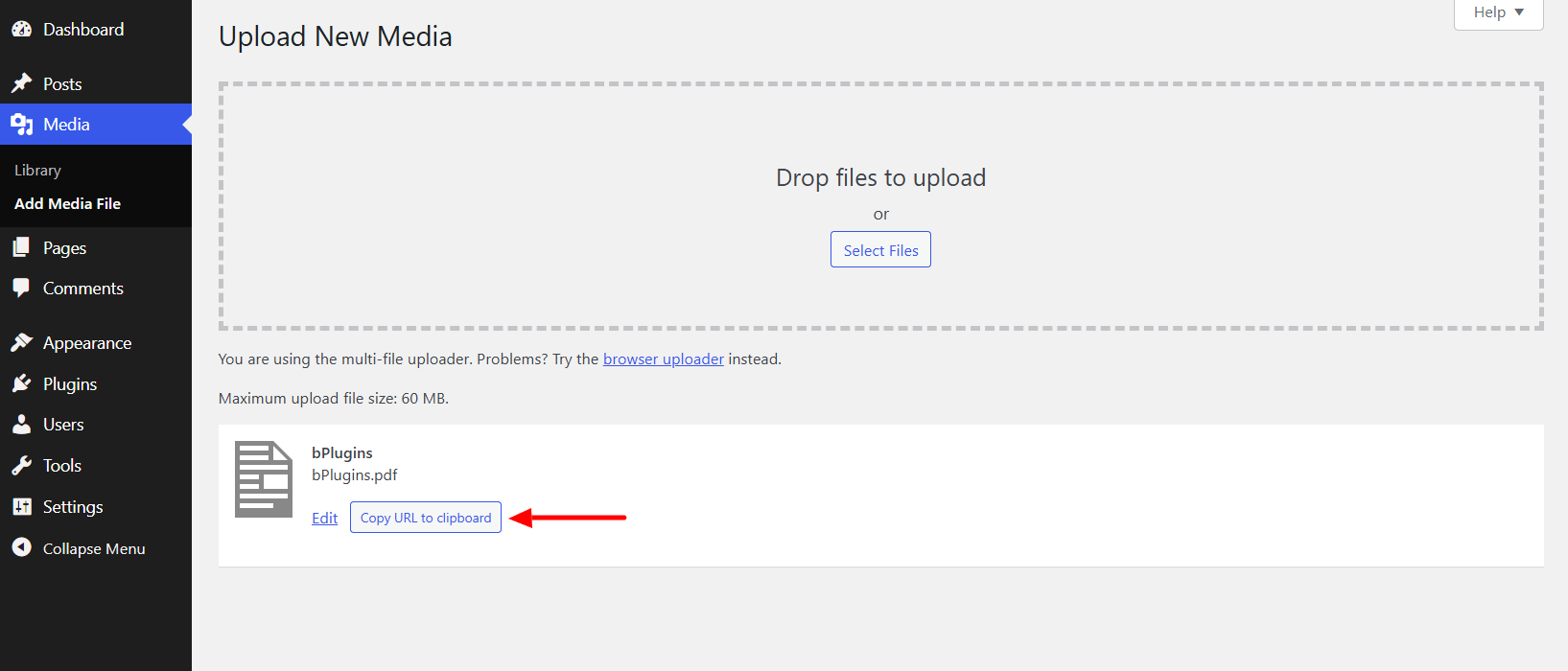
Once uploaded, click on the file and copy the File URL.
Add the Embed Code
Now open the page or post where you want to display the PDF. Add the Custom HTML block where you want the PDF to appear.
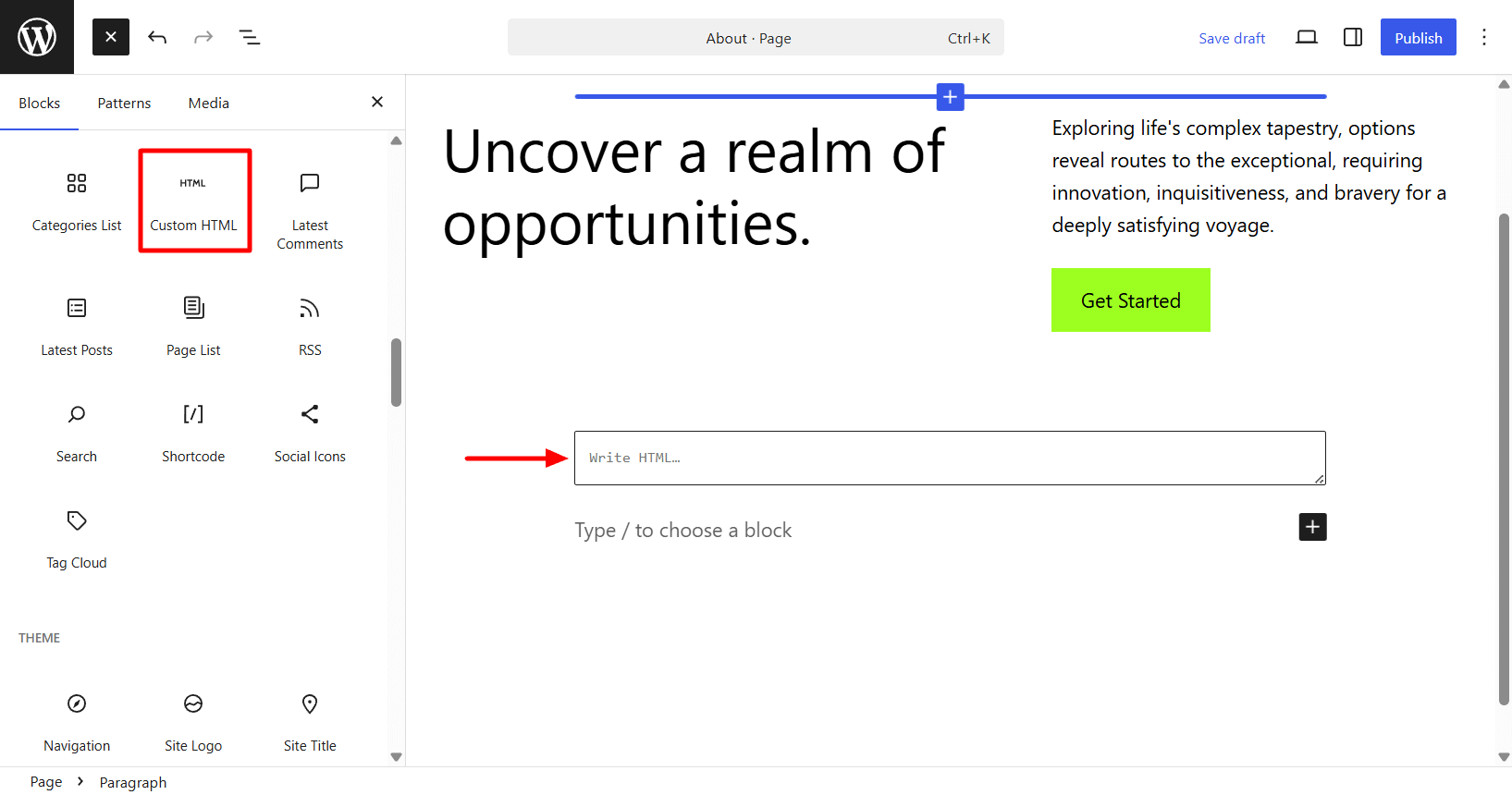
Paste the copied code snippets here.
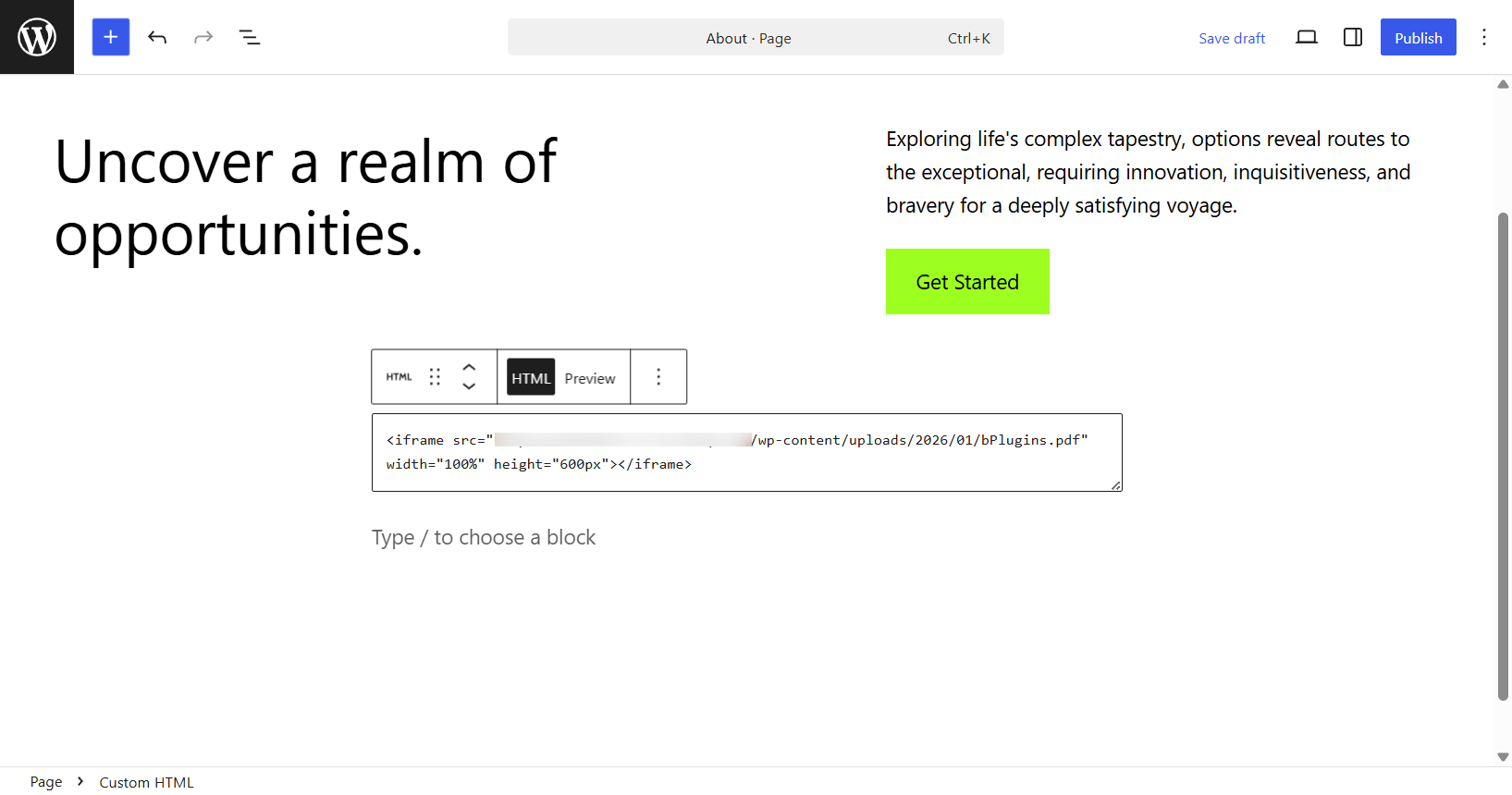
Click the publish or save button for publishing or updating the page or post.
Adjust the Display Size
The width=”100%” makes the viewer stretch to fit the container. The height=”600px” sets the vertical space. Adjust these numbers based on your layout. For longer documents, try 800px or 1000px.
What Works and What Doesn’t
This method is lightweight and gets the job done. Your PDF will display directly on the page.
But there are limitations. You won’t get a fancy toolbar with zoom controls or page navigation. Mobile viewing can be clunky, and browsers handle PDFs differently. On some phones, the PDF might download instead of displaying inline.
For basic documents where users just need to read or download, this works great.
Method 2: Embedding from Google Drive
If you’d rather not store PDFs on your WordPress server, Google Drive offers a solid alternative.
Upload to Google Drive
Head to Google Drive and upload your PDF. Right-click the file and choose “Share” or “Get link.”
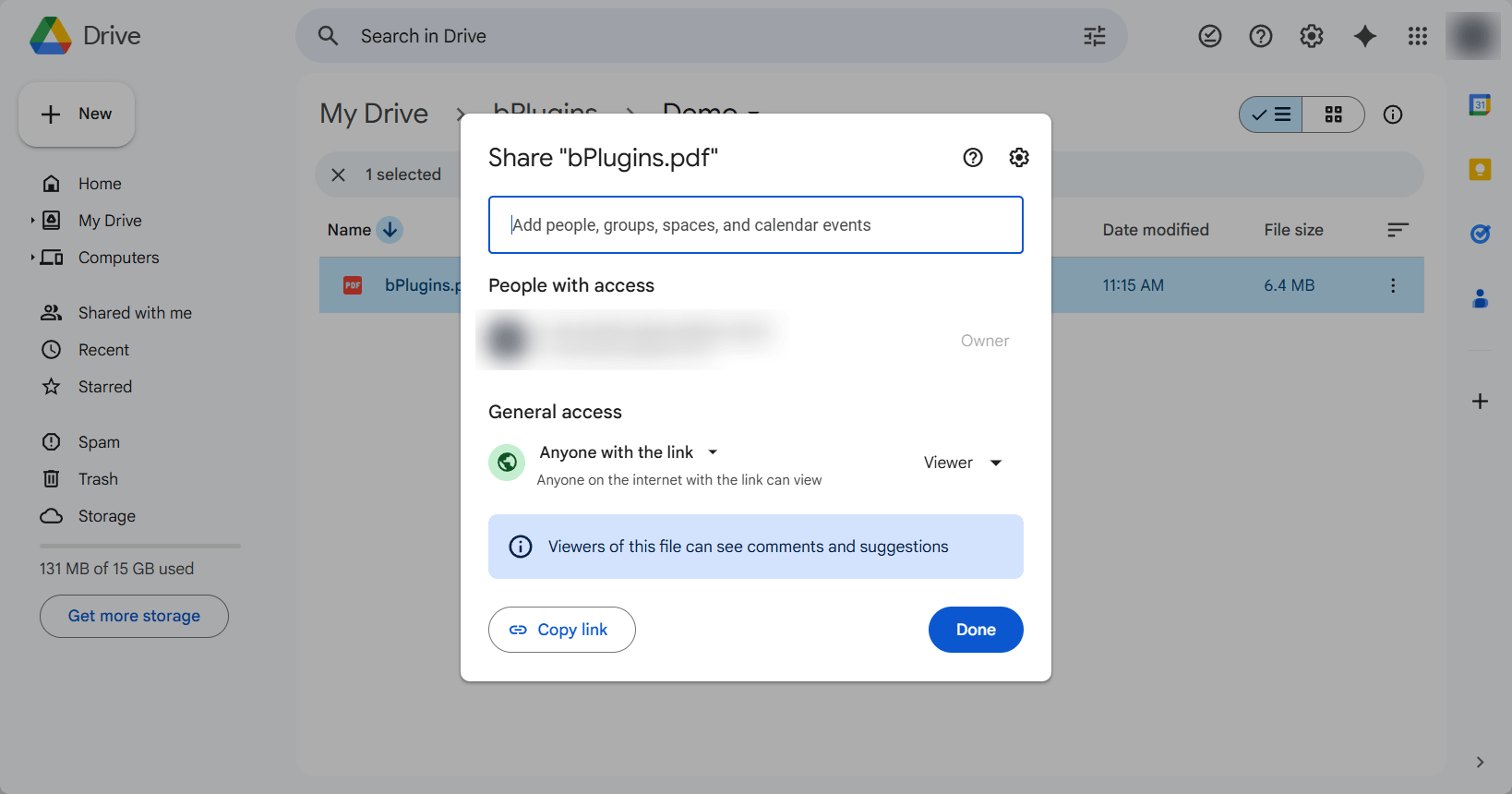
Make sure the permissions are set to “Anyone with the link can view.”
Get the Embed Code
Click the three dots menu on the file and select “Open in new window.” Once the PDF opens, look for the File > Share > Get embed link. Now, copy the iframe code.
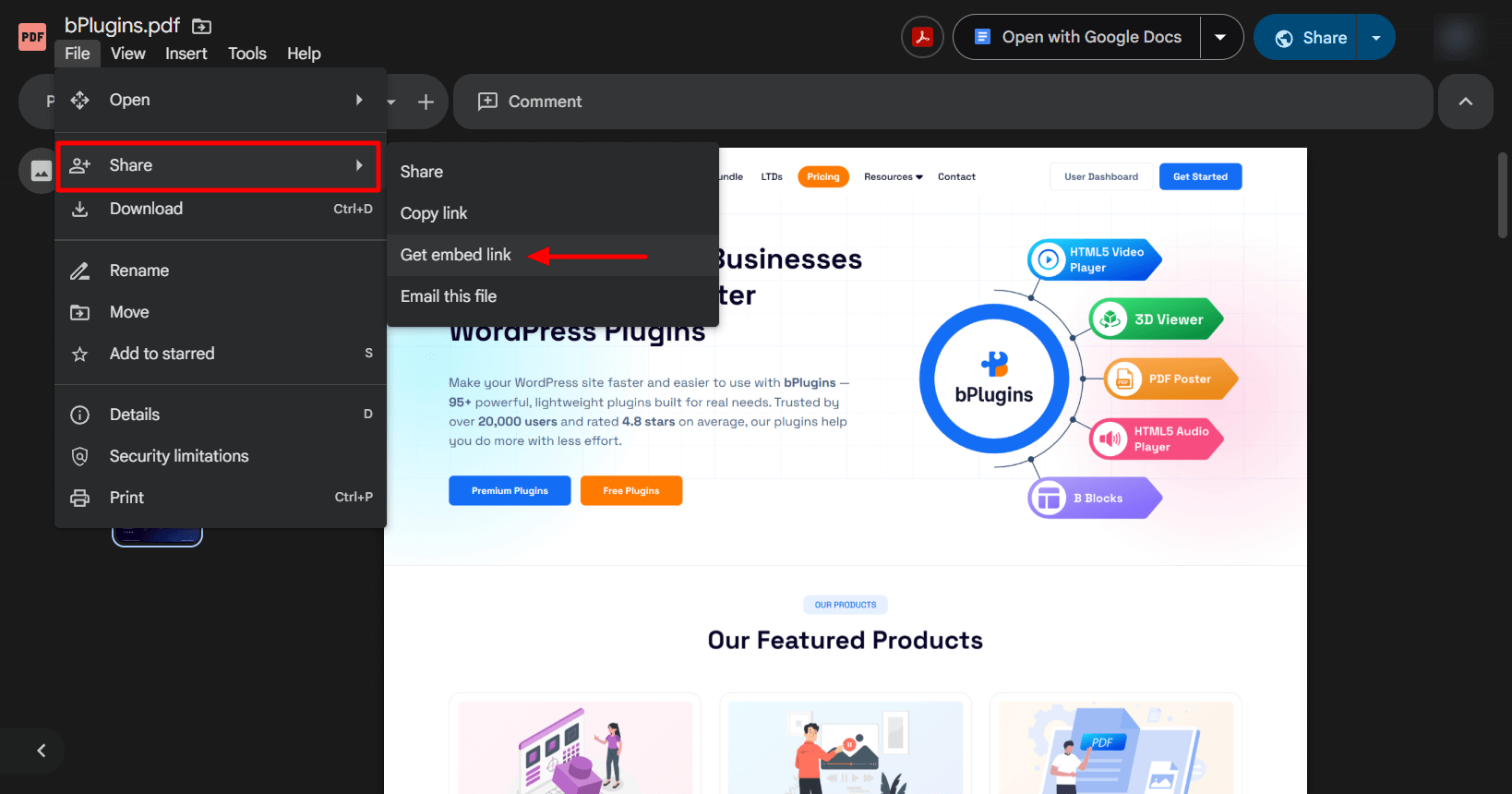
If you don’t see that option, you can manually create the embed code using this format:
<iframe src="https://drive.google.com/file/d/FILE_ID/preview" width="100%" height="600px"></iframe>Replace FILE_ID with the actual ID from your Google Drive file URL.
Add to WordPress
Paste this iframe code into a Custom HTML block in Gutenberg, or into the HTML view in Classic editor, just like the previous method.
The process is the same as we showed earlier. That’s why we skip this part.
The Trade-offs
This approach keeps PDFs off your server, which saves hosting space and bandwidth. Google’s servers are fast and reliable.
The downside? You’re depending on an external service. If Google Drive experiences an outage or you accidentally change the file permissions, the embed will break. Also, users might see Google Drive branding, which isn’t always ideal.
Troubleshooting: Embed PDFs in WordPress
PDF embedding sounds simple, but sometimes you’ll run into issues.
The Iframe Shows Up Blank
This usually happens because of browser security settings or HTTPS/HTTP mismatches. Make sure your PDF URL uses HTTPS if your site does. Also, check that the file was uploaded correctly by visiting the URL directly in a new browser tab.
WordPress Strips Out Your Code
Some page builders or security plugins remove iframe and embed tags. Try temporarily switching to a default WordPress theme to test. If it works, the problem is your theme or page builder. Check their settings for HTML restrictions.
Mobile Users Can’t View the PDF Properly
PDFs in iframes don’t always play nice with mobile browsers. Some phones will try to download the file instead of displaying it. Consider adding a direct download link as a fallback:
<a href="YOUR_PDF_URL" download>Download PDF</a>The PDF Takes Forever to Load
Large files kill page speed. Use a tool like Adobe Acrobat or a free online compressor to reduce the file size. You can often cut the size by 50% or more without losing visible quality.
Mixed Content Warnings
If your site uses HTTPS but your PDF URL uses HTTP, browsers will block it for security reasons. Always use HTTPS URLs for your files.
Making Your Embedded PDF Faster and More Responsive
A few tweaks can improve how your PDF performs.
Compress Before Uploading
Tools like Smallpdf or iLovePDF can compress files significantly. Smaller files load faster and use less bandwidth.
Make It Responsive
Instead of fixed pixel widths, use percentage-based widths with CSS:
<div style="position: relative; padding-bottom: 75%; height: 0; overflow: hidden;">

<iframe src="YOUR_PDF_URL" style="position: absolute; top: 0; left: 0; width: 100%; height: 100%;"></iframe>

</div>
This creates a responsive container that scales properly on different screen sizes.
Consider Lazy Loading
If you have multiple PDFs on a page, they’ll all load at once by default. You can add the loading=”lazy” attribute to iframes (supported in modern browsers) to delay loading until the user scrolls to that section.
SEO Tips for Embedded PDFs
Search engines can find and index your embedded PDFs, but you need to help them understand the content.
Use Descriptive File Names
Instead of document.pdf, name your file something meaningful like 2025-marketing-strategy.pdf. This helps both users and search engines understand what the file contains.
Add Context Around the Embed
Don’t just drop a PDF viewer in the middle of a page. Add a short paragraph explaining what the document is about. This gives search engines context and helps users decide if they want to view it.
Provide a Download Link
Always give users the option to download the PDF directly:
<p>View the full report below, or <a href="YOUR_PDF_URL" download>download the PDF</a>.</p>This improves accessibility and gives users more control.
Optimize the PDF Itself
Before uploading, add proper metadata to your PDF, including a title, author, and description. Most PDF editors let you do this in the document properties. Search engines can read this information.
The Security Reality
Let’s be clear about what manual embedding does and doesn’t do for security.
When you embed a PDF using its direct URL, that file is publicly accessible. The URL itself acts as the key to access the document. Anyone who has or finds that URL can view, share, or download the file.
If you want to truly protect a PDF, you need server-level restrictions, authentication systems, or specialized tools that control access. Manual iframe embedding doesn’t provide any protection.
For public documents, brochures, guides, or anything you’d share openly anyway, this isn’t a problem. For confidential content, client documents, or anything sensitive, look into proper access control solutions.
When Manual Embedding Falls Short
Sometimes the simple approach just doesn’t cut it.
If you need any of these features, a dedicated solution might be worth considering:
An interactive PDF viewer that supports zooming and page navigation, with touch-friendly controls for a better mobile experience. Built-in analytics help track views and downloads, while password protection and access restrictions add an extra layer of control.
You can also manage multiple PDFs in a searchable library and customize the viewer’s appearance to align with your brand.
Tools like PDF Poster provide built-in viewers with these capabilities, solving the limitations of basic iframe embedding. But for straightforward document display, the manual methods we’ve covered work just fine.
FAQs on Embedding PDF in WordPress
Why does my embedded PDF look different on mobile?
Mobile browsers handle PDFs inconsistently. Some display them inline, others trigger downloads. This is a browser behavior you can’t fully control with manual embedding. Providing a clear download link helps.
Can search engines see the content inside my embedded PDF?
Yes, Google and other search engines can crawl and index PDF content. They’ll follow the URL and read the document. Use descriptive file names and add context around the embed to help with relevancy.
How do I track views without a plugin?
Manual embedding doesn’t offer analytics. You’d need to use Google Analytics with event tracking, or switch to a solution that includes view tracking.
Does the embedding method affect page speed?
The iframe itself is lightweight, but the PDF file size matters. A 10MB PDF will slow down your page regardless of how you embed it. Compress your files first.
Can I embed a PDF from Dropbox or OneDrive?
Yes, similar to Google Drive. Both services provide embed codes or shareable links you can use in iframes. The process is nearly identical.
Final Thoughts
Embedding PDFs in WordPress without a plugin is straightforward once you understand the basics. Upload to your media library, grab the URL, and wrap it in an iframe or embed tag. Or use Google Drive if you prefer external hosting.
For simple document display, these methods work great. They’re lightweight, give you full control, and don’t add dependencies to your site.
Just remember the limitations: basic viewing only, potential mobile quirks, and no built-in security. If those aren’t dealbreakers for your use case, you’re all set.
Got a PDF to embed? Pick the method that fits your needs and give it a try. It takes about two minutes from start to finish.

 Save 90%