

Picking the right post display plugin changes everything about how visitors experience your WordPress site. You know the drill: endless scrolling through the plugin directory, reading similar-sounding features, wondering which one actually works the way you do.
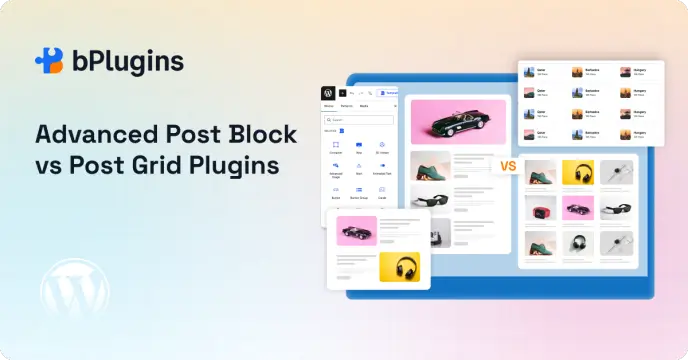
Today, we’re comparing two popular choices: Advanced Post Block and The Post Grid. Both display posts in attractive layouts, but they get there in completely different ways.
One works exclusively with Gutenberg and focuses on simplicity. The other supports multiple page builders, offering broader compatibility at the cost of added complexity.
By the end, you’ll know exactly which plugin matches your workflow and site needs.
Let’s get started.
What Is Advanced Post Block?
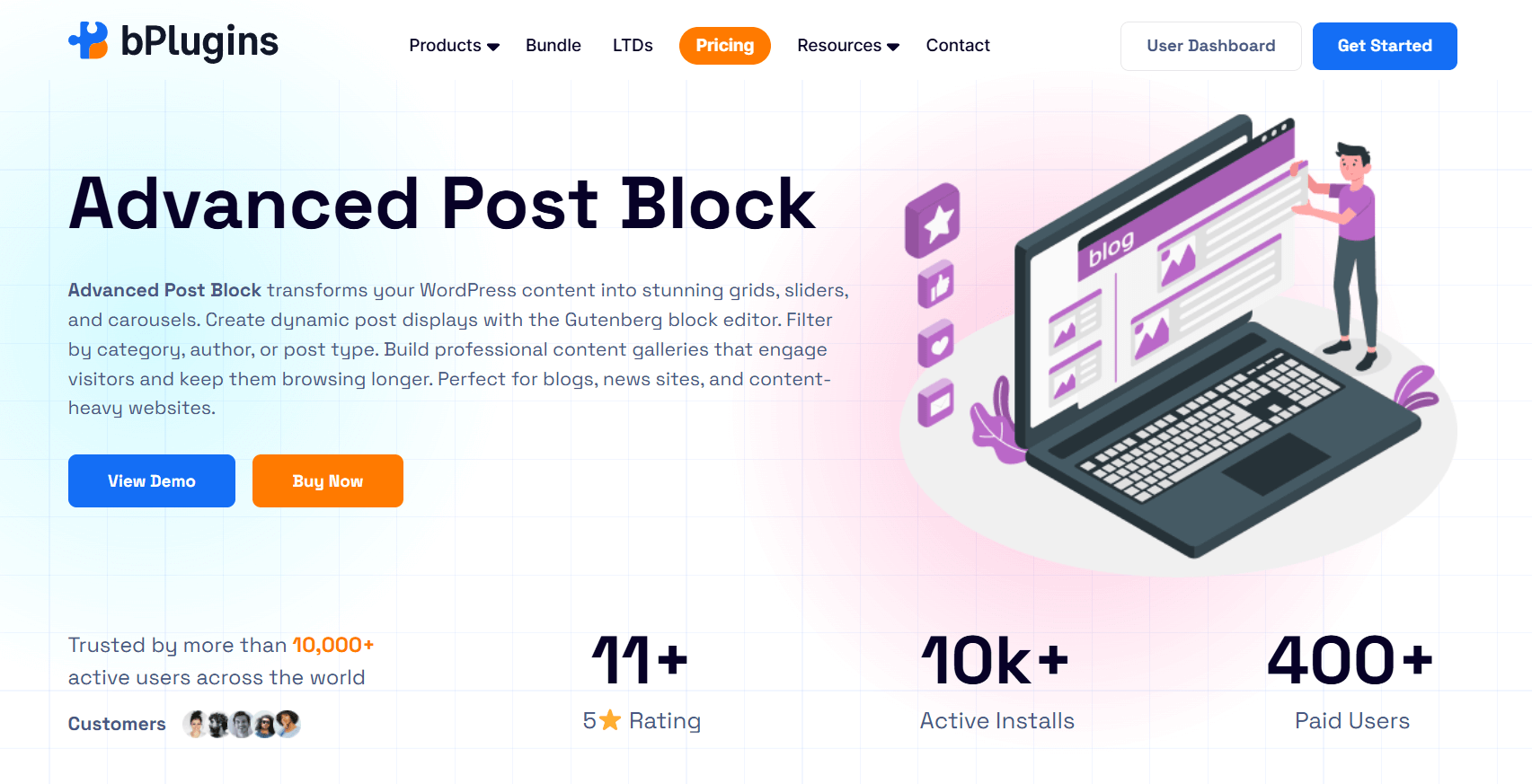
Advanced Post Block is a Gutenberg-native plugin that works seamlessly inside the WordPress block editor. Think of it as an extension of Gutenberg itself, not a separate tool you need to learn.
You add it like any other block, tweak settings in the sidebar, and watch your posts appear exactly as you want. No jumping between admin screens. No external panels. Everything happens where you’re already working.
The plugin offers four main layout types:
- Grid for organized column-based displays
- Masonry for Pinterest-style staggered layouts
- Slider for carousel presentations
- Ticker for scrolling headlines
Each layout comes with multiple variations, including Title Meta, Left Image, Right Image, Overlay Content, Overlay Content Hover, and Overlay Box.
Key Features of Advanced Post Block
The free version includes everything most bloggers need. You get custom post type support right out of the box (many competitors lock this behind pro versions). Category filtering displays posts from specific taxonomies. Responsive column controls adapt your layout automatically.
Post element control is precise. Show or hide featured images, post titles, metadata (author, date, categories), excerpts, and read more buttons. Each element has its own styling options for typography, colors, and spacing.
The pro version adds features for power users:
- Post offset (skip the first N posts)
- Include/exclude specific posts by ID
- Pagination with multiple styles
- Reading time indicators
- Custom meta icons
- Taxonomies in metadata display
- Custom post query hook for developers
With over 10,000 active installations and a 4.2-star rating, Advanced Post Block serves users who value Gutenberg integration above everything else.
What Is The Post Grid Plugin?
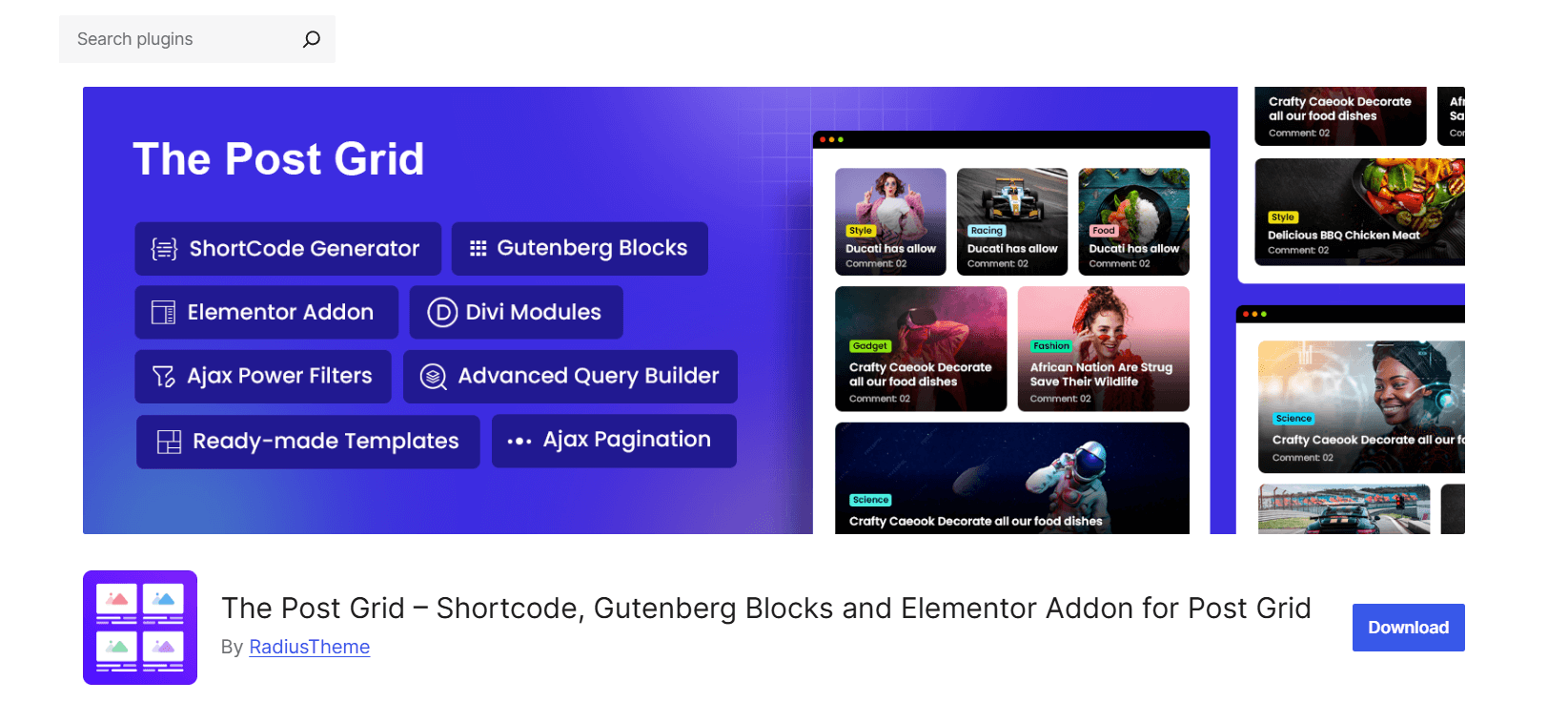
The Post Grid takes a different approach. Instead of focusing on one editor, it supports multiple workflows: Elementor widgets, Gutenberg blocks, Divi modules, and traditional shortcodes.
This plugin has been around longer and has a larger user base (over 100,000 active installations with a 4.7-star rating). It works for sites where different team members use different tools, or when you’re migrating between builders but want consistency.
The Post Grid’s Core Features
The free version includes three layouts each for grid, list, and grid hover displays. These aren’t just style variations. Grid layouts show posts in organized columns. List layouts display posts vertically with more detail. Grid hover layouts add interactive effects on mouseover.
The shortcode generator gives you power and control. You work through five steps:
- Query Builder: Choose post types, taxonomies, ordering
- Layout Settings: Select your display type
- Settings: Configure headings, titles, images, excerpts
- Field Selection: Pick which elements show
- Style: Customize colors, typography, spacing
Pro Version Capabilities
The Post Grid Pro expands into something much larger. You get over 45 layout variations total. The grid layout expands from 3 to 9 options. Grid hover jumps from 3 to 16 variations. Slider layouts add 13 options not available at all in the free version.
Archive and single page builders for Elementor turn this into a complete theme builder for post-related content. You can create custom archive pages for categories, tags, authors, and date-based archives. The single post builder lets you design individual posts using drag-and-drop Elementor widgets.
AJAX filtering adds smooth, no-reload filtering by categories, tags, or custom taxonomies. Pre-made sections (over 90 for Elementor and Gutenberg combined) and page layouts (10+) give you starter templates to customize.
Recent updates added AI integration with ChatGPT and Gemini in the Gutenberg editor. You can generate content and adjust formatting without leaving WordPress. Front-end submission functionality allows registered users to submit and manage posts from your site’s front end.
Understanding the Core Philosophy Difference
The real difference between these WordPress post grid plugins isn’t about features. It’s about workflow philosophy.
Advanced Post Block’s Gutenberg-First Approach
Advanced Post Block assumes you’ve embraced Gutenberg as your primary editing environment. The plugin doesn’t try to be everything to everyone. It focuses on doing one thing well: displaying posts natively within the block editor.
What this means:
Faster setup times. You’re not learning a new interface. If you can add a paragraph block, you already know how to add a post grid.
Cleaner code. The plugin doesn’t carry dependencies for Elementor, Divi, or shortcode systems you never use. Less code means faster loading and fewer potential conflicts.
Better editor integration. Settings appear in the sidebar where all block settings live. Preview happens in real time as you work. The experience feels cohesive, not bolted on.
Future compatibility. As WordPress continues to develop the block editor, tools built specifically for it benefit from new features automatically. Gutenberg is where WordPress is heading, and Advanced Post Block moves with it.
The downside? If you rely heavily on Elementor or need Divi integration, this plugin won’t help. It’s designed for Gutenberg users and makes no apologies for that focus.
The Post Grid’s Multi-Builder Strategy
The Post Grid bets on flexibility. It recognizes that WordPress users work in different ways. Some love Gutenberg. Others swear by Elementor. Many still use shortcodes for specific cases.
This approach creates:
Broader compatibility. Whatever page builder your site uses, The Post Grid probably supports it. Teams with mixed builder preferences can standardize on one grid plugin.
More layout options. Supporting multiple builders means more development resources go into creating layout variations rather than optimizing one experience.
Shortcode power. For users comfortable with shortcodes, the generator provides precise control over every setting. You can save shortcodes and reuse them across posts and pages.
Builder-specific features. The Elementor addon includes features like archive builders that only make sense in a page builder context.
The trade-off is complexity. You might navigate between the shortcode generator, Elementor widgets, and Gutenberg blocks depending on where you’re working. Each method has its own configuration interface. For Gutenberg-only users, you’re carrying code weight for builders you never touch.
Detailed Feature Comparison
Let’s break down how these plugins compare across features that matter in real-world use.
Layout Options and Flexibility
Advanced Post Block:
- Grid Layout (column-based displays)
- Masonry Layout (Pinterest-style staggered grids)
- Slider Layout (carousel/slideshow presentations)
- Ticker Layout (scrolling headlines)
- Sub-layouts: Default, Title Meta, Left Image, Right Image, Overlay Content, Overlay Content Hover, Overlay Box
The Post Grid:
- Grid Layout (9 variations in pro, 3 in free)
- List Layout (7 variations in pro, 3 in free)
- Grid Hover Layout (16 variations in pro, 3 in free)
- Slider Layout (13 variations in pro, 0 in free)
- Isotope/Filter Layout (converts grids to AJAX-filtered displays)
- WooCommerce layouts for product displays
Winner: The Post Grid offers more pre-made layout variations, especially in the pro version. However, Advanced Post Block’s sub-layouts provide flexibility without overwhelming users with choices.
Gutenberg Integration
Advanced Post Block:
- Built exclusively for Gutenberg
- Settings in native block sidebar
- Real-time preview in editor
- Feels like a native WordPress feature
- Block patterns and reusable blocks work perfectly
- Full Site Editing (FSE) compatible
The Post Grid:
- Gutenberg blocks available
- Works within Gutenberg but feels separate
- Configuration can feel disconnected from block editor workflow
- Requires switching mental models between Gutenberg and plugin-specific interfaces
Winner: Advanced Post Block by a significant margin. If Gutenberg is your primary editor, Advanced Post Block provides a superior native experience.
Custom Post Type Support
Advanced Post Block:
- Custom post types supported in both free and pro versions
- Select any registered post type from dropdown
- Works with WooCommerce products, portfolio items, events, or any CPT
- No artificial limitations
The Post Grid:
- Custom post types require the pro version
- Free version limited to standard posts
- This is a significant limitation for sites built around custom content types
Winner: Advanced Post Block. Including CPT support in the free version is a major advantage for users testing the plugin before purchasing pro features.
Query and Filtering Options
Advanced Post Block – Free version:
- Filter by post type
- Filter by categories
- Set posts per page
- Choose post order (date, title, random, etc.)
- Order direction (ascending/descending)
Advanced Post Block – Pro version adds:
- Filter by tags
- Filter by author
- Filter by custom taxonomies
- Post offset
- Include/exclude specific posts by ID
- Exclude current post (useful in single post templates)
The Post Grid – Free version:
- Choose post type (posts only, CPT requires pro)
- Filter by categories
- Set posts per page
- Post order and ordering
- Filter by date ranges
The Post Grid – Pro version adds:
- Multiple taxonomy filters
- Author filtering
- Advanced query builder with relation settings
- Password-protected post filtering
- Event query compatibility (recent addition)
Winner: Tie. Both offer strong query capabilities. The Post Grid has a more visual query builder, but Advanced Post Block’s free version includes more filtering options upfront.
Pagination Options
Advanced Post Block – Pro version only:
- Standard numbered pagination
- Load More button
- Infinite scroll
- Customizable pagination styles
- Free version: No pagination (displays set number of posts only)
The Post Grid – Free version:
- Standard numbered pagination
The Post Grid – Pro version:
- AJAX number pagination (no page reload)
- AJAX load more
- AJAX auto-load on scroll
- Multiple pagination styles
Winner: The Post Grid. Pagination is available in the free version, whereas Advanced Post Block requires pro. For sites needing pagination, this matters.
Performance and Code Quality
Advanced Post Block:
- Lightweight codebase focused on one purpose
- Minimal impact on page load (under 200KB memory usage according to WP Hive testing)
- Fast PageSpeed impact (under 1000ms)
- Clean code with no PHP errors in automated testing
- Optimized queries
- Only loads assets where blocks are actually used
The Post Grid:
- Larger codebase supporting multiple builders
- Includes code for Elementor, Divi, Gutenberg, and shortcodes
- Heavier total file size
- Well-maintained with regular updates
- Query caching implemented
- More features mean more code, but not necessarily slower performance in practice
Winner: Advanced Post Block for pure performance and code cleanliness. If every kilobyte matters, the focused approach wins.
Design and Customization
Advanced Post Block:
- Typography controls for all elements
- Color customization for text, backgrounds, buttons
- Spacing controls (margin, padding)
- Border and border radius options
- Hover effects for interactive elements
- Custom read more button labels and styling
- Image size controls (in the pro version)
The Post Grid:
- Extensive color controls
- Typography customization
- Button styling options
- Overlay effects and styles
- Border and spacing controls
- Pre-made style templates
- More granular control over individual layout elements
Winner: The Post Grid edges ahead with more granular styling options and pre-made templates, though Advanced Post Block covers 90% of common needs.
Elementor Integration
Advanced Post Block:
- No Elementor support
- Not designed for page builder workflows
The Post Grid:
- Dedicated Elementor widgets
- Archive builder for Elementor
- Single post builder for Elementor
- 4 main widgets with multiple variations
- Drag-and-drop configuration in Elementor
- Over 90 pre-made sections for Elementor
Winner: The Post Grid. If Elementor is essential to your workflow, this is the only option.
Price and Licensing
Advanced Post Block:
- Free version: Full Gutenberg block with basic features
- Pro pricing: Subscription-based (monthly/yearly)
- Some users note the monthly subscription model as a disadvantage
The Post Grid:
- Free version: Basic layouts and features
- Pro pricing: $39 single site
- Renewal for support and updates optional
Winner: Tie. Both come with free and pro versions with different subscription tiers.
Comprehensive Comparison Table
| Feature | Advanced Post Block | Post Grid |
| Core Integration | ||
| Gutenberg Native | ✅ Yes | ⚠️ Partial |
| Elementor Support | ❌ No | ✅ Yes |
| Divi Support | ❌ No | ✅ Yes |
| Shortcode Support | ✅ Pro only | ✅ Yes |
| Layout Types | ||
| Grid Layouts | ✅ Yes | ✅ Yes (9 variations) |
| Masonry | ✅ Yes | ❌ No |
| List Layouts | ✅ Yes | ✅ Yes (7 variations) |
| Slider/Carousel | ✅ Yes | ✅ Yes (13 variations) |
| Ticker | ✅ Yes | ❌ No |
| Grid Hover | ⚠️ Overlay options | ✅ Yes (16 variations) |
| Query Features | ||
| Custom Post Types | ✅ Free & Pro | ✅ Pro only |
| Category Filter | ✅ Yes | ✅ Yes |
| Tag Filter | ✅ Pro only | ✅ Pro only |
| Author Filter | ✅ Pro only | ✅ Pro only |
| Taxonomy Filter | ✅ Pro only | ✅ Pro only |
| Post Offset | ✅ Pro only | ✅ Pro only |
| Include/Exclude Posts | ✅ Pro only | ✅ Pro only |
| Display Features | ||
| Pagination | ✅ Pro only | ✅ Free |
| AJAX Filtering | ❌ No | ✅ Pro only |
| Load More | ✅ Pro only | ✅ Pro only |
| Infinite Scroll | ✅ Pro only | ✅ Pro only |
| Reading Time | ✅ Pro only | ❌ No |
| Customization | ||
| Typography Control | ✅ Yes | ✅ Yes |
| Color Options | ✅ Yes | ✅ Extensive |
| Spacing Controls | ✅ Yes | ✅ Yes |
| Custom Icons | ✅ Pro only | ✅ Yes |
| Pre-made Templates | ✅ Yes | ✅ Yes |
| Performance | ||
| Code Weight | ✅ Lightweight | ⚠️ Heavier |
| Loading Speed | ✅ Fast | ✅ Optimized |
| Mobile Responsive | ✅ Yes | ✅ Yes |
| Support & Updates | ||
| Active Installations | 10,000+ | 100,000+ |
| Rating | 4.2/5 stars | 4.7/5 stars |
| Regular Updates | ✅ Yes | ✅ Yes |
| Support Quality | ✅ Responsive | ✅ Responsive |
| Pricing | ||
| Free Version Features | ✅ Solid | ✅ Basic |
| Pro Version | 47.88/y | $39/y |
Real-World Use Cases: Which Plugin Excels Where?
Let’s move beyond feature lists and talk about actual scenarios where one plugin clearly outperforms the other.
Blog Homepage Layouts
Scenario: You’re building a standard blog homepage that displays your latest posts in a clean grid with featured images, titles, excerpts, and metadata.
Advanced Post Block: You can set this up in under two minutes. Add the block, select grid layout, choose how many posts and columns, toggle on the elements you want, and publish. The Gutenberg-native experience means you see exactly what visitors will see as you build.
The Post Grid: Also straightforward, but requires deciding whether to use Gutenberg blocks, Elementor widgets, or shortcodes. The Gutenberg block works well, but the configuration feels slightly more removed from the live preview.
Winner: Advanced Post Block for speed and simplicity in Gutenberg.
Magazine-Style Layouts with Complex Filtering
Scenario: You’re creating a news or magazine site with category-based filtering, where readers can click “Sports,” “Politics,” or “Entertainment” and see posts reload without page refresh.
Advanced Post Block: Doesn’t offer AJAX filtering. You can display posts from specific categories, but visitors can’t interactively filter without page builders or custom code.
The Post Grid: Built for this exact scenario. AJAX filtering in the pro version creates button or dropdown-style filters. Users click a category, posts reload smoothly without page refresh. The grid hover layouts add visual polish.
Winner: The Post Grid by a wide margin. AJAX filtering is essential for magazine sites.
Portfolio or Custom Post Type Showcases
Scenario: You’ve created a custom post type for portfolio projects, case studies, or team members. You need to display these in an attractive grid.
Advanced Post Block: Works perfectly in both free and pro versions. Select your custom post type from the dropdown, choose your layout, and customize styling. Because it’s Gutenberg-native, it feels natural to build.
The Post Grid: Requires the pro version to support custom post types. If you’re testing or working with a limited budget, this is a blocker.
Winner: Advanced Post Block. Custom post type support in the free version is a significant advantage.
Elementor-Based Website Building
Scenario: Your entire site is built with Elementor. You rarely open the Gutenberg editor except to paste shortcodes.
Advanced Post Block: Doesn’t integrate with Elementor at all. You could use the pro version’s shortcode feature, but that defeats the purpose of a native block plugin.
The Post Grid: Designed for this workflow. Dedicated Elementor widgets, archive builders, and single post builders. Everything happens inside Elementor’s drag-and-drop interface.
Winner: The Post Grid is the only viable option.
Content-Heavy News Sites
Scenario: You publish 20-50 articles per day across multiple categories. Site speed is critical. Your editorial team works primarily in Gutenberg.
Advanced Post Block: Lightweight code means faster page loads. Gutenberg-first design means editors don’t need to learn separate tools. Custom post queries let you create section-specific displays (latest tech news, trending politics, featured stories).
The Post Grid: More layout options and AJAX filtering create a better user experience, but a heavier codebase. If your team uses different builders, the flexibility is valuable.
Winner: Depends on priorities. Advanced Post Block if performance and editor simplicity trump layout variety. The Post Grid if reader filtering and layout options are more important.
Personal Blog or Small Business Site
Scenario: You’re running a small blog or business site. You publish 2-3 posts per week. You just want something simple that looks professional.
Advanced Post Block: Perfect fit. Install, add block, configure once, done. Free version covers everything you need. Updates happen automatically. No complexity to manage.
The Post Grid: More power than you need. The layout variety is nice, but you won’t use most features. The free version works but lacks pagination.
Winner: Advanced Post Block. Right-sized for small sites.
Performance Deep Dive
Performance matters. Fast sites rank better, convert better, and keep visitors happier. Let’s look at how these plugins actually impact your site speed.
Code Architecture
Advanced Post Block is built with performance in mind from day one. The plugin only loads CSS and JavaScript on pages where its blocks are actually used. This conditional loading means blog posts without post grids don’t carry any performance penalty.
The codebase is smaller because it only supports one editor. There’s no Elementor integration code sitting idle. No Divi modules. No shortcode parser unless you’re using the pro version’s shortcode feature.
WP Hive’s automated testing shows Advanced Post Block adds less than 200KB to memory usage (below the WordPress.org plugin average of +200KB) and impacts PageSpeed by less than 1000 milliseconds (also below average). The plugin passed all automated tests with no PHP errors, warnings, or notices.
The Post Grid carries more code because it does more. Supporting Elementor, Divi, Gutenberg, and shortcodes means loading different systems. The plugin is well-optimized considering its scope, but physics applies: more features require more code.
Query caching helps performance. The Post Grid caches database queries to reduce server load on high-traffic sites. Regular updates address the performance concerns users report.
For most sites, the performance difference won’t be noticeable. But on budget hosting, high-traffic sites, or when you’re chasing every PageSpeed point, Advanced Post Block’s leaner architecture provides an edge.
Mobile Performance
Both plugins create responsive layouts out of the box. Your grids adapt to phone, tablet, and desktop screens automatically.
Advanced Post Block uses CSS Grid and Flexbox for layouts, which modern browsers handle efficiently. Column counts adjust based on screen width. Images load at appropriate sizes.
The Post Grid also implements responsive design well. The grid hover effects work on touch devices. AJAX filtering functions smoothly on mobile. The larger variety of layouts sometimes means more CSS rules, which can impact mobile parsing slightly.
Neither plugin will cause mobile performance issues when used reasonably. Hundreds of posts per page, giant unoptimized images, or excessive custom styling will slow any plugin.
Ease of Use for Different Skill Levels
Complete Beginners
If you’re new to WordPress, Advanced Post Block is easier to learn. The interface matches standard Gutenberg blocks. You’re not learning a separate plugin interface. Click the block inserter, search “Advanced Post Block,” click it, and configure settings in the sidebar.
The Post Grid requires understanding its five-step shortcode generation process or learning where Gutenberg blocks and Elementor widgets live. It’s not difficult, but it’s more concepts to grasp.
Beginner winner: Advanced Post Block
Intermediate Users
Users comfortable with WordPress but not developers appreciate options without complexity. Both plugins serve this group well.
Advanced Post Block keeps configuration simple while offering enough control to create professional layouts. You can customize colors, typography, and spacing without touching code.
The Post Grid provides visual tools (shortcode generator, Elementor widgets) that intermediate users can master quickly. The larger feature set feels empowering once you understand the basics.
Intermediate users: Both work well. Choose based on builder’s preference.
Developers
Developers need hooks, filters, and code-level control.
Advanced Post Block provides the apb_query filter in the pro version, letting developers modify post queries programmatically. Block attributes are accessible for custom development. The Gutenberg architecture means standard WordPress filters and hooks apply.
The Post Grid offers the advanced_posts_blocks_posts_query filter for query modification. Template hierarchy allows theme-based customization. You can override plugin templates by copying them to your theme.
Developer flexibility: Tie. Both provide adequate hooks for custom development.
Support and Documentation Quality
Good support matters when you’re building client sites or fixing issues at midnight before a launch.
Advanced Post Block Support
The plugin developer (bPlugins) maintains active support forums on WordPress.org. Response times are generally quick based on forum reviews. Users consistently mention “exceptional support” and “quick replies” in reviews.
Documentation covers installation, basic setup, and common configurations. It’s adequate for most users but could be more comprehensive for advanced use cases.
The smaller user base (10,000+ installations) means fewer community resources like YouTube tutorials or blog posts compared to more popular plugins.
Check also How to Use Advanced Post Block to Customize Post Layouts.
The Post Grid Support
RadiusTheme provides support through WordPress.org forums and their ticket system. With 100,000+ installations, there’s a larger community. More users means more forum questions answered by other users, more tutorials online, more examples to learn from.
Documentation is extensive, covering shortcode generation, Elementor widgets, Gutenberg blocks, and specific feature configurations. Video documentation is available for major features.
The ticket support system for pro users ensures paying customers get priority help.
When to Choose Advanced Post Block
Pick Advanced Post Block when:
You’re all-in on Gutenberg. If you’ve embraced the block editor and don’t plan to use Elementor or Divi, this plugin rewards your commitment with a superior native experience.
Performance is a top priority. Budget hosting, high-traffic sites, or strict PageSpeed requirements benefit from leaner code that only does what you need.
You need custom post types on a budget. The free version supports CPTs, letting you build portfolio sites, directory listings, or product showcases without paying for pro features.
Simplicity matters more than options. Fewer layout choices but faster setup appeals to solo site owners, small teams, or anyone who values focused tools.
Your team lives in Gutenberg. Editorial teams, content creators, and site managers who rarely leave the editor appreciate not learning separate plugin interfaces.
You’re building straightforward content sites. Blogs, news sites, resource libraries, and similar content-focused sites get everything they need without complexity.
Updates and maintenance should be minimal. Set it once, forget it. The plugin updates automatically, requires minimal configuration, and rarely needs attention.
When to Choose The Post Grid
Choose The Post Grid when:
Elementor is essential. If your workflow centers on Elementor, this plugin’s dedicated widgets, archive builders, and single post builders are invaluable.
Your team uses mixed builders. Sites where different people use Gutenberg, Elementor, and Divi benefit from one plugin supporting all three.
AJAX filtering is a requirement. Magazine sites, news portals, or content libraries where users actively filter by category need smooth AJAX filtering.
Layout variety matters. Over 45 layouts in pro version provide options for different content types, sections, and design needs.
You want pre-made sections. The 90+ ready-made sections and page templates speed up design work, especially for agencies building multiple sites.
Archive and single page building. Elementor’s archive builder for categories, tags, authors, and dates, plus single post builder, create complete publishing experiences.
WooCommerce integration needed. Dedicated WooCommerce layouts display products in grid formats, useful for stores.
Front-end submission functionality. Sites where users submit content from the front end (directories, review sites, community platforms) benefit from built-in submission management.
Pricing Considerations and Value Analysis
Price matters, but value matters more. Let’s break down what you actually get for your money.
Advanced Post Block Pricing
Free version: Solid feature set including:
- All layout types (Grid, Masonry, Slider, Ticker)
- Sub-layout variations
- Custom post type support
- Category filtering
- Basic styling controls
- Responsive design
Pro version ($39 single site for 1 year). Adds:
- Advanced filtering (tags, taxonomies, authors)
- Post offset and include/exclude
- Pagination (standard, load more, infinite scroll)
- Reading time indicators
- Custom post query hook
- Taxonomies in metadata
- Shortcode support
The subscription model divides users. Some appreciate ongoing development funding and continuous updates.
Value assessment: The free version is generous with features most users need. Pro features are genuinely advanced additions, not artificial limitations.
The Post Grid Pricing
Free version includes:
- 3 grid layouts
- 3 list layouts
- 3 grid hover layouts
- Basic shortcode generator
- Gutenberg blocks
- Standard pagination
- Category filtering
Pro version ($39 single site for 1 year): Adds:
- 45+ total layouts
- Custom post type support
- AJAX filtering
- Archive and single page builders (Elementor)
- Advanced query builder
- Multiple pagination types
- Pre-made sections and templates
- AI integration
- Front-end submission
Value assessment: Free version covers basics but feels limited compared to Advanced Post Block’s free tier (especially lack of CPT support).
FAQs
Can I switch between these plugins later?
Yes, but with effort. Both plugins use their own blocks/shortcodes, so switching means rebuilding your post grids. Exports and imports aren’t compatible with each other.
If you might switch later, use shortcodes instead of blocks (where possible) as shortcodes are easier to find and replace across your site.
Will these slow down my site?
Used reasonably, no. Both create modest performance impacts. Advanced Post Block is lighter, but the Post Grid isn’t slow either.
The real performance issues come from:
- Displaying hundreds of posts per page
- Unoptimized images
- Too many active plugins (30+)
- Poor hosting
One post grid plugin won’t materially slow your site unless you’re already on the edge.
Do I need pro versions?
For Advanced Post Block:
- Small blogs: Probably not. Free version covers standard needs.
- Business sites: Maybe. Pagination and advanced filtering help professionalism.
- Complex sites: Likely. Post offset, include/exclude, and custom queries become essential.
For The Post Grid:
- Personal blogs: Free works if you don’t need CPTs.
- Portfolio sites: Yes. CPTs require pro.
- Magazine/news sites: Yes. AJAX filtering and advanced layouts are worth it.
- Elementor users: Definitely. Archive and page builders justify pro cost.
What about Gutenberg full site editing (FSE)?
Advanced Post Block works perfectly with FSE themes. It’s a standard block that fits the block theme paradigm.
The Post Grid also supports FSE, though its Elementor and Divi integrations are less relevant in block theme contexts.
If you’re building with FSE, Advanced Post Block is the more natural fit.
The Verdict: Making Your Decision
After testing both plugins extensively, analyzing features, and considering real-world use cases, here’s our recommendation:
Choose Advanced Post Block if:
- Gutenberg is your primary (or only) editor
- You value simplicity and native integration
- Performance optimization matters to your site
- You need custom post types without paying for pro
- Your team works mainly in the WordPress editor
- You prefer focused tools over feature-rich platforms
Choose The Post Grid if:
- You use Elementor heavily
- Your site uses multiple page builders
- AJAX filtering is essential for user experience
- You want maximum layout variety
- Pre-made templates speed your workflow
Consider both if:
- You’re migrating between builders and need transition support
- Different sites in your portfolio have different needs
- You’re testing to find your preferred workflow
Conclusion: The Right Tool for Your Workflow
There’s no universal best post grid plugin for WordPress. Both Advanced Post Block and The Post Grid excel in different scenarios.
Advanced Post Block represents the future of WordPress. Gutenberg is the default editor. Tools built specifically for it provide superior experiences for users who’ve embraced that future. The plugin’s focused approach, clean code, and native integration make it ideal for modern WordPress workflows.
The Post Grid represents flexibility and compatibility. It supports existing workflows (Elementor, Divi, shortcodes) while also offering Gutenberg blocks. For sites with mixed requirements or teams transitioning between builders, this flexibility solves real problems.
Think about your actual workflow:
- Do you edit primarily in Gutenberg? Advanced Post Block.
- Do you build pages in Elementor? The Post Grid.
- Do you value simplicity? Advanced Post Block.
- Do you need every layout option? The Post Grid.
Both plugins are actively maintained, well-supported, and capable of creating beautiful post displays. Your choice should match how you actually build sites, not theoretical feature checklists.
Start with the free versions. Test both in your environment. See which one feels more natural in your hands. The best plugin is the one that fits your workflow so seamlessly you stop thinking about it and focus on creating great content instead.

 Save 90%